Zoho Books Recurring Invoices — Set It Once, Never Raise Manually Again
If you send the same invoice every month, you are doing extra work that Zoho Books can do for you.
Last Updated: March 19, 2026
Every month, at the same time, you open Zoho Books and create the same invoice. Same client. Same amount. Same line items. You fill in the date, check the details, and hit send — just like you did last month, and the month before that.
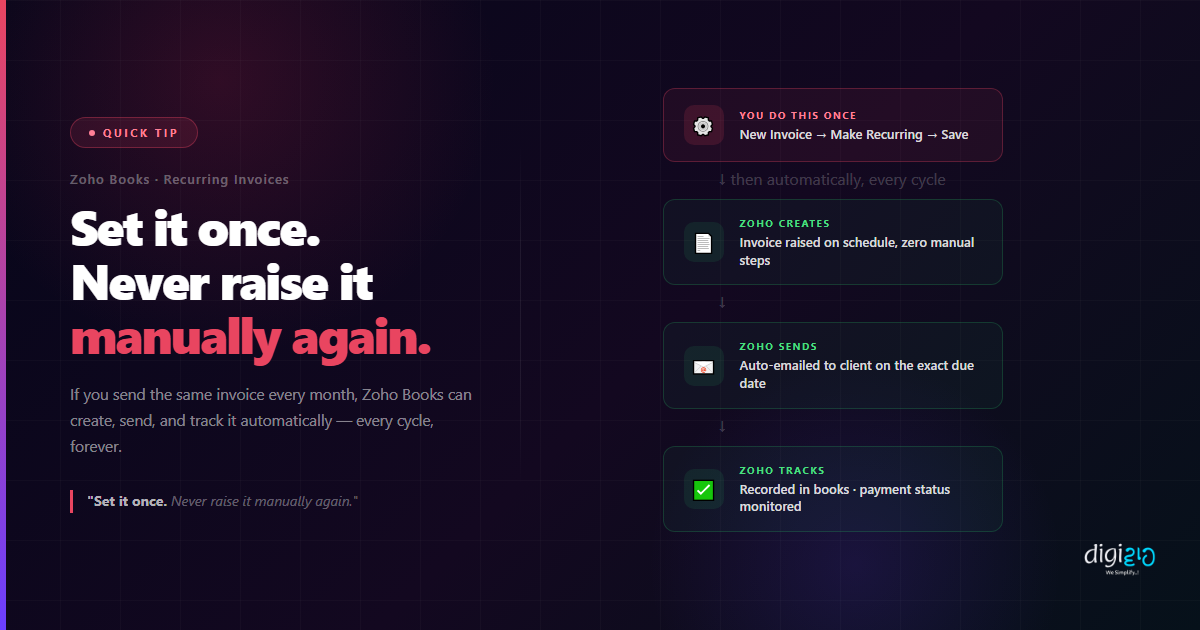
Zoho Books Recurring Invoices eliminate this entirely. You set up the invoice once, tell Zoho how often to send it, and it creates, sends, and tracks it automatically — every cycle, forever. No reminders. No manual work. No risk of forgetting.
Table of Contents
The Time You Waste on the Same Invoice Every Month
If your business has even five clients on a monthly retainer or subscription, you are creating five invoices from scratch every single month. Each one takes 5–8 minutes — finding the client, entering the line items, checking the amount, setting the due date, and sending it.
That is 25–40 minutes a month for five clients. Scale that to ten clients and you are looking at nearly an hour of pure repetitive work — every month, forever — for invoices that never change.
The cost is not just time. Manual invoicing introduces human error — wrong amount, missed client, incorrect due date. A forgotten invoice means delayed cash flow. A late invoice to a corporate client can push payment by an entire month.
None of this needs to happen. Recurring invoices have one job: remove the human from a process that does not need one.
What Are Zoho Books Recurring Invoices?
Zoho Books Recurring Invoices are invoices that Zoho creates and sends automatically on a schedule you define. You set up the invoice once — client, line items, amount, frequency — and Zoho handles every cycle after that without any action from your team.
You can configure:
- Frequency — weekly, monthly, quarterly, annually, or custom intervals
- Start and end date — or set it to run indefinitely
- Payment terms — due on receipt, net 15, net 30, etc.
- Auto-send — Zoho sends directly to the client's email on schedule
- Auto-charge — if a payment gateway is linked, Zoho can collect automatically
Every invoice created is automatically recorded in your books, tagged to the client, and tracked for payment status — exactly as if you had raised it manually. The only difference is you did not have to.
How to Set Up Recurring Invoices in Zoho Books
The setup takes under 5 minutes. Here is exactly how to do it:
-
1Go to Invoices and click New Invoice Open Zoho Books, navigate to Sales → Invoices, and click the New Invoice button.
-
2Fill in the invoice details Select the client, add your line items (services, products, or retainer fee), set the amount, and configure payment terms as usual.
-
3Click "Make Recurring" Look for the Make Recurring option in the invoice form — usually in the top section or under a More Options dropdown. Click it to enable recurring settings.
-
4Set the frequency and schedule Choose how often the invoice should be raised — monthly, quarterly, etc. Set the start date and end date (or select "Never Expires" for ongoing clients). Enable auto-send to have Zoho email it directly.
-
5Save the recurring profile Click Save. Zoho Books creates a recurring profile for this invoice. From this point on, every cycle runs automatically — no action needed from your team.
Setup time: under 5 minutes. Time saved: 30–40 minutes per client, every month.
What Zoho Books Does Automatically
Once a recurring profile is active, here is what Zoho handles without any input from your team:
Creates the Invoice
On the scheduled date, Zoho Books creates the invoice automatically — with the correct client, line items, amount, and due date. No manual action required.
Sends to the Client
With auto-send enabled, Zoho emails the invoice directly to your client on the scheduled date. The client receives it on time, every time — without anyone pressing send.
Records in Your Books
Every recurring invoice is automatically recorded in your accounts — logged against the client, tagged to the correct income category, and reflected in your financial reports instantly.
Tracks Payment Status
Zoho monitors whether each recurring invoice has been paid. Overdue invoices appear in your dashboard automatically — so you can follow up without hunting through records.
And if you have connected a payment gateway — such as Razorpay, PayPal, or Stripe — Zoho can auto-charge the client's saved payment method, making the entire cycle fully touchless: invoice raised, sent, paid, and recorded without a single manual step.
Best Use Cases for Recurring Invoices
Zoho Books Recurring Invoices work best for any fixed, predictable billing. These are the most common use cases for Indian SMEs:
- Monthly retainer clients — consultants, agencies, and service providers billing a fixed monthly fee
- SaaS and subscription billing — software businesses charging monthly or annual subscriptions
- Rent and property management — landlords raising the same rent invoice every month
- AMC (Annual Maintenance Contracts) — quarterly or annual service contracts with fixed billing
- Accounting and bookkeeping services — CA firms billing clients a fixed monthly fee
- Internet and utility providers — fixed monthly service charges to business clients
If you are billing the same client the same amount on a regular schedule — regardless of the industry — Zoho Books Recurring Invoices will eliminate the manual work entirely.
Manual Invoicing vs Recurring Invoices
| Manual Invoicing Every Month | Zoho Books Recurring Invoices |
|---|---|
| Create invoice from scratch every cycle | Invoice created automatically on schedule |
| Remember to send — or miss the date | Auto-sent to client on the exact due date |
| Risk of wrong amount, wrong client, wrong date | Same correct details every time — zero errors |
| 30–40 minutes per client per month | 0 minutes after initial 5-minute setup |
| Manual entry into books each time | Auto-recorded in accounts instantly |
| Track payment status manually | Overdue invoices flagged automatically |
The compounding benefit is significant. For a business with 10 recurring clients, eliminating manual invoicing saves 300–400 minutes per month — that is 5–7 hours returned to your team every single month, permanently, from a single 50-minute setup session.
This also connects naturally to your broader billing automation. When recurring invoices are set up in Zoho CRM, the deal status and payment tracking stay in sync automatically. Combine it with WhatsApp Business API and you can trigger automatic payment reminders on WhatsApp when an invoice goes overdue — without anyone chasing manually. See how businesses are building this end-to-end in our case studies.
Frequently Asked Questions
What are Zoho Books Recurring Invoices?
Zoho Books Recurring Invoices are invoices that Zoho automatically creates and sends to your clients on a schedule you define — weekly, monthly, quarterly, or annually. Once set up, every cycle runs without any manual action from your team.
How do I set up a recurring invoice in Zoho Books?
Go to Sales → Invoices → New Invoice. Fill in the client details and line items as usual, then click "Make Recurring". Set the frequency, start date, and auto-send preference. Save — and Zoho handles every future cycle automatically.
Can Zoho Books automatically charge the client's card for recurring invoices?
Yes. If you have connected a payment gateway (such as Razorpay, Stripe, or PayPal) and the client has a saved payment method on file, Zoho Books can auto-charge the amount on schedule — making the entire billing cycle fully touchless.
Can I edit a recurring invoice after it is set up?
Yes. You can edit the recurring profile at any time — update the amount, add or remove line items, change the frequency, or pause and resume the schedule. Changes apply from the next cycle onwards without affecting already-sent invoices.
What happens if a recurring invoice goes unpaid?
Zoho Books automatically flags overdue recurring invoices in your dashboard. You can set up automated payment reminders in Zoho Books to send follow-up emails to clients at defined intervals — for example, 3 days before due, on the due date, and 7 days after. You can also connect WhatsApp Business API to send overdue reminders via WhatsApp automatically.
Conclusion
If your business has recurring clients, you are currently doing one of the most unnecessary tasks in your workflow — creating the same invoice, every month, from scratch. It takes time. It introduces risk. And it never changes.
Zoho Books Recurring Invoices fix this in a single 5-minute setup. Set it once. Zoho creates it, sends it, records it, and tracks it — every cycle, forever. That is 30–40 minutes per client returned to your team every month, from a task that no longer needs a human.
For businesses with ten or more recurring clients, this is not a small win. It is hours back every month, zero invoicing errors, and a billing process that runs while you focus on actual work.
Set it once. Never raise it manually again.
Want to automate your entire billing and invoicing workflow — including payment reminders?
📅 Schedule a Free Consultation 📥 Download Free eBook