Zoho CRM Macros: Do 3 Post-Call Tasks in One Click
Every sales call ends the same way — three manual tasks that take 10 minutes after every single call. There is a better way.
Published: March 27, 2026
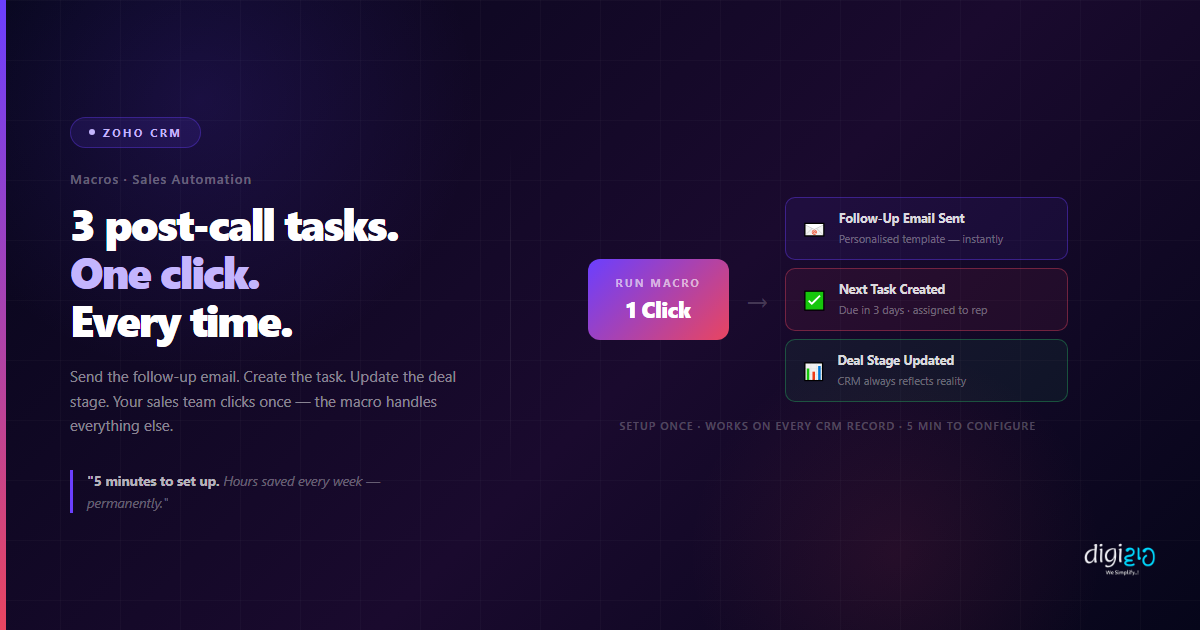
Zoho CRM Macros bundle three post-call tasks — follow-up email, task creation, deal stage update — into a single click. Every sales call ends the same way for most reps: open CRM, send email manually, create a task, update the stage. Three separate actions, every time, for every call. One macro eliminates all of it — so your sales team spends their time selling, not doing admin.
If your sales team does 10 calls a day, that post-call admin is consuming 100 minutes of productive time — every single day. Multiply by your team, multiply by the year, and you have a significant portion of your team's day going to tasks that a single click can replace.
Table of Contents
The Post-Call Admin Problem
After every sales call, your team does the same set of tasks. It does not matter if the call went well or not — the post-call routine is identical every time. Open the CRM record, compose and send a follow-up email, create a task for the next follow-up with a due date, update the deal stage to reflect where the conversation ended. Three actions. Every call. Every rep. Every day.
What Are Zoho CRM Macros?
Zoho CRM Macros are a set of pre-defined actions bundled together and triggered with one click on any CRM record. Unlike Workflows — which run automatically when a condition is met — Macros are run manually by your team member at the moment they choose. The rep decides when to run it. The macro handles everything that follows.
Think of a macro as a personal assistant that does your post-call admin the instant you click a button. You finish the call. You click the macro. Email sent, task created, stage updated — while you are already thinking about the next call.
Both tools serve different purposes. Macros are for repeating action sequences that your team controls the timing of. Workflows are for fully automatic processes that run without any human trigger.
What Zoho CRM Macros Can Do
A single Zoho CRM Macro can execute multiple actions simultaneously. Here is what you can bundle into one click:
Send a Follow-Up Email
The macro sends a pre-written email template to the lead or contact — personalised with their name, deal details, and a summary of the call — the moment you click. No composing, no copy-pasting, no delays.
Create a Follow-Up Task
A new task is created and assigned to the rep with a specific due date — for example, 3 days from now — and a pre-written description. The task appears in the rep's task list immediately.
Update the Deal Stage
The macro moves the deal to the next stage in the pipeline automatically — so your CRM always reflects where each deal actually stands, without relying on reps to update it manually after every call.
Add a Note to the Record
A note is added to the CRM record documenting the call — date, outcome, next steps — so any team member who looks at the record later has full context without asking the rep to summarise.
All four of these actions execute simultaneously when you run the macro. One click. Four things done.
How to Set Up Zoho CRM Macros
Setting up a macro in Zoho CRM takes about 5 minutes. Once created, every rep on your team can run it from any lead, contact, or deal record.
-
1Go to Zoho CRM Setup Log in to Zoho CRM. Click the gear icon (Setup) in the top right corner to open the configuration panel.
-
2Navigate to Automation → Macros In the Setup menu, find the Automation section and click Macros. You will see any existing macros and an option to create a new one.
-
3Click New Macro Give the macro a clear name — for example, "Post-Call Follow-Up" — and select the module it applies to (Leads, Contacts, or Deals).
-
4Add Your Actions Click Add Actions and select what the macro should do: Send Email, Create Task, Update Field (for deal stage), Add Note. Configure each action — choose the email template, set the task due date, select the new stage.
-
5Save the Macro Click Save. The macro now appears on every relevant CRM record. Your team clicks the macro name to run all configured actions instantly.
Setup time: 5 minutes. Post-call admin saved: 10 minutes per call, permanently.
Before vs After Zoho CRM Macros
| Before Macros | After Zoho CRM Macros |
|---|---|
| Follow-up email composed and sent manually after every call | Email sent automatically when macro is clicked — using saved template |
| Follow-up task created manually — sometimes forgotten | Task created instantly with correct due date and description |
| Deal stage updated when rep remembers — often delayed | Stage updated the moment the macro runs — always current |
| 10 minutes of admin after every call | One click — all tasks done in seconds |
| CRM data quality depends on rep discipline | Consistent data — same actions executed every time, every rep |
| Sales team spends selling time on admin | Sales team spends selling time on selling |
Zoho CRM Macros work on any record in your CRM — leads, contacts, deals, accounts. You can create multiple macros for different situations: post-discovery call, post-demo, post-proposal sent. Each one bundles the right set of actions for that stage of the sales process. If you are looking to take this further, Zoho CRM Workflows can run similar action sequences automatically without any click at all. See how Indian SMEs are using CRM automation to reduce admin and close more deals in our case studies, or explore how WhatsApp Business API can bring your customer conversations directly into CRM.
Frequently Asked Questions
What are Zoho CRM Macros?
Zoho CRM Macros are pre-defined sets of actions — like sending an email, creating a task, and updating a deal stage — that are bundled together and triggered with a single click on any CRM record. They eliminate repetitive post-call admin by running multiple actions simultaneously the moment a sales rep clicks the macro.
What is the difference between a Macro and a Workflow in Zoho CRM?
Macros are triggered manually — a rep clicks to run them at the right moment. Workflows are triggered automatically when a condition is met (like a new lead being created or a deal stage changing) — no human click is needed. Macros give your team control over timing; Workflows run entirely on their own.
Can I create multiple macros for different situations?
Yes. You can create as many macros as you need and name them clearly — for example, "Post-Discovery Call", "Post-Demo", "Proposal Sent". Each macro appears on the relevant CRM record and your team selects the right one for the situation.
Do all team members have access to the same macros?
Yes. Once a macro is created and saved, it is available to all team members with access to that CRM module. You can also restrict macro access by role if needed — for example, making certain macros available only to senior sales reps.
Can a macro send a personalised email, or only a generic one?
Personalised. Zoho CRM email templates support merge fields — so the email the macro sends will automatically include the contact's name, company, deal name, assigned rep, and any other CRM field you include in the template. The email looks personalised even though it was sent with one click.
Conclusion
Every sales call ends the same way for most teams: three manual tasks that take 10 minutes, multiplied by every call, every rep, every day. It adds up to hundreds of hours per year — spent on admin instead of selling.
Zoho CRM Macros eliminate that admin permanently. One click. Email sent. Task created. Stage updated. Done. Your rep is already thinking about the next call while the macro handles everything that needs to happen in CRM.
Five minutes to set up. Hours saved every week. That is the ratio that makes macros one of the most practical tools in Zoho CRM for any sales team.
Want to set up Zoho CRM Macros for your sales team — and cut post-call admin to one click?
📅 Schedule a Free Consultation 📥 Download Free eBook