
Zoho Desk Escalation Rules: Never Miss a Customer Ticket Again
A ticket goes unresponded for 8 hours. Your manager has no idea. The customer leaves. This is preventable.
Published: March 25, 2026
A customer raised a support ticket at 10am. By 6pm, no one had replied. The manager did not know. The customer did not complain — they just switched to a competitor. Zoho Desk Escalation Rules exist specifically to prevent this: they automatically alert your manager and flag the ticket before a customer ever reaches that breaking point.
The problem is not your support team. It is the absence of a system to catch what falls through. Without escalation rules, a missed ticket is invisible — until the customer is already gone.
Table of Contents
The Missed Ticket Problem
Support tickets get missed for the same reasons every time: the agent was busy with another issue, forgot to check, or assumed someone else was handling it. In a small team, there is no system to catch this. No one knows a ticket has been sitting for 8 hours unless someone manually checks the queue.
One unhappy customer who does not hear back rarely complains — they just leave. Escalation rules are the system that makes sure this never happens silently.
What Are Zoho Desk Escalation Rules?
Zoho Desk Escalation Rules are automated triggers that fire when a ticket meets certain conditions — typically when a ticket goes unresponded or unresolved beyond a set time limit. When the rule fires, it takes immediate action: alerting the right people, raising the ticket's priority, and making sure the issue is visible before it becomes a problem.
They work on a simple if-then logic:
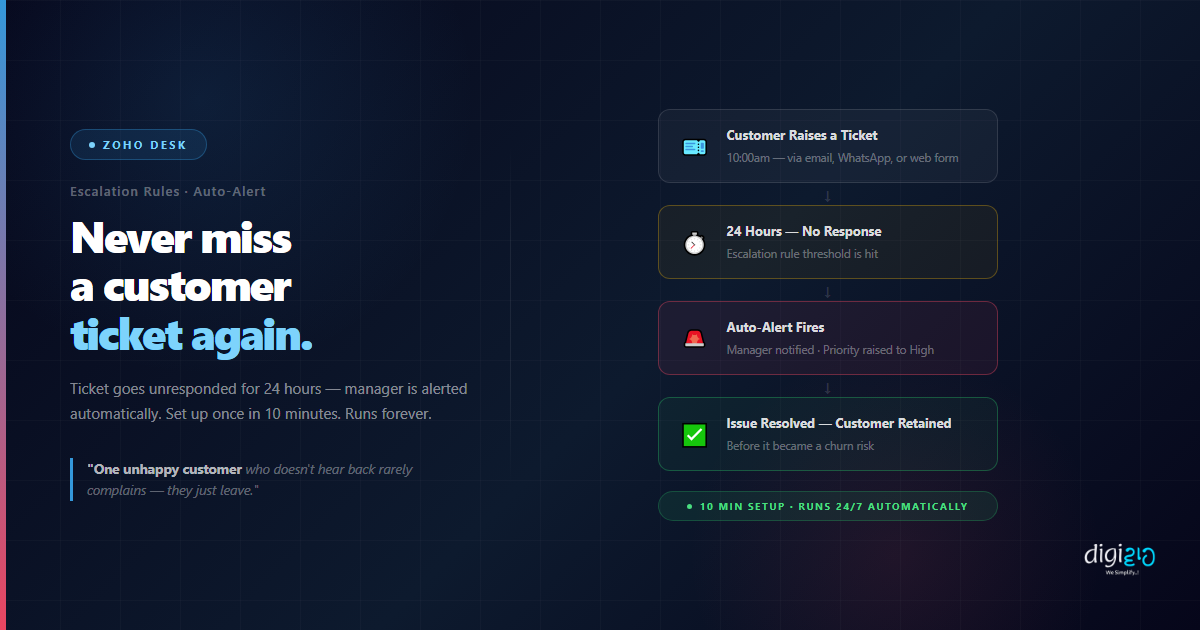
- If a ticket has not been responded to in 24 hours → Then notify the manager and set priority to High
- If a ticket has not been resolved in 48 hours → Then escalate to department head and send a WhatsApp alert
- If a ticket from a VIP customer has not been responded to in 4 hours → Then alert the account manager immediately
Each rule is a safety net. Once set up, it runs automatically — no one has to remember to check, no one has to chase. The system catches what humans miss.
How to Set Up Escalation Rules
Setting up Zoho Desk Escalation Rules takes about 10 minutes. No developer needed.
-
1Open Zoho Desk and go to Setup Log in to your Zoho Desk account. Click the gear icon (Setup) in the top right corner to open the configuration panel.
-
2Navigate to Automation → Escalation Rules In the Setup menu, find the Automation section. Click on Escalation Rules to see your existing rules and create new ones.
-
3Click New Escalation Rule Name your rule clearly — for example, "Unresponded Ticket 24 Hours" — so your team knows what it does at a glance.
-
4Set the Trigger Condition Select the trigger: "Ticket has not been responded to" and set the time threshold — 24 hours is a good starting point for most businesses. You can also filter by department, priority, or customer type.
-
5Set the Actions Choose what happens when the rule fires. Recommended actions: notify manager by email, send a WhatsApp alert (if WhatsApp is connected), set ticket priority to High, and re-assign to a senior agent if needed.
-
6Save and Activate Click Save. The rule is now active. It runs automatically in the background — no clicks required, no daily checks, no one to remind.
Setup time: 10 minutes. Customer tickets that slip through unnoticed: zero.
What Happens After Setup
Once your escalation rules are active, here is what the process looks like when a ticket is at risk:
Without vs With Escalation Rules
| Without Escalation Rules | With Zoho Desk Escalation Rules |
|---|---|
| Missed tickets are invisible until customer complains | Manager alerted automatically before customer notices |
| Manager manually checks queue to find delayed tickets | System flags delayed tickets — no manual checking needed |
| Priority not updated — all tickets look the same | Priority raised automatically when time threshold is hit |
| Escalation depends on someone remembering to escalate | Escalation is automatic — no human decision needed |
| Customer leaves silently — no one knew the ticket was late | Issue caught and resolved before customer reaches breaking point |
| Rules change when staff change — inconsistent process | Same rules apply regardless of who is on shift |
If you are already using Zoho Desk for support, escalation rules are available in your current plan — they just need to be configured. Pair this with WhatsApp Business API to send escalation alerts directly to your manager's WhatsApp, or explore Zoho CRM integration to see the full picture of which support issues are affecting which deals. See real examples in our case studies.
Frequently Asked Questions
What are Zoho Desk Escalation Rules?
Zoho Desk Escalation Rules are automated triggers that fire when a support ticket goes unresponded or unresolved beyond a set time limit. When triggered, they notify the right people, raise the ticket's priority, and ensure the issue is visible before a customer reaches the point of frustration — all without any manual action.
How long does it take to set up Zoho Desk Escalation Rules?
About 10 minutes for a basic rule. You define the trigger condition (for example, "unresponded for 24 hours"), choose the actions (notify manager, raise priority, send WhatsApp alert), and save. The rule is active immediately and runs automatically from that point forward.
Can I set different escalation rules for different types of tickets?
Yes. You can create multiple escalation rules based on ticket department, priority, customer type, or any custom field. For example, VIP customers can trigger an escalation within 4 hours, while standard tickets escalate at 24 hours. Each rule is independent and can have different notification recipients and actions.
Will the manager get notified on WhatsApp?
Yes, if your WhatsApp Business API is connected to Zoho Desk. Escalation actions can include sending a WhatsApp message to the manager or team lead — so alerts reach them on the device they check most frequently, not just via email.
Do escalation rules work outside business hours?
Yes. Escalation rules run 24/7, including weekends and holidays. If a ticket is raised on a Saturday evening and goes unresponded, the rule will still fire at the configured time threshold. You can configure business hours settings in Zoho Desk to factor in your team's working schedule.
Conclusion
The customer who does not hear back rarely complains — they just leave. Escalation rules are the system that makes sure this never happens silently again.
Ten minutes of setup. One active rule. Zero tickets fall through unnoticed from that point forward. Your manager knows. Your agent knows. The ticket is visible and prioritised before the customer reaches breaking point.
Customer churn caused by slow support response is entirely preventable. One escalation rule is all it takes.
Want to set up Zoho Desk Escalation Rules for your business — and make sure no customer ticket ever falls through again?
📅 Schedule a Free Consultation 📥 Download Free eBook