
Zoho Mail Email Templates — Write Once, Send Forever
Your team types the same emails every day. There is a better way.
Last Updated: March 18, 2026
Right now, someone on your team is typing an email they have already typed a hundred times. A reply to a new enquiry. A proposal follow-up. A payment reminder. A meeting confirmation. The words are almost exactly the same every time — because the situation is the same every time.
Zoho Mail Email Templates let you write that email once, save it, and insert it in a single click — every time, forever. This is one of the simplest time-saving features in Zoho Mail, and one of the most underused by Indian SME teams.
Table of Contents
- The Problem: Your Team Is Rewriting the Same Emails
- What Are Zoho Mail Email Templates?
- How Much Time Are You Actually Losing?
- How to Set Up Zoho Mail Email Templates (Step-by-Step)
- Best Use Cases for Email Templates in Your Business
- With vs Without Email Templates
- Frequently Asked Questions
- Conclusion
The Problem: Your Team Is Rewriting the Same Emails
Think about the last five emails your team sent today. How many were completely original? And how many were essentially the same message they have sent before — just with a different name at the top?
This is not unusual — it is the default for most Indian SME businesses. The team has no system for reusing email content. So they rewrite it, every time, from memory.
The cost is not just time. It is consistency. Two sales executives writing their own version of the same follow-up email will write different emails. Different tone. Different details. Different quality. That inconsistency affects how your brand is perceived — by leads and clients alike.
What Are Zoho Mail Email Templates?
Zoho Mail Email Templates are pre-written emails you save once inside Zoho Mail and insert into any new email with a single click. You write the email once — with the right subject line, the right structure, and the right wording — and your entire team can access and use it instantly.
Templates can include:
- Fixed text that stays the same every time
- Placeholder text like [Name] or [Company] where personalisation will go
- Formatted content — bold text, bullet points, tables, links
- Your email signature, if desired
Once inserted, you can still edit the email before sending. The template is the starting point — not a locked form. Tweak the personal details, hit send. Done in 30 seconds instead of 4 minutes.
How Much Time Are You Actually Losing?
The time lost to repetitive email writing does not feel dramatic in the moment — it is 3 minutes here, 5 minutes there. But when businesses actually measure it, the total is almost always a shock.
For a team of five people, that is 375 hours per year — nearly 10 working weeks — spent typing emails that could be inserted in one click.
That is not counting the mental overhead. Every time someone writes a repetitive email from scratch, they are thinking about wording, double-checking their phrasing, making sure they did not miss anything. Templates eliminate that overhead entirely. The wording has already been decided. Your team just personalises and sends.
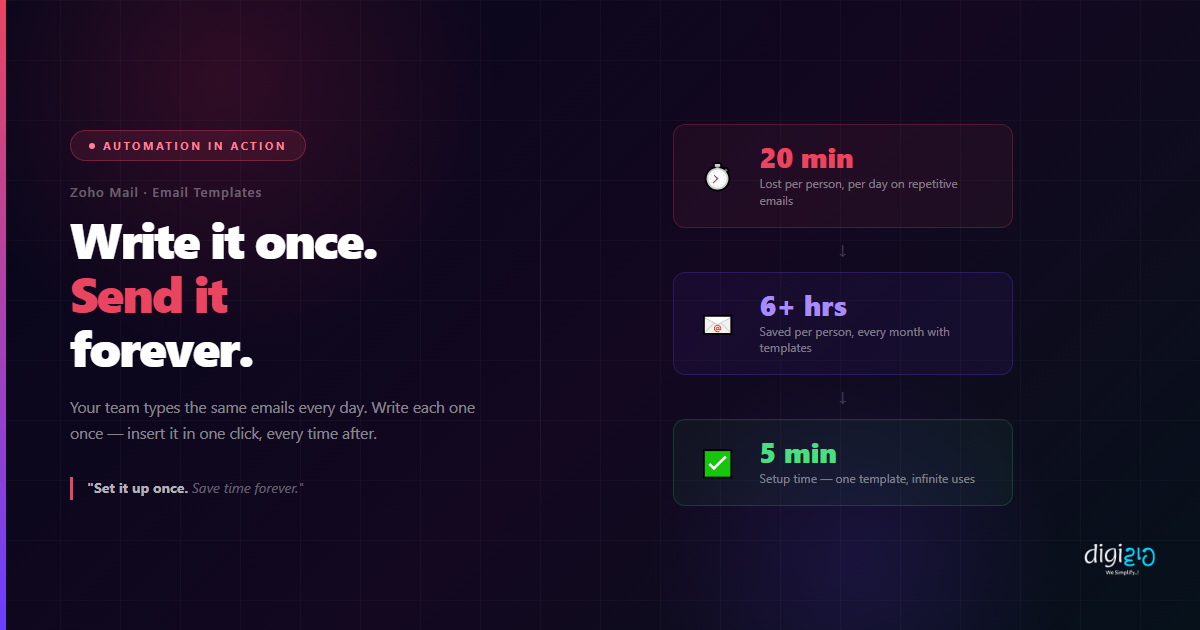
20 minutes a day. 6 hours a month. One setup that takes 5 minutes.
How to Set Up Zoho Mail Email Templates (Step-by-Step)
Setting up Zoho Mail Email Templates takes under 5 minutes. Here is exactly how to do it:
-
1Open Zoho Mail and click Compose Start a new email as you normally would. This will be your template draft.
-
2Write your template email Write the subject line and email body exactly as you want it to appear each time. Use formatting — bold, lists, links — as needed. Leave placeholder text like [Name] or [Company] where personalisation will go.
-
3Click the Templates icon in the compose toolbar Look for the Templates icon in the bottom toolbar of the compose window. Click it to open the templates menu.
-
4Select "Save as Template" Give your template a clear name your team will recognise instantly — "New Enquiry Reply", "Payment Reminder — First Notice", "Proposal Follow-Up Day 3". Save it.
-
5Use it from any new email The next time you need that email, click Compose → Templates icon → find your template → Insert. The full email — subject, body, formatting — appears instantly. Personalise and send.
That is the entire process. One person on your team sets it up. Everyone benefits from it immediately.
Best Use Cases for Email Templates in Your Business
These are the four email types that almost every Indian SME business sends repeatedly — and that work perfectly as Zoho Mail templates:
Lead Enquiry Response
The first reply to a new enquiry sets the tone. Write it once — professionally, with clear next steps — and every enquiry gets the same quality response, within seconds of receiving it.
Proposal Follow-Up
Sent a proposal three days ago and heard nothing? A polite, professional follow-up template means this never gets skipped — and it never sounds desperate when it is worded right from the start.
Payment Reminder
Chasing payments is uncomfortable. A well-worded template removes the awkwardness and ensures the right tone every time — firm but professional, without anyone having to figure out the right words under pressure.
Meeting Confirmation
Confirming a meeting, sharing an agenda, sending video call details. Write it once, use it for every meeting. No risk of forgetting to include the link or the timing details.
Beyond these four, any email your team sends more than once a week is a candidate for a template. Onboarding instructions, project update formats, vendor order confirmations, customer feedback requests — all of these can be templated and standardised across your team.
With vs Without Email Templates
| Without Templates | With Zoho Mail Templates |
|---|---|
| Rewrite the same email from memory every time | Insert the perfect email in one click |
| Inconsistent tone and quality across the team | Every email sounds professional, every time |
| New team members write poor first-draft emails | Day-one quality matches your best team member |
| Easy to forget attachments, links, or key details | Template includes everything — nothing gets missed |
| 20+ minutes per person per day on repetitive typing | 30 seconds per email — personalise and send |
| Mental energy drained on routine communication | Team focuses energy on actual decision-making |
The consistency benefit is often underestimated. When your team uses templates, your brand voice becomes consistent at scale. A client receiving a follow-up from your junior sales executive and one from your senior sales manager should feel like they are dealing with the same professional organisation. Templates make that happen automatically.
If your business uses Zoho CRM, you can take this a step further with Zoho CRM Email Templates — triggered automatically by workflows, so some of these emails go out without anyone pressing send at all. That is the next level: fully automated communication across email and WhatsApp, without any manual action from your team. See how Indian SMEs are putting this into practice in our case studies.
Frequently Asked Questions
What are Zoho Mail Email Templates?
Zoho Mail Email Templates are pre-written emails saved inside Zoho Mail that you can insert into any new email with a single click. You write the email once — with the right subject line, body, and formatting — and reuse it as many times as needed. Each time, you can personalise the details before sending.
How do I create a template in Zoho Mail?
Open Zoho Mail, click Compose, write your email, then click the Templates icon in the bottom toolbar of the compose window and select "Save as Template". Give it a clear name. From then on, clicking the Templates icon in any new email lets you insert that saved template instantly.
Can I share Zoho Mail templates with my whole team?
Zoho Mail templates are saved per user. For team-wide shared templates, Zoho CRM email templates are better suited — and they can be triggered automatically by workflows, removing the need to manually insert a template at all. This is a common setup we build for Digiwah clients.
What kinds of emails should I turn into templates?
Any email you send more than once a week is worth templating. The most impactful ones: new enquiry responses, proposal follow-ups, payment reminders, meeting confirmations, onboarding instructions, and vendor order confirmations.
Is Zoho Mail free for businesses?
Zoho Mail offers a free plan for up to 5 users, including email template functionality. Paid plans start at affordable rates and include advanced features for larger teams. You can check Zoho Mail's official pricing page for the plan that suits your team size.
Conclusion
Your team is losing hours every week to emails they have already written. The wording is the same. The structure is the same. Only the name at the top changes.
Zoho Mail Email Templates are the simplest fix for one of the most common time leaks in Indian SME businesses. Write the email once. Save it. Insert it forever. That is 20 minutes per day back in your team's hands — every day, permanently.
And once you have standardised your email templates, the natural next step is automating the most important ones entirely — so they go out without anyone pressing send. That is where Zoho CRM workflows and WhatsApp Business API automation come in.
But start here. Set it up once. Save time forever.
Want to go beyond templates and automate your entire email and WhatsApp workflow?
📅 Schedule a Free Consultation 📥 Download Free eBook