

Zoho CRM Workflows: Automate Your Sales Process — No Clicks Required
The moment a lead arrives, your CRM should act. Not when your rep remembers to.
Last Updated: June 3, 2026
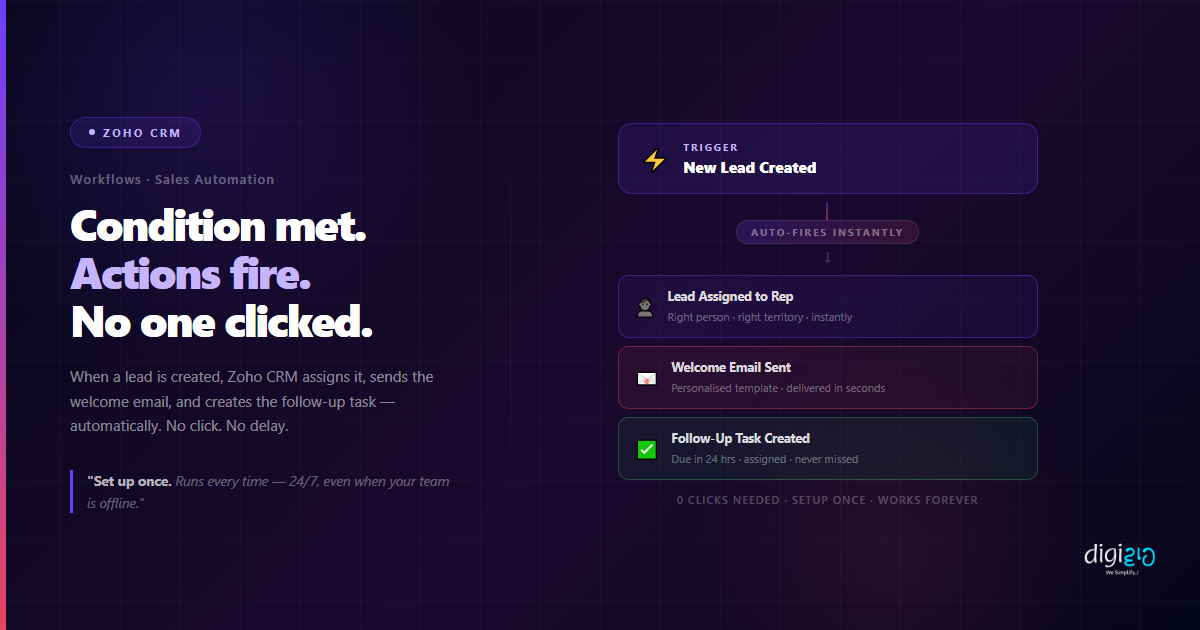
Zoho CRM Workflows (also called workflow rules) run your sales actions automatically the moment a condition is met — a lead is created, a deal stage changes, a field is updated — with no click, no reminder, and no human needed. When a new inquiry comes in, the workflow assigns it to a rep, sends a welcome email, and creates a follow-up task. Your team does not have to remember. The system handles it every time, for every lead, 24 hours a day.
If your team is still manually assigning leads, sending follow-up emails one by one, or relying on reps to remember post-call tasks, you are spending time on work that Zoho CRM Workflows can run automatically — in the background, from the moment the trigger fires.
Table of Contents
The Manual Follow-Up Problem
A potential customer fills in your contact form on a Saturday afternoon. Your team is offline. By the time Monday morning comes around and someone checks the lead queue, that customer has already spoken to two other businesses — and possibly made a decision.
This is not a people problem. Your team is not lazy or forgetful. The problem is that your CRM is waiting to be told what to do, instead of doing it automatically the moment something happens.
What Are Zoho CRM Workflows?
Zoho CRM Workflows are automated rules that watch your CRM for a specific event — and then run a set of actions the moment that event happens. No one on your team needs to click anything. The workflow monitors the trigger, fires when the condition is met, and executes every action you have configured.
Think of a workflow as a set of standing instructions to your CRM: “Whenever this happens, do this, this, and this.” You configure it once. It runs every time the condition is met — whether your team is in back-to-back meetings or offline for the weekend.
Last week we covered Zoho CRM Macros — pre-built action bundles your team triggers manually with one click. Workflows take this a step further: they trigger themselves. Your team does not need to remember to run them, and they do not rely on anyone being available. The CRM acts on its own.
What Zoho CRM Workflows Can Automate
Zoho CRM Workflows can automate any repeating action sequence in your sales process. Here are the four most impactful use cases for Indian SMEs:
New Lead Created
The moment a lead is created — from your website form, WhatsApp inquiry, or manual entry — the workflow assigns it to the right rep, sends a welcome email to the prospect, and creates a follow-up task due in 24 hours. Zero delay. Zero manual work.
Deal Stage Changed
When a rep moves a deal from “Proposal Sent” to “Negotiation”, the workflow automatically creates a follow-up task due in 3 days, notifies the sales manager, and sends the client a relevant email. The right action happens at every stage — without anyone setting it up manually each time.
Lead Not Contacted in 48 Hours
If a lead has been sitting in the queue for 48 hours without any activity, the workflow sends an automatic alert to the assigned rep and copies the manager. No lead goes cold unnoticed — even during busy weeks.
Deal Closed Won
When a deal is marked Closed Won, the workflow sends a congratulations email to the client, creates an onboarding task for the delivery team, and updates the deal record. The handoff from sales to delivery starts automatically — zero gap between winning and starting.
Each of these scenarios requires multiple manual steps without a workflow. With Zoho CRM Workflows, every step runs in the background — consistently, immediately, and without anyone on your team having to think about it.
Types of Zoho CRM Workflow Triggers
Zoho CRM Workflows support three types of triggers, giving you flexibility to automate based on what happens, when it happens, or how long it has been:
- Immediate (On Action): Fires the moment a record is created or edited. Use this for new lead follow-ups, deal stage change notifications, or instant rep assignments.
- Scheduled (Time-Based): Fires a set number of hours or days after the trigger event. Use this for “follow up 3 days after proposal sent” or “alert manager if no activity in 48 hours”.
- Date-Based: Fires on or before a specific date field in the record. Use this for contract renewal reminders, subscription end dates, or payment due alerts.
Most Indian SME sales processes benefit most from immediate and scheduled workflows — covering the lead entry to deal close journey with no manual gaps in between.
How to Set Up Zoho CRM Workflows
Setting up a Zoho CRM Workflow takes under 10 minutes. Once active, it runs permanently — every time the trigger condition is met, for every record, with no further effort from your team.
-
1Open Zoho CRM SetupLog in to Zoho CRM. Click the gear icon (Setup) in the top right corner to open the configuration panel.
-
2Go to Automation → Workflow RulesIn the Setup menu, find the Automation section and click Workflow Rules. You will see any existing rules and a button to create a new one.
-
3Click New Workflow RuleGive the rule a clear name — for example, “New Lead Auto-Assign” — and select the module it applies to (Leads, Contacts, Deals, or Accounts).
-
4Set the TriggerChoose when the workflow fires: On Record Creation, On Record Edit, On a specific Field Value change, or on a Time-based schedule. Select the trigger that matches your use case.
-
5Add Conditions (Optional)Narrow the workflow to specific records — for example, “only when Lead Source = Website” or “only when Deal Value > ₹1,00,000”. Conditions prevent the workflow from firing on records where it is not needed.
-
6Add ActionsClick Add Actions and configure what should happen: Send Email (choose a saved template), Create Task (set assignee and due date), Update Field (change a CRM field value), Send Notification (alert a rep or manager). Add as many actions as needed — they all run together when the workflow fires.
-
7Save and ActivateClick Save. The workflow is now active and will fire automatically every time the trigger condition is met — for every matching record, from this moment forward.
Setup time: under 10 minutes. Result: every lead followed up automatically, permanently.
Before vs After Zoho CRM Workflows
| Before Zoho CRM Workflows | After Zoho CRM Workflows |
|---|---|
| New lead sits in the queue until a rep manually assigns it — often hours later | Lead assigned to the right rep within seconds of creation — automatically |
| Welcome email sent only when rep gets around to it — quality and timing vary | Welcome email sent instantly when lead is created — 24/7, weekends included |
| Follow-up task created only if rep remembers — frequently skipped | Follow-up task auto-created with correct due date and description every time |
| Cold leads go unnoticed — no alert system, no visibility | Manager notified automatically if a lead sits untouched for 48+ hours |
| Sales-to-delivery handoff done manually after deal closes — delays onboarding | Onboarding task and client email triggered automatically when deal is Closed Won |
| Follow-up quality depends entirely on which rep handles the lead | Same actions, same sequence, every lead, every time — regardless of rep |
Zoho CRM Workflows work across every module — Leads, Contacts, Deals, Accounts, and custom modules. You can build multiple workflows for different stages of your sales process: one for lead entry, one for proposal stage, one for deal closing. Each runs independently, covering its part of the funnel automatically. For a full breakdown of what each workflow action can do, see Zoho’s official Workflow Rules documentation. To see how Indian SMEs are structuring their CRM automation end-to-end, visit our case studies, or explore how WhatsApp Business API can trigger CRM workflows directly from customer conversations — so your automation starts the moment a lead messages you.
Frequently Asked Questions
What are Zoho CRM Workflows?
Zoho CRM Workflows are automated rules that watch your CRM for a specific trigger — such as a new lead being created or a deal stage changing — and then run a set of actions automatically. Unlike Macros, which require a team member to click, Workflows fire on their own the moment the trigger condition is met, 24 hours a day.
What is the difference between Zoho CRM Workflows and Macros?
Macros are triggered manually — a rep clicks a button on a CRM record to run them. Zoho CRM Workflows trigger automatically when a condition is met — a record is created, a field changes, or a time period passes. Workflows require no human click and run even when your team is offline, on leave, or busy with other tasks.
Can Zoho CRM Workflows send automated emails?
Yes. Workflows can send pre-written email templates automatically when triggered. The emails support merge fields — the lead’s name, company, deal details, assigned rep — so they look personalised even though they are sent automatically. You can set up workflows for lead welcome emails, proposal follow-ups, deal closing confirmations, and more.
Can a workflow assign leads to different reps automatically?
Yes. Zoho CRM Workflows can update the “Assigned To” field based on conditions — for example, assigning leads from a specific source to a specific rep, or distributing leads across your team. This removes the need for a manager to manually sort and assign the lead queue every morning.
How many Zoho CRM Workflows can I create?
The number of active workflow rules depends on your Zoho CRM plan. The Standard plan includes 5 active rules per module; the Professional and Enterprise plans include significantly more. For most SMEs, 5–10 well-designed workflows cover the majority of the sales process from lead creation to deal close.
Conclusion
Every time a new lead comes in, your team should not have to remember to assign it, send a welcome email, or create a follow-up task. That is exactly the kind of repeating, predictable work that Zoho CRM Workflows were built to eliminate.
Set the trigger. Configure the actions. Activate the rule. From that point forward, every lead that meets the condition gets the same consistent, immediate response — whether your team is in a meeting, on leave, or offline for the weekend.
One workflow. Zero manual follow-ups missed. Under 10 minutes to set up. That is the ratio that makes Zoho CRM Workflows one of the most valuable tools in any SME’s sales process.
What is the one thing you would automate first?
Want to set up Zoho CRM Workflows for your sales team — and automate lead follow-up from day one?
📅 Schedule a Free Consultation