

Short answer A Zoho ERP job card is one operation of a Manufacturing Order, released to a work center, with staff, time and status. Since the October 2026 update, you can also enter the produced quantity on each job card from the Job Cards and Shop Floor modules, so you see what every stage really made. Job cards now take custom fields and custom buttons too.
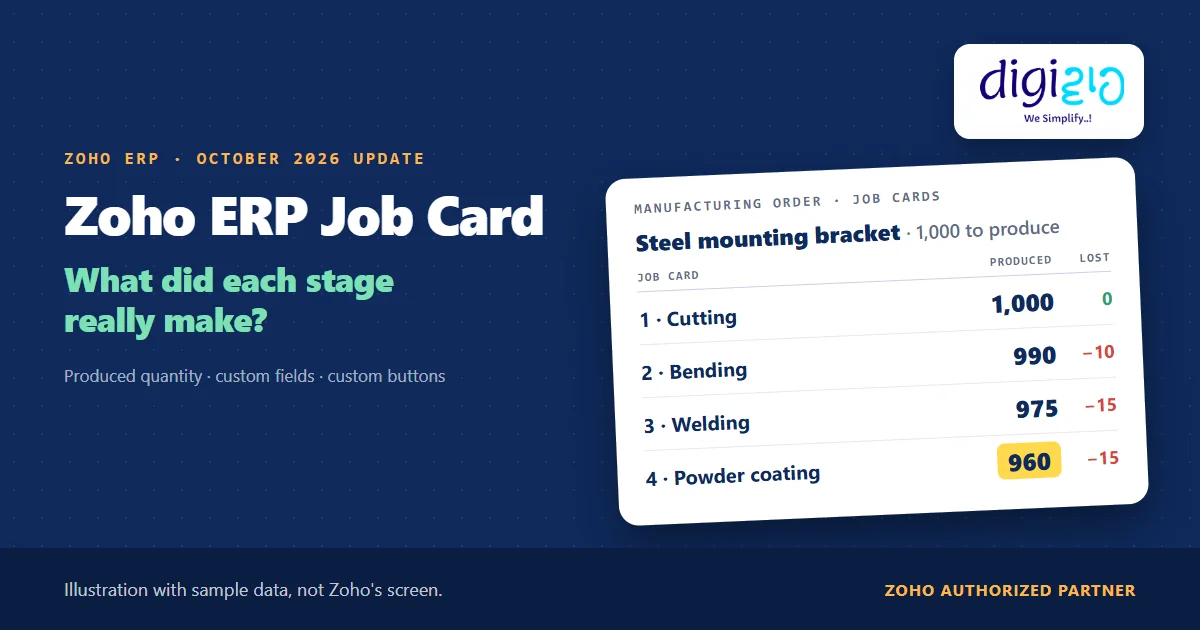
The Manufacturing Order said 1,000 brackets. The dispatch team counted 960. So where did the other 40 go?
Until now, a job card in Zoho ERP told you who worked on a stage and how long it took. However, it did not tell you how many pieces that stage actually made. Zoho ERP’s October 2026 update adds that number to every job card.
Who this guide is for
This guide is for owners, production heads and shop floor supervisors who run Manufacturing Orders in Zoho ERP. If your team only learns about a shortfall at the end of the order, it is for you. You will learn what a job card is, what the October 2026 update adds, how to record output stage by stage, how custom fields and buttons fit in, and what Zoho has not documented yet.
- One job card per operation. Zoho ERP splits each operation of a Manufacturing Order into a job card and allocates it to a work center.
- Produced quantity is new. Since October 2026, you can update the produced quantity on each job card from the Job Cards and Shop Floor modules.
- Output sits next to time. Job cards already track estimated and actual time, and Zoho calculates the cost from the duration.
- Custom fields on job cards. You can add your own fields to capture details specific to your manufacturing process.
- Custom buttons. You can add buttons to Manufacturing Orders and Job Cards under Settings, up to 10 per module.
- The help pages lag behind. As of November 12, 2026, the Job Cards help page does not describe the produced quantity field yet.
What is a Zoho ERP job card?
A Manufacturing Order (MO) makes a finished item through a set of operations, such as cutting, bending and welding. Zoho ERP’s Job Cards help explains the next layer: “Job Cards break down each operation in a manufacturing order into individual jobs and allocate them to work centers automatically, based on availability.”
So each job card is one stage of work. You assign people to it, and Zoho tracks “both the estimated and actual time taken for each job.” Once you assign staff, the help adds: “Based on the duration, the cost for the manufacturing item will be calculated.”
Job cards also follow the MO’s life. First you confirm the MO. Then you click Release Job Cards, and the MO moves to Released, where “All operations in the MO are released as job cards,” says the Understanding Manufacturing Order help. In the Job Cards list, you can filter by Not Started, In Progress, Paused and Completed.
For how operations get into the order in the first place, read our guide to BOM in ERP.
What the October 2026 update adds to the Zoho ERP job card
The Zoho ERP product updates for October 2026 list four changes under Manufacturing Orders that touch job cards. None of them carries a plan limit or an Early Access label in the post.
| Change | What Zoho’s update says |
|---|---|
| Produced quantity | “update the produced quantity for each job card from the Job Cards and Shop Floor modules” |
| Custom fields | “add custom fields to job cards to capture additional information specific to your manufacturing processes” |
| Custom buttons | “configure custom buttons for the Manufacturing Orders and Job Cards modules to execute specific actions” |
| MO views | “Custom Views … Custom Reports, Multi-Level Grouping, and Advanced Search by Item SKU” |
The produced quantity is the biggest of the four. In Zoho’s words, it “helps track the actual quantity produced in each job card and ensures better alignment between job cards and manufacturing orders.”
Why produced quantity on a Zoho ERP job card matters
Before this update, a job card answered two questions: who did the work, and how long did it take. The MO, in turn, holds the Quantity to Produce. So the plan and the final count were visible, but the stages in between were not.
As a result, a shortfall showed up only at the end. By then, nobody could say whether cutting, welding or finishing lost the pieces. With produced quantity on each job card, every stage now records its own output. Therefore, the gap appears at the stage where it happened, on the same day.
This is the output side of production. The input side, meaning which components the MO really used, is covered in our guide to Zoho ERP material consumption. Together, the two tell you what went in and what came out of each order.
How to record output on a Zoho ERP job card, step by step
The steps below follow Zoho ERP’s Job Cards and Shopfloor help, plus the October 2026 update. The help pages do not show the produced quantity field yet, so step 5 uses the update’s own words.
-
Confirm the Manufacturing Order
First, check the item, BOM, Quantity to Produce and location on the MO, and confirm it. You can release job cards only from a confirmed MO.
-
Release the job cards
Next, open the confirmed MO and click Release Job Cards. Zoho allocates each operation to a work center, and the MO moves to Released.
-
Assign shopfloor staff
Then open the Job Cards tab on the MO, click a job, and choose Select Shopfloor Staff under Job Overview. Zoho needs the staff created first.
-
Update batches, serials or bins if you track them
If the items are serial, batch or bin tracked, click Update Details on the MO and add them. Zoho says you can start job cards only after this.
-
Enter the produced quantity on each Zoho ERP job card
As each stage finishes, update the produced quantity on its job card, from the Job Cards module or from the Shop Floor module for that work center.
-
Log the time and complete the job
Finally, stop the timer, or click More, then Mark as Completed, and enter the actual start and end time. Zoho then moves the job to Completed.
The Shopfloor view helps supervisors here. According to the Shopfloor help, it “shows all jobs assigned to each work center, including planned and actual time and the job status.” You pick the work center from a dropdown and click a Job Card Number to work on it.
A worked example: 1,000 brackets, 960 made
For example, take a fabrication unit that makes steel mounting brackets (sample data). The MO is for 1,000 brackets, and the BOM has four operations. So Zoho releases four job cards.
| Job card | Work center | Produced quantity | Lost at this stage |
|---|---|---|---|
| 1. Cutting | Shearing | 1,000 | 0 |
| 2. Bending | Press brake | 990 | 10 |
| 3. Welding | Weld bay | 975 | 15 |
| 4. Powder coating | Paint line | 960 | 15 |
Without stage output, the production head sees only 1,000 planned and 960 made. With it, the 40-piece gap splits into 10 at bending, 15 at welding and 15 at coating. In other words, welding and coating need a look first.
Next, the supervisor adds a custom field on each job card, say “Reason for short quantity”, with options such as Setup piece, Weld defect and Coating reject. This field is our example, not a Zoho default. As a result, the next production meeting starts with facts, not guesses.
Does your team find shortfalls only when the order closes? We set up Manufacturing Orders, job cards and Shop Floor in Zoho ERP, so every stage records its own output and the gap shows the same day.
Custom fields on a Zoho ERP job card
The update says you can “add custom fields to job cards to capture additional information specific to your manufacturing processes.” It does not list examples. So here are a few that plants often ask for. These are our examples, not Zoho’s:
- Machine number, when one work center has more than one machine.
- Shift, as a dropdown: A, B or C.
- Reason for short quantity, as a dropdown, so reasons stay consistent.
- Drawing revision, so the operator confirms the right version.
Zoho ERP’s Field Data Types help lists types such as Number, Decimal, Dropdown, Date, Check Box and Attachment. However, the Fields help does not list Job Cards among its modules yet, so confirm which types appear on job cards in your own organisation. Also note: “The limitations on fields will vary from one subscription plan to another.”
One more tip: operations can carry files. The Operations settings help says you can attach documents to an operation, and “These files will be available during Job Card execution.” So a drawing PDF may not need a custom field at all.
Custom buttons and MO views for the Zoho ERP job card
The update adds custom buttons to two modules: “go to Settings > Manufacturing Orders or Job Cards > Buttons and set up the required custom buttons.” Zoho ERP’s Buttons help explains how buttons work in general. You build them with the Deluge Script Editor, and “You can also use buttons to open links from records.” Zoho adds: “You can add up to 10 buttons per module.”
A button runs as Execute Task (a Deluge script) or Open URL. You can place it on the details page or in the list page menus, show it based on criteria, and limit it to selected users. For example, an Open URL button on a job card could open a work instruction page. Likewise, an Execute Task button could notify the supervisor when output falls short. Both are our examples, and the script one needs Deluge work.
Manufacturing Orders also get Custom Views, Custom Reports, Multi-Level Grouping and “Advanced Search by Item SKU in manufacturing orders and bill of materials.” So a planner can save a view of open MOs per line, or find every MO for one SKU.
From the implementation floor
Plants rarely lose pieces at one stage only. Instead, they lose a few at each stage, and the total looks like one big gap at the end. So when we set up job cards, we ask supervisors to enter output before they close the job, every time. We also keep the reason list short, five or six options at most. A long list gets “Other” every time, and then the data tells you nothing.
What Zoho has not documented about the Zoho ERP job card yet
The update is short. Based on Zoho ERP’s pages as of November 12, 2026, these points are still open:
- The field itself. The Job Cards help page does not describe the produced quantity field yet: no field name, no screen and no steps.
- The effect on the MO. Zoho says produced quantity gives “better alignment between job cards and manufacturing orders.” It does not say whether a lower quantity on the last job card changes what the MO adds to stock at completion.
- The lost pieces. Zoho does not say how to record what happens to the shortfall, such as scrap or rework. So we do not claim it.
- Reports. The Daily Production Summary help lists job card times and durations, not quantities. Whether produced quantity appears in a report is not documented.
- Custom field setup. The Fields help does not list Job Cards yet, so the exact setup path is not documented.
- Mobile. The new Shopfloor mobile app gives staff their “assigned job cards”. The update does not say whether staff can enter produced quantity from the app.
None of these stop you from using the feature. Rather, they are the questions a Zoho ERP implementation partner should test in a sandbox, with your own BOM and operations, before supervisors rely on the numbers.
Related reading: the Shopfloor mobile app for job cards, Zoho ERP record locking on Manufacturing Orders, Zoho ERP component availability, and every change in the October 2026 update.
Frequently asked questions about the Zoho ERP job card
What is a job card in Zoho ERP?
A job card is one operation of a Manufacturing Order, turned into a job. Zoho ERP says job cards “break down each operation in a manufacturing order into individual jobs and allocate them to work centers automatically, based on availability.” You assign shopfloor staff, log the actual time, and Zoho calculates the cost from the duration.
Can I record produced quantity on a Zoho ERP job card?
Yes, since the October 2026 update. Zoho says you can “update the produced quantity for each job card from the Job Cards and Shop Floor modules.” This tracks the actual quantity each stage made. As of November 12, 2026, the Job Cards help page does not describe the field yet, so test it in your own organisation.
When does Zoho ERP create job cards?
After you confirm a Manufacturing Order. Open the confirmed MO and click Release Job Cards. Zoho then allocates each operation to a work center, and the MO moves to Released status. If items are serial, batch or bin tracked, update those details on the MO before you start the job cards.
Can I add custom fields to job cards in Zoho ERP?
Yes. The October 2026 update says you can “add custom fields to job cards to capture additional information specific to your manufacturing processes.” Plants often add a machine number, shift or reason for short quantity. Field limits vary by subscription plan, and the Fields help page does not list Job Cards yet.
How do I add a custom button to Manufacturing Orders or Job Cards?
Go to Settings, then Manufacturing Orders or Job Cards, then Buttons, and click New Button. A button can run a Deluge script as Execute Task or open a link as Open URL. Zoho ERP allows up to 10 buttons per module, and you can limit who sees each one.
Does Zoho ERP record scrap from a job card?
Zoho’s October 2026 update does not say so. It covers produced quantity only, and it does not explain how to record the pieces a stage lost. So treat scrap or rework as a separate process, and test it in a sandbox with your partner before you rely on any number.
Conclusion
In short, the Zoho ERP job card now records what each stage made, not just who worked and for how long. Add a couple of custom fields and the right buttons, and your supervisors see the gap at the stage where it happens. The real work is a habit: enter output before you close every job.
So, one question for your next production review: at which stage did last month’s missing pieces go?
See every stage’s output, same day
Digiwah, a Zoho Authorized Partner, sets up Manufacturing Orders, job cards, Shop Floor and custom fields in Zoho ERP, and trains your supervisors to record output at every stage.
Prefer to write? Tell us how you track stage output today.
