

Zoho Flow: Connect All Your Apps — No Code, No Developer Required
When something happens in one app, actions run in others automatically. Build the flow once. It runs 24/7.
Last Updated: June 5, 2026
Your CRM, accounting software, WhatsApp, and e-commerce store each do their job well. However, none of them talk to each other. As a result, your team becomes the connector — copying data, pasting updates, sending notifications manually, every single time. Zoho Flow fixes this problem without a single line of code or a developer on payroll.
Specifically, Zoho Flow is a no-code automation platform that connects 900+ apps. When a trigger happens in one app, a chain of actions fires in others — instantly, automatically, and without any human involvement. Moreover, it works with both Zoho apps and popular third-party tools like Gmail, Shopify, Slack, and Google Sheets.
Table of Contents
What Is Zoho Flow?
Zoho Flow is an integration and automation platform — part of the Zoho suite — that connects your business apps so they work together automatically. Think of it as the glue between all your software tools. Specifically, you define a trigger (something that happens in one app) and a set of actions (things that should happen in other apps as a result).
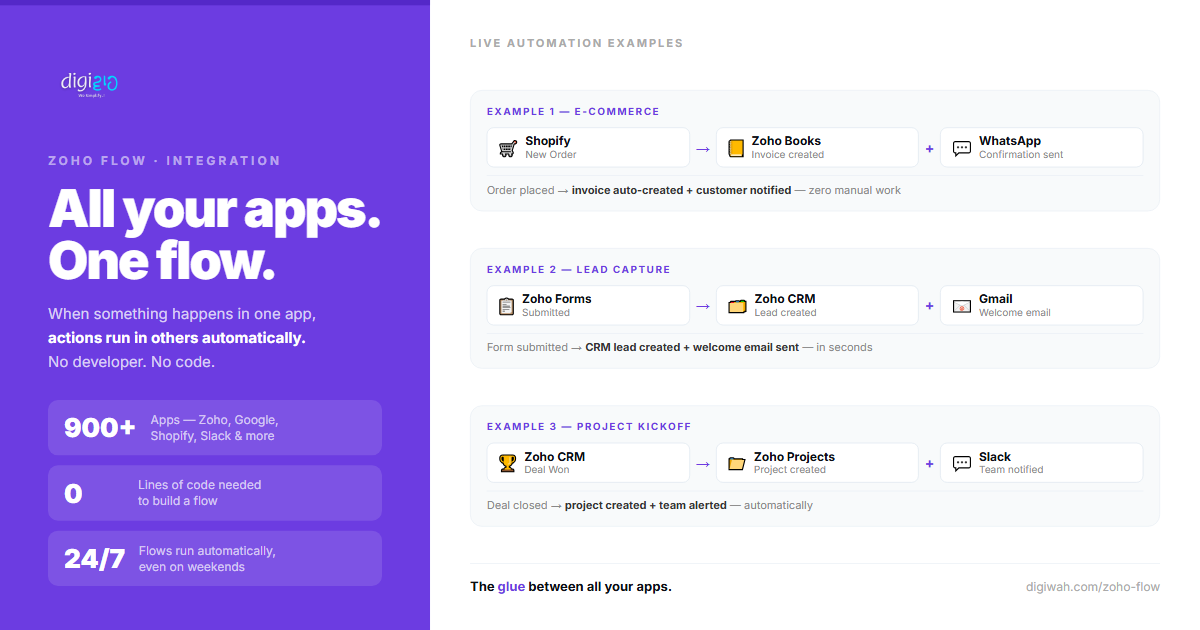
For example, a new Shopify order can automatically create an invoice in Zoho Books and send a WhatsApp confirmation to the customer — all in seconds, without anyone on your team doing a thing. Furthermore, Zoho Flow is a visual builder, so you drag and drop the steps instead of writing any code.
How Zoho Flow Works
Every Zoho Flow automation is built around two things: a trigger and one or more actions.
- Trigger — the event that starts the flow. For instance, “a new row is added to Google Sheets” or “a deal is marked Won in Zoho CRM”.
- Actions — what happens next. For example, “create an invoice in Zoho Books” and “send a WhatsApp message to the customer”.
Additionally, Zoho Flow supports conditions and delays. Consequently, you can build flows like: “If the deal value is above ₹1 lakh, notify the sales manager. Otherwise, assign it automatically to the junior rep.” This level of logic was previously only possible with custom development.
The Building Blocks
- Triggers — over 1,000 pre-built triggers across 900+ apps
- Actions — create, update, or send data in connected apps
- Conditions (If/Else) — route flows based on data values
- Delays — wait for a set time before firing the next action
- Loops — repeat actions for multiple records at once
- Webhooks — connect apps that are not natively supported
Real Automation Examples
The best way to understand Zoho Flow is to see it in action. Here are three flows that Indian SMEs set up regularly — each one replaces hours of manual work per week:
🛒
→
📒
+
💬
📋
→
🗂️
+
📧
🏆
→
📁
+
💬
Before vs After: Manual vs Zoho Flow
| Task | Manual Process | With Zoho Flow |
|---|---|---|
| New order received | Open Books, create invoice, copy details, send to customer | Invoice created + WhatsApp sent automatically in seconds |
| Form submission arrives | Open CRM, manually add lead, send welcome email | Lead created + email sent the moment form is submitted |
| Deal marked Won | Create project in Projects, assign team, send WhatsApp update | All three actions fire automatically the moment deal is Won |
| New Google Sheets row added | Manually enter same data into CRM or accounting tool | Data synced across apps automatically — no copy-paste |
| Payment received in Razorpay | Update Books manually, notify ops team separately | Books updated + team notified + receipt sent — zero effort |
Use Cases for Indian SMEs
Zoho Flow is especially useful for businesses that use multiple tools that currently do not communicate. In practice, here are the most common automation scenarios among Indian SMEs:
E-commerce Automation
Shopify or WooCommerce order → Zoho Books invoice → WhatsApp confirmation → delivery team alert
Lead Management
Website form → CRM lead → welcome email → sales rep task — all within seconds of submission
Payment Reconciliation
Razorpay or Stripe payment → Zoho Books entry → client receipt → ops team notification
Project Kickoff
CRM deal marked Won → Zoho Projects created → delivery team notified — zero manual setup.
Appointment Booking
Calendly booking → CRM contact created → WhatsApp reminder sent → calendar event added
Inventory Alerts
Stock falls below threshold in Zoho Inventory → purchase order raised → supplier WhatsApp sent
Not Just Zoho Apps
Importantly, Zoho Flow is not limited to the Zoho ecosystem. It also connects with Gmail, Google Sheets, Slack, Shopify, WooCommerce, Razorpay, Calendly, Typeform, WhatsApp Business API, and hundreds of other tools your business may already use. Consequently, switching to Zoho does not have to be all-or-nothing — you can connect your existing tools first and migrate gradually.
Zoho Flow vs Zapier
Many business owners have heard of Zapier. Both tools do similar things, but there are key differences worth knowing before you decide:
| Feature | Zapier | Zoho Flow |
|---|---|---|
| Native Zoho app support | Limited | Deep — all Zoho apps natively integrated |
| Pricing | Expensive at scale (USD-based) | More affordable, especially for Zoho One users |
| Logic (If/Else, loops) | Limited on lower plans | Available across plans |
| Zoho One inclusion | Not included | Included in Zoho One subscription |
| Data stays within Zoho | Data passes through third-party servers | Better data control within the Zoho ecosystem |
Therefore, if your business already runs on Zoho — or if you are moving towards it — Zoho Flow is the natural choice. Additionally, for Zoho One subscribers, it is already included at no extra cost.
How to Build Your First Flow
Building your first Zoho Flow takes under 15 minutes. Fortunately, you do not need any technical background. Here is how to get started:
-
1Go to flow.zoho.in
Log in with your Zoho account. If you are on Zoho One, Zoho Flow is already included in your plan. -
2Click “New Flow” and name it
Give it a clear name — for example, “Shopify Order → Books Invoice + WhatsApp” -
3Set your trigger
Search for the app and select the event that starts the flow — for instance, “New Order” in Shopify. -
4Add actions
Click the + button and choose what should happen next. Add as many actions as needed — create invoice, send message, update CRM, and so on. -
5Test and turn on
Run a test to confirm everything works, then switch the flow to Live. From that point, it runs automatically — no further action needed.
Build the flow once. It runs 24/7 — including nights, weekends, and public holidays.
Frequently Asked Questions
What is Zoho Flow?
Zoho Flow is a no-code automation platform that connects 900+ apps. It lets you define a trigger in one app and a set of actions in others — so data moves and tasks complete automatically, without any manual work from your team.
Do I need coding skills to use Zoho Flow?
No. Zoho Flow uses a fully visual, drag-and-drop builder. You select your apps, choose triggers and actions from dropdown menus, and turn the flow on. However, if you want advanced customisation, Zoho Flow also supports custom functions for technical users.
Is Zoho Flow the same as Zapier?
Both tools connect apps and automate workflows. However, Zoho Flow is built specifically to work with the Zoho ecosystem — offering deeper native integrations, better pricing for Zoho users, and inclusion in the Zoho One subscription. Zapier, on the other hand, supports a wider range of non-Zoho apps.
Which apps does Zoho Flow support?
Zoho Flow supports 900+ apps, including all Zoho products (CRM, Books, Desk, Projects, Forms) as well as Gmail, Google Sheets, Slack, Shopify, WooCommerce, Razorpay, Calendly, Typeform, and many more. Additionally, it supports webhooks for custom integrations.
Is Zoho Flow free?
Zoho Flow has a free plan with limited flows and tasks per month — enough to test the tool. For production use, paid plans start at affordable monthly rates. Notably, if you are on Zoho One, Zoho Flow is already included in your subscription at no extra cost.
What is the difference between Zoho Flow and Zoho CRM Workflows?
Zoho CRM Workflows automate tasks within Zoho CRM only — such as sending emails or updating fields when a deal changes stage. Zoho Flow, on the other hand, connects multiple apps across your entire business stack. Essentially, use Workflows for CRM-internal automation and Zoho Flow for cross-app automation.
Conclusion
Every manual handoff between your apps — copying a lead into CRM, creating an invoice after a sale, notifying a team on WhatsApp — is a task that should not require a human. Zoho Flow automates these handoffs so your team focuses on real work instead of data entry.
Furthermore, the setup takes under 15 minutes for most common flows, and the payoff is permanent. Notably, once a flow is live, it runs every time the trigger fires — whether that is 10 times a day or 500 times a day — without any extra effort from your team.
Think about two apps in your business that do not currently talk to each other. That gap is costing your team time every single day. Zoho Flow closes it.
Want to connect your business apps and eliminate manual data entry — starting this week?
