

Short answer Zoho ERP putaway and picklist are the two warehouse documents that give every lot an address. A Putaway moves received stock from the Receiving Area into named bins, batch by batch. A Picklist then tells the picker which items, how many and which bins to pick for a confirmed sales order. Both need bin locations switched on first.
16:55. The truck is at the gate, 150 cartons are due, and the picker is on aisle three again.
The stock is in the building. However, nobody wrote down where it went in the morning, or which batch it was. So the evening pick turns into a search.
Who this guide is for
This guide is for owners, plant heads and store managers of manufacturing and trading businesses that run, or plan to run, their stores in Zoho ERP. You will learn what a putaway and a picklist each do, why bins come first, how to set both up step by step, and what a full day looks like in a moulding unit. In addition, you will see what the October 2026 update added and what Zoho’s help does not cover yet.
- Two ends of one day. A Putaway files the morning’s received stock into bins. A Picklist pulls the evening’s sales-order stock out of them.
- Bins come first. Zoho ERP shows the Putaways module only once at least one location has bin locations enabled.
- Batches travel with the stock. On a putaway, you pick the Receiving Area Batch and the Destination Bin, and one batch can go to several bins.
- The picker chooses the batch while picking. Zoho asks for batches or bins when the picker updates the picklist, not when you create it.
- Preferred Bin is a hint. Only admins can set it, and pickers can still pick from other bins.
- October 2026 update. Move Orders gained Workflow Rules, Validation Rules, Record Locking and custom buttons, and the Putaway and Move Orders modules gained Quick and Advanced Search.
- Plans. Zoho’s pricing page lists Picklist and “Putaway & move orders” on Standard and Premium; bins are capped at 2,000 per location on Standard.
- What Zoho ERP putaway and picklist do
- Why bins come first
- How a putaway works
- How a picklist works
- Putaway, Move Order and Picklist compared
- What the October 2026 update adds
- Setup, step by step
- A worked example: one day in a moulding unit
- Which plans include them
- What they do not do
- Frequently asked questions
What do Zoho ERP putaway and picklist do?
Most warehouses do not fail during production. Instead, they fail at the two edges of the day. In the morning, received goods sit in the intake bay and then go wherever there is space. In the evening, the dispatch team needs those goods and nobody knows the rack.
Zoho ERP closes both edges with one document each. The Understanding Putaways help defines a putaway as “the process of transferring received goods from the Receiving Area to their assigned storage bins within the warehouse.” It follows “purchase receipts, transfer orders, or sales returns.”
The picklist covers the other end. According to the Understanding Picklists help, “A Picklist is used to record the items that need to be physically picked from the warehouse to fulfill a confirmed sales order. It helps assignee identify the required items, quantities, and bin locations before shipment.”
In other words, the putaway writes the address and the picklist reads it. Zoho puts the payoff in one line: “Properly stored items are easier to locate, reducing picking time and improving operational efficiency.”
Why bins come first
A bin is the address. Zoho ERP’s Locations help calls bin locations “the smallest space in which goods are stored within a warehouse.” You group bins into zones, and Zoho describes a zone as “an area or a room within a warehouse that contains multiple bins.” So a raw material store can be one zone, and each rack position inside it a bin.
Without bins, neither document has much to say. The Putaways help is clear: “The Putaways module is available only if bins locations are enabled for any location in your organization.” Likewise, Move Orders need bins, and a picklist can suggest a Preferred Bin only when “The selected location must be bin-enabled” and “The items must be bin-enabled.”
Two warnings matter before you start. First, “Once you enable Locations, you will not be able to disable it in Zoho ERP.” Second, once a bin is used in a transaction, “you won’t be able to edit, disable, or delete bin locations.” Therefore, draw the bin plan on paper, walk it on the floor, and only then create it in Zoho ERP.
How a putaway works: Receiving Area to bin
A putaway starts where the receipt ends. Zoho says: “To create a putaway, items must be available in the Receiving Area of the warehouse or business location.” You then open Inventory, go to Warehouse Operations, choose Putaways and click +New.
On the form, you select the Location Name and the item, and enter the Quantity Transferred out of the Receiving Area. Then you click Select Bins and choose the destination bin for each part of the quantity.
For batch-tracked items, the putaway carries the batch with it. The Create Putaway help says: “If it is a batch-tracked item, click Select Batches & Bins. Select the Receiving Area Batch and the Destination Bin. A single batch can contain multiple items, which can be distributed across different destination bins.” As a result, one batch of drums can sit in two racks, and the system still knows both addresses.
Finally, you click Generate Putaway. Zoho also lists Edit, Delete, PDF and Print for a putaway, and a Scan Item option on the item table.
How a picklist works: sales order to picker
A picklist starts from a confirmed sales order. Zoho gives three ways to create one: from the Picklists module, from a single sales order (Create, then Picklist), or in bulk from several selected sales orders (More, then Generate Picklist).
On the form, you choose an Assignee, “the user responsible for processing or handling the picklist”, and the Location Name. Zoho fills the quantity with a simple rule: “Quantity to Pick = Quantity Ordered – Quantity already picked – Quantity packed directly without picking.” When you click Generate Picklist, the status reads Yet to Start.
An admin can also set a Preferred Bin. However, Zoho calls it “only a preference and not mandatory. Pickers can also pick items from other bins if required.”
The batch comes in at picking time. The Update Status help says: “If the item is Advance Inventory tracked, or Bin enabled, select the corresponding Serial Numbers, Batches, or bins while picking the item.” The picker then enters the Quantity Picked and moves each item through Yet To Start, In Progress, On Hold and Completed. If everything is picked, Set Status to Completed marks every item as Completed too.
Putaway, Move Order and Picklist compared
Zoho ERP has three bin documents, and teams often mix them up. The table below uses Zoho’s own wording where it exists.
| Putaway | Move Order | Picklist | |
|---|---|---|---|
| What it does | “Moves received goods from the Receiving Area to designated storage bins” | “Transfers items between bins within a location” | Records items “to be physically picked from the warehouse to fulfill a confirmed sales order” |
| Starts from | Purchase receipts, transfer orders, sales returns | Internal stock relocation or reorganisation | Confirmed sales orders |
| Needs bins | Yes | Yes | For Preferred Bin and bin picking |
| Batch step | Receiving Area Batch → Destination Bin | Source and destination batches and bins | Batches selected while picking |
| Financial impact | “No financial impact” | “No financial impact” | Not stated by Zoho |
What the October 2026 update adds to Zoho ERP putaway and move orders
Zoho’s October 2026 Zoho ERP update touched two of the three bin documents. First, the update post says: “Move Orders now support Workflow Rules, Validation Rules, transaction-level Record Locking, and custom buttons.” Second, it says: “Quick Search and Advanced Search are now supported in the Move Orders and Putaway modules.”
In practice, record locking matters most for the bin history. Once a move order is done, you can lock it, so nobody quietly edits where the stock went last week. Our guide to Zoho ERP record locking walks through the lock setup step by step. Similarly, workflow and validation rules on Move Orders follow your own setup, because the update post does not give examples.
Search helps on a busy floor too. For example, a store manager can now find the putaway for one batch or one date without scrolling the whole list. However, the update does not mention any change to Picklists, so the picklist steps below stay the same.
How to set up Zoho ERP putaway and picklist, step by step
The steps follow Zoho ERP’s Locations, Putaways, Picklists and Purchase Receives help as of November 21, 2026.
-
Enable Locations
First, go to Settings, then Organization Settings, select Locations and click Enable Locations. Remember that you cannot switch Locations off again.
-
Enable bin locations and create zones
Next, in the same Locations page, open the location’s dropdown and select Enable Bin Locations. Then create zones and bins with Level, Location, Delimiter, Alias Name and Total, for example RM-02 in a Raw Material zone.
-
Turn on the Zoho ERP putaway and picklist modules
Click the Gear icon, go to Configure Modules under Setup & Configurations, and check Putaways under Inventory. Then enable the Picklists module in Settings too, because both create pages list it as a prerequisite.
-
Receive the stock
Record the Purchase Receive (the GRN step, in plant language) against the purchase order. For batch-tracked items, you add the batch with Add Batches & Bins.
-
Generate the putaway
Then go to Inventory, Warehouse Operations, Putaways, +New. Enter the Quantity Transferred, choose Select Batches & Bins, split the batch across bins with + Add Bin, and click Generate Putaway.
-
Generate the picklist from the sales order
When the order is confirmed, open the sales order, click Create and select Picklist. Choose the Assignee, check the Quantity to Pick, set a Preferred Bin if you are an admin, and click Generate Picklist.
-
Update status while picking
Finally, the picker opens the picklist, clicks Update Status, enters the Quantity Picked and selects the batch and bin for each item. When all items are picked, set the picklist to Completed.
A worked example: one day of Zoho ERP putaway and picklist in a moulding unit
For example, take a plastics moulding unit with one plant location, a Raw Material zone and a Finished Goods zone (sample data throughout).
| Time | Document | What happens | Result |
|---|---|---|---|
| 08:30 | Purchase Receive | 40 drums of moulding resin arrive and go into the Receiving Area as batch RS-0914 | Stock in, no bin yet |
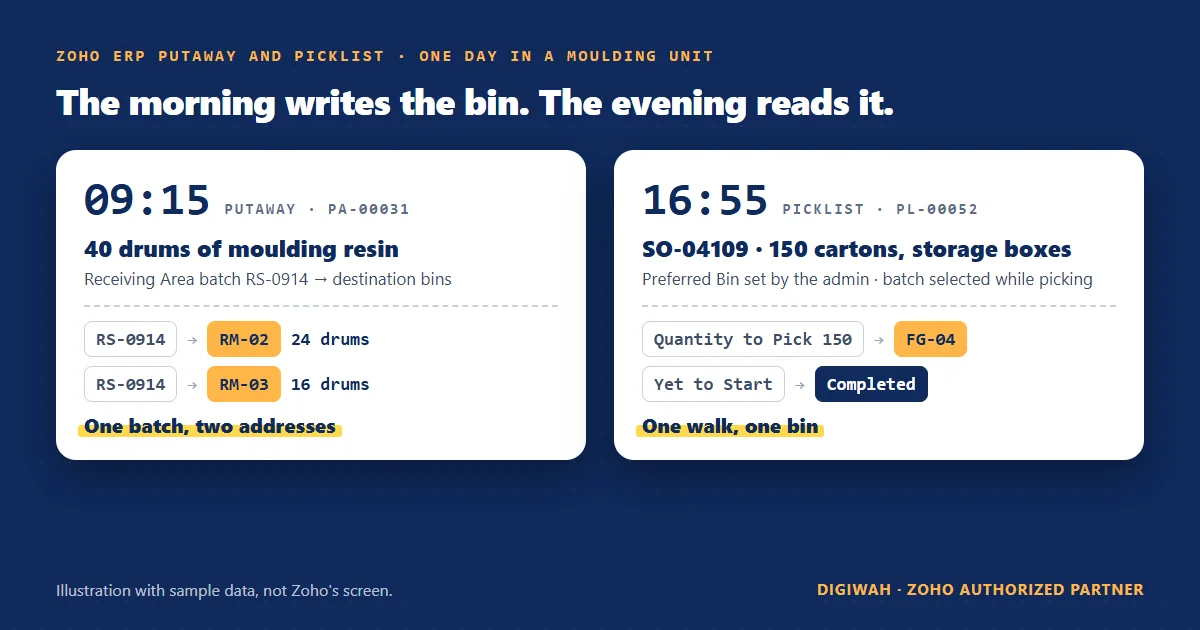
| 09:15 | Putaway PA-00031 | Select Batches & Bins: RS-0914 → 24 drums to RM-02, + Add Bin → 16 drums to RM-03 | Intake bay clear; one batch, two addresses |
| 16:40 | Sales order SO-04109 | A distributor confirms 150 cartons of storage boxes | Confirmed |
| 16:45 | Picklist PL-00052 | Assignee: the evening picker · Quantity to Pick 150 · Preferred Bin FG-04 (set by the admin) | Yet to Start |
| 16:55 | Update Status | The picker walks to FG-04, selects the batch while picking, and enters Quantity Picked 150 | Completed |
Now change one thing. Suppose the packing team had already packed 30 of those cartons directly, without a picklist. Then Zoho’s rule gives 150 − 0 − 30 = 120 as the Quantity to Pick, so the picker does not pull the same 30 cartons twice.
As a result, the 16:55 truck waits for one walk to one bin, not a search of every aisle.
Does your evening pick still start with a search? We plan your zones and bins on the floor, set up putaways and picklists in Zoho ERP, and train the store team to run both every day.
Which Zoho ERP plans include putaway and picklist?
Zoho’s Zoho ERP pricing page compares two editions, Standard and Premium. As of November 21, 2026, it lists Picklist, “Putaway & move orders” and Wave picking on both.
The difference is bin count. “Bin management” reads “2000 bin/location” on Standard and “Unlimited” on Premium. So a unit with one raw material store and one finished-goods store fits on Standard, while a large multi-zone warehouse should count its bins before it picks a plan.
From the implementation floor
The software part takes an afternoon. The bin plan takes longer, because a bin code nobody can read on the floor is useless. So we walk the store with the supervisor, label racks the way people already talk about them, and keep codes short, like RM-02 or FG-04. Then we run one week of putaways before we start picklists, so the addresses are real before anyone depends on them.
What Zoho ERP putaway and picklist do not do
Based on Zoho ERP’s help pages and update posts as of November 21, 2026, these points are not covered, or work differently from what teams expect:
- No enforced bin. The Preferred Bin is a suggestion. Zoho says pickers “can also pick items from other bins if required”, so a wrong bin is not blocked.
- No documented pick route. The picklist shows items, quantities and bins. The help does not describe a walking route or aisle order.
- Receiving Area versus direct bins. The Purchase Receive help also lets you select bins at receipt. Zoho does not explain when stock lands in the Receiving Area and when it goes straight to a bin, so test your receiving flow in a sandbox.
- Wave picking. The pricing page lists it (“grouping orders into scheduled waves”), but we found no Zoho ERP help page for it yet.
- Batch choice is manual. The picklist help does not say Zoho chooses the oldest batch for you. The picker selects batches while picking.
- Bins lock once used. After a bin appears in a transaction, you cannot edit, disable or delete it. A bad bin plan stays with you.
None of these stop a plant from using the feature well. Rather, they are the decisions a Zoho ERP implementation partner should settle with you before go-live.
Related reading: inventory management in ERP, Zoho ERP batch tracking, checks on transfer order receives, and purchase orders in ERP.
Frequently asked questions about Zoho ERP putaway and picklist
What is the difference between a putaway and a picklist in Zoho ERP?
A putaway moves received stock from the Receiving Area into storage bins after a purchase receipt, transfer order or sales return. A picklist lists the items, quantities and bins a picker must pull to fulfil a confirmed sales order. So the putaway files stock into bins in the morning, and the picklist pulls it out for dispatch.
Do I need bins to use Zoho ERP putaway and picklist?
For putaways, yes. Zoho says the Putaways module “is available only if bins locations are enabled for any location in your organization.” Picklists work for confirmed sales orders, but the Preferred Bin and bin selection while picking need a bin-enabled location and bin-enabled items. So enable bin locations first.
Can one batch go into more than one bin?
Yes. On a putaway for a batch-tracked item, you choose Select Batches & Bins, then the Receiving Area Batch and the Destination Bin. Zoho says a single batch “can be distributed across different destination bins”, and you click + Add Bin to add another bin for the same batch.
How does Zoho ERP work out the Quantity to Pick?
Zoho’s formula is “Quantity to Pick = Quantity Ordered – Quantity already picked – Quantity packed directly without picking.” For example, if a sales order has 150 cartons and 30 were already packed directly, the picklist asks for 120. You can still edit the quantity on the picklist.
Must the picker use the Preferred Bin?
No. Zoho calls the Preferred Bin “only a preference and not mandatory. Pickers can also pick items from other bins if required.” Only admins can set it, and the location and item must be bin-enabled. So treat it as a hint, and train pickers to record the bin they actually used.
Does a putaway change my accounts?
No. Zoho ERP’s comparison table lists “No financial impact” for both Putaway and Move Order. They only change where stock sits inside a location. Zoho does not state the financial impact of a picklist, and invoices and bills handle the money side of the sale or purchase.
Conclusion
In short, a Zoho ERP putaway and picklist give each lot an address in the morning and use it in the evening. The bins come first, the putaway writes the address, and the picklist sends the picker straight to it. The real work is a bin plan that people on your floor can read.
So, one question for your store team: how long does your evening pick take today?
Give every batch an address
Digiwah, a Zoho Authorized Partner, plans your zones and bins, sets up putaways and picklists in Zoho ERP, and trains your store and dispatch teams to run them.
Prefer to write? Tell us how your warehouse runs today.
