

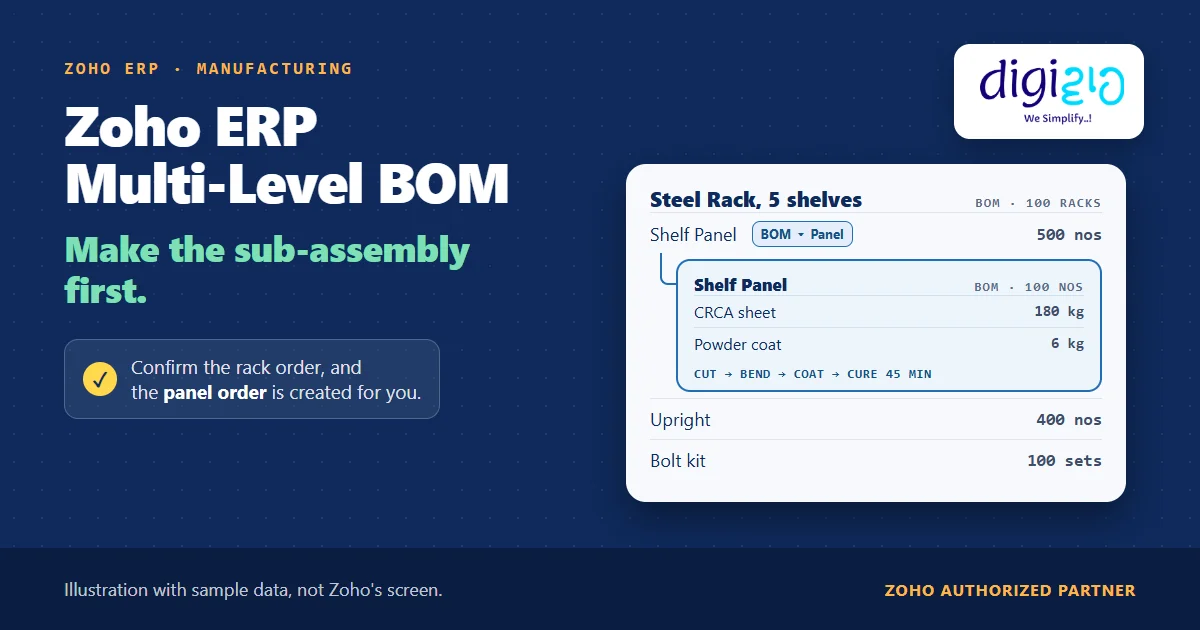
Short answer A Zoho ERP multi-level BOM is a bill of materials in which one component has its own bill of materials. You select that component’s BOM inside the parent BOM. Then, when you confirm the parent manufacturing order, Zoho ERP creates the component’s manufacturing order automatically, already in Confirmed status. The only prerequisite: the component must have at least one BOM of its own.
A rack maker rarely buys shelf panels. Somebody cuts the sheet, bends it, powder-coats it, lets the coat cure for 45 minutes, and only then does anything reach the assembly line.
Yet many plants still plan the panel as if it fell from the sky. The finished rack gets a manufacturing order, while the panels live on a whiteboard. Zoho ERP’s multi-level bill of materials closes that gap: the panel becomes a job of its own, created by the same click that confirms the rack order.
Who this guide is for
This guide is for owners, production heads and planners in manufacturing units who run, or plan to run, production in Zoho ERP. If your process has an in-between stage, such as a sub-assembly, a coated part, a wiring harness or a premix, it is for you. You will learn what a multi-level BOM is, how to set one up in the right order, what happens when you confirm the order, and what Zoho has not documented yet.
- A multi-level BOM is a bill of materials where a component, such as a sub-assembly, has its own bill of materials, with its own components and operations.
- The prerequisite is the whole trick. The component must already have at least one BOM. Only then does a Bill of Materials dropdown appear below it.
- One confirmation, two jobs. When you confirm the parent manufacturing order, Zoho ERP creates the component’s manufacturing order automatically, in Confirmed status.
- The link shows both ways. The child order number shows below the component on the parent order, and the child order shows the parent in its From Manufacturing Order field.
- Build bottom-up. Create the sub-assembly’s BOM first, then the finished item’s BOM, then the manufacturing order.
What is a Zoho ERP multi-level BOM?
First, the single-level kind. Zoho ERP’s Bill of Materials help says a BOM “defines the complete list of components, and operations required to manufacture an item.” In other words, it is the recipe plus the route.
A multi-level BOM adds one idea. Zoho’s Create Bill of Materials page puts it like this: when a component needs to be manufactured, “you can simply select the bill of materials for the component while manufacturing the item to produce, instead of manufacturing each component separately.”
| Single-level BOM | Zoho ERP multi-level BOM | |
|---|---|---|
| Components | All bought in, or taken from stock | At least one component has its own BOM |
| Manufacturing orders | One, for the finished item | One for the finished item, plus one created automatically for the component |
| The in-between stage | Planned outside the system, or as a separate order you raise by hand | A job of its own, with its own components and operations |
| Prerequisite | Manufacturing module, cost template, work center type, operation | The same, plus a BOM for the component |
So the difference is not a new module. Instead, it is one dropdown below a component, and what Zoho ERP does with it when you confirm the order.
What you need before you start a Zoho ERP multi-level BOM
Zoho ERP lists the same prerequisites for every BOM, and one more for the multi-level kind:
- The Manufacturing module. Zoho says you “must enable the Manufacturing module in Zoho ERP to use the Bill of Materials module.”
- Three settings. You “must have created at least one cost template, work center type and operation in settings to create a bill of material.”
- A BOM for the component. For the multi-level part: “The component should have at least one bill of materials created.”
- The right plan. The BOM help page notes: “This is available only for certain plans in Zoho ERP.” So check your plan with Zoho or your partner first.
Because the last two depend on order, the sequence matters. If you build the rack’s BOM before the panel’s, there is no dropdown to pick, and you end up editing the parent later.
How to set up a Zoho ERP multi-level BOM, step by step
The steps below follow Zoho ERP’s Enable Manufacturing Module, Create Bill of Materials and Create Manufacturing Order help pages.
-
Enable the Manufacturing module
First, click the Gear icon, go to Organization Settings, click Configure Modules, scroll to the Manufacturing section under Business-Specific Operations and enable Manufacturing. Bill of Materials, Manufacturing Orders, Job Cards and Shop Floor then become available.
-
Create a cost template, work center type and operation
Next, in Settings, create at least one of each. For a rack line, the operations might be cutting, bending, powder coating, curing, assembly and packing.
-
Build the component’s BOM first
Then go to Items, open Bill of Materials and click +New. Set the Item to Produce to the in-between item, such as Shelf Panel, and add its components and operations. Click Save.
-
Build the parent BOM in your Zoho ERP multi-level BOM
After that, create the BOM for the finished item and add the shelf panel as a component. Because the panel now has a BOM, a Bill of Materials dropdown shows below it. Select the panel’s BOM, add the operations and click Save.
-
Create the manufacturing order as a draft
Afterwards, open the parent BOM and click +Create Manufacturing Order, or start from the Manufacturing Order module. Enter the Quantity to Produce, the start date, the owner and the location, then click Save as Draft.
-
Review, then confirm
Finally, check the draft while you can still edit it, then confirm it. Zoho ERP creates the panel’s manufacturing order in Confirmed status, and its number shows below the component name.
A worked example: steel racks and their shelf panels
For example, take a unit that makes a five-shelf steel storage rack. The numbers below are sample data, chosen to show the mechanism, not a real plant’s design.
| Level | Item to Produce | BOM quantity | Components | Operations |
|---|---|---|---|---|
| Parent | Steel Rack, 5 shelves | 100 racks | Shelf Panel 500 nos (panel’s BOM selected) · Upright 400 nos · Bolt kit 100 sets | Assembly, inspection, packing |
| Component | Shelf Panel | 100 nos | CRCA sheet 180 kg · powder coat 6 kg | Cutting, bending, powder coating, then curing 45 minutes (blocked by coating) |
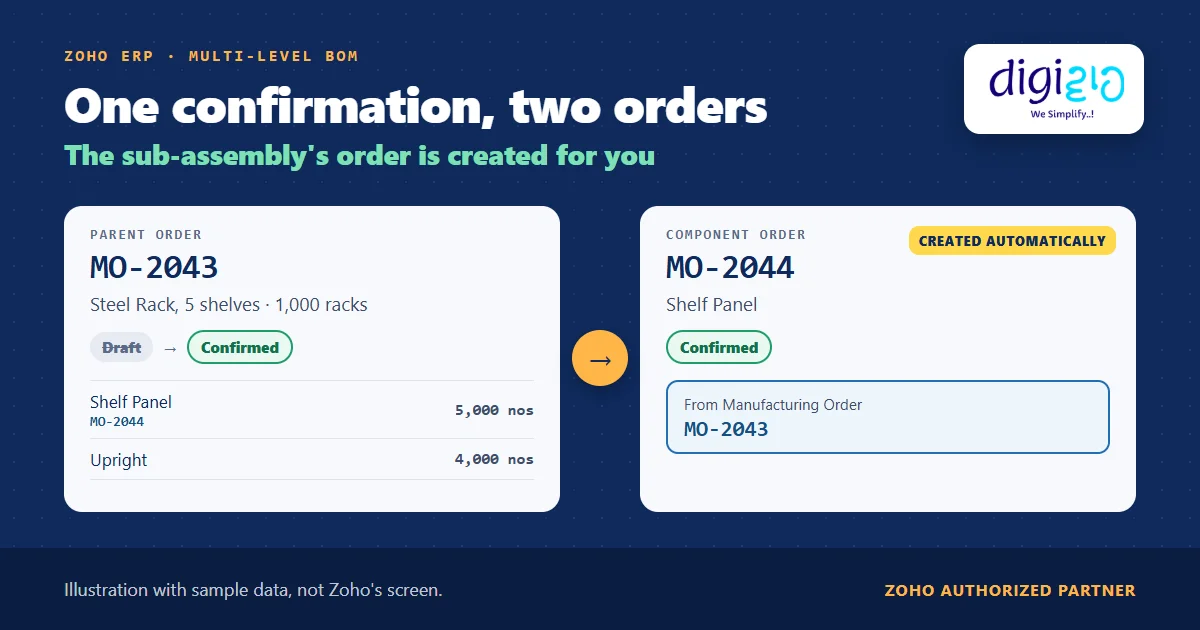
First, the planner creates manufacturing order MO-2043 for 1,000 racks. Zoho ERP scales the components from the BOM, so the order asks for 5,000 shelf panels, 4,000 uprights and 1,000 bolt kits. Then the planner saves it as a draft, checks it, and confirms it.
Confirming MO-2043 for the racks also creates MO-2044 for the shelf panels, already Confirmed
Zoho ERP help · order numbers are sample data
Shelf panels the rack order needs for 1,000 racks (500 per 100 racks × 10)
Our arithmetic · sample data
As a result, the floor now sees two jobs. The press shop and coating line work on MO-2044, and the assembly team on MO-2043. On the rack order, MO-2044 shows below Shelf Panel. On the panel order, the From Manufacturing Order field shows MO-2043. Nobody has to raise the panel order by hand, or remember to.
Have a sub-assembly or coating stage that lives on a whiteboard? We will map your in-between stages into a two-level BOM in Zoho ERP, set up the operations and work centers, and run the first orders with your planner.
What happens when you confirm a Zoho ERP multi-level BOM order?
In short, Zoho ERP raises the component’s order for you. The Create Manufacturing Order help says: “If the components in the confirmed manufacturing order have bill of materials, then manufacturing orders for the components are automatically created in the Confirmed status.”
- On the parent order. “You can view the Manufacturing Order# below the component name and click it to open the component’s manufacturing order.”
- On the child order. “The From Manufacturing Order field on the top shows the parent manufacturing order number from which it is confirmed.”
- On the BOM. “You can view the selected bill of materials for the component on the bill of materials Details page.”
From there, both orders follow the usual manufacturing order lifecycle: Draft, Confirmed, Released, In Progress, Completed, or Cancelled. Zoho notes that components “are consumed once the status changes to In Progress.” If the floor uses more sheet than the BOM says, Zoho ERP material consumption covers how to record the actual quantity.
However, confirming is the point of no easy return. Zoho says you “can edit the manufacturer order only when it is in Draft status.” So review the quantity and location on the draft, because the child order appears as soon as you confirm.
Check stock before the assembly line waits
Zoho’s help does not say the rack order waits for the panels. Its general rule on stock: “If the required components are not available in the selected location, the accounting stock for those items will become negative in the selected location.” So, before production starts, run the Component Requirements Summary report. It shows whether the components for a manufacturing order “are available in sufficient quantity or are in deficit”. Our guide to Zoho ERP component availability walks through that check, including the in-transit quantity on the order.
Since the October 2026 update, Zoho ERP also lets you buy for the gap from the order itself: “You can now create a purchase order directly from a manufacturing order to procure the components required to fulfill back ordered quantities.” For bought-in parts, such as the uprights and bolt kits here, see Zoho ERP backorder and the PO from MO. The same update added “Advanced Search by Item SKU in manufacturing orders and bill of materials”, which helps when a parent and its sub-assembly share a long item list. The Zoho ERP October 2026 update lists every change.
From the implementation floor
The dropdown takes a minute. The real work is deciding which in-between stages deserve their own item and BOM. Our rule in setups: if the floor already treats a stage as a separate job, with its own people, machine or waiting time, it gets a BOM. Coated parts, welded frames and wiring harnesses usually do. A stage that happens at the same station, in the same minute, usually doesn’t, and making it a separate order only adds paperwork for the planner.
What Zoho has not documented about the Zoho ERP multi-level BOM yet
Zoho’s pages document two levels: a finished item and a component with its own BOM. Based on Zoho ERP’s help as of November 21, 2026, these points are still open:
- Depth. No page says whether a component’s BOM can itself hold a component with a BOM, three levels or more. Test it before you design a deep tree.
- The child order’s details. Zoho does not say how it sets the quantity, location, start date or owner of the order it creates. Check MO-2044 against MO-2043 on your first run.
- Cancelling the parent. You can delete an order in Draft or Confirmed status, and cancel one in Confirmed status. However, no page says what happens to the child order when you do.
- Timing. Nothing says the parent order waits for the child to finish. So the panels-before-assembly order is your planner’s job, helped by the Component Requirements Summary.
- Scrap, by-products and MRP. The BOM and manufacturing order pages do not document scrap, by-products or an MRP run that creates orders from demand.
None of these stop you from using it today. Rather, they are the points to test with your own items, which is the kind of work a Zoho ERP implementation partner should do before the floor depends on it.
Related reading: what a BOM does in an ERP, Zoho ERP batch tracking on manufacturing orders, Zoho ERP quality inspection, and inventory management in ERP.
Frequently asked questions about the Zoho ERP multi-level BOM
What is a multi-level BOM in Zoho ERP?
It is a bill of materials in which a component has its own bill of materials. You select the component’s BOM inside the parent BOM. When you confirm the parent manufacturing order, Zoho ERP creates the component’s manufacturing order automatically, in Confirmed status, instead of you manufacturing each component separately.
Why doesn’t the Bill of Materials dropdown show below my component?
The dropdown appears only if the component already has a bill of materials. Zoho ERP’s prerequisite is that the component should have at least one BOM created. So create the component’s BOM first, with the component as the Item to Produce, then go back and add it to the parent BOM.
Does Zoho ERP create the sub-assembly’s manufacturing order automatically?
Yes, when you confirm the parent. If the components in a confirmed manufacturing order have a bill of materials, Zoho ERP creates manufacturing orders for them in Confirmed status. The component’s order number shows below the component name, and the child order’s From Manufacturing Order field shows the parent.
How many levels does a Zoho ERP multi-level BOM support?
Zoho ERP’s help documents two levels: a finished item, and a component with its own bill of materials. It does not say whether that component’s BOM can include another manufactured component. So, if your process has three or more stages, test the full tree in a sandbox before you go live.
Can I edit the manufacturing order after I confirm it?
Zoho ERP lets you edit a manufacturing order only in Draft status. You can delete it in Draft or Confirmed status, and cancel it in Confirmed status. Because the component’s order is created at confirmation, review the quantity and location on the draft before you confirm.
Does Zoho ERP check component stock before production?
Not by default. If components are not available in the selected location, their accounting stock becomes negative there, unless transaction locking restricts negative stock. Instead, use the Component Requirements Summary report, which shows whether each manufacturing order’s components are available or in deficit.
Conclusion
In short, a Zoho ERP multi-level BOM makes the system agree with what your floor already knows: a sub-assembly is a job, not just a line on a parts list. Build the panel’s BOM first, select it inside the rack’s BOM, and one confirmation puts both jobs on the floor.
So, one question for your next production meeting: which of your in-between stages is still only a line on a list?
Put every stage on the floor plan
Digiwah, a Zoho Authorized Partner, sets up multi-level bills of materials, operations and manufacturing orders in Zoho ERP, and trains your planner to run them.
Prefer to write? Tell us which stages your plant runs today.
