

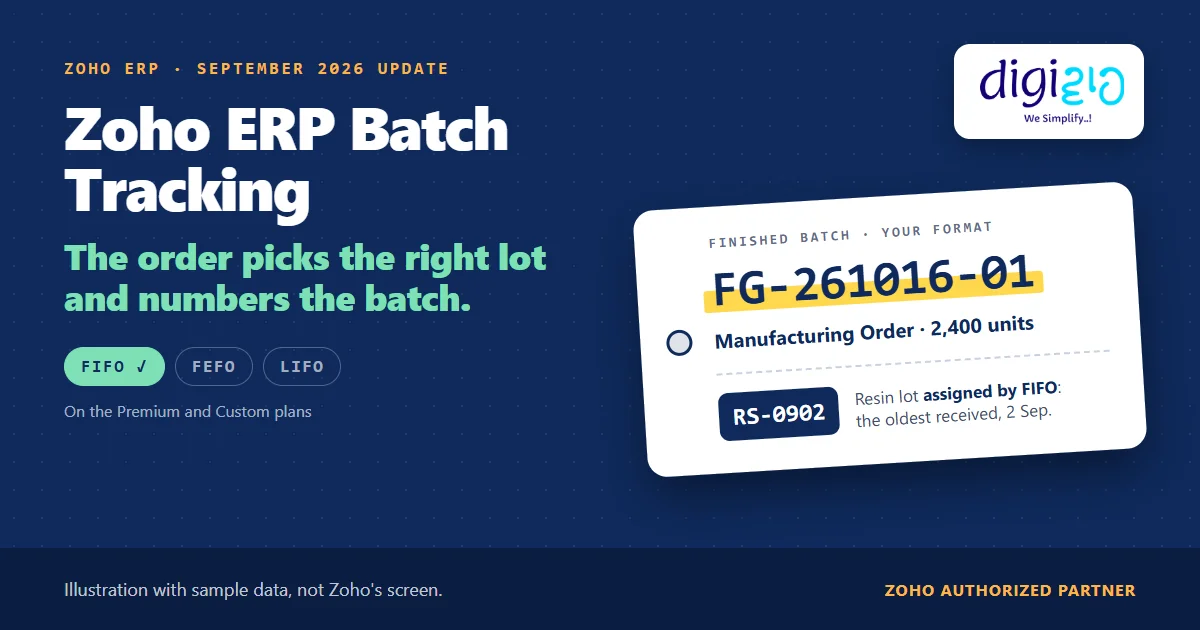
Short answer Zoho ERP batch tracking records every lot of an item under a Batch Reference, so you know which batch went where. Since the September 2026 update, a Manufacturing Order can also number finished-goods batches from your batch format and assign component batches automatically by FIFO, FEFO or LIFO. That part needs the Premium or Custom plan.
A Manufacturing Order for 2,400 units. Three lots of the same raw material on the shelf. Until now, someone opened the order and picked a batch for every component by hand.
Zoho ERP’s September 2026 update changes that step. You set the rule once, and the Manufacturing Order assigns the component batches itself.
Who this guide is for
This guide is for owners, production planners and store heads who run Zoho ERP, or plan to, and who buy raw material in lots. It suits chemicals, plastics, pharma packaging, engineering goods and any plant that must trace a finished batch back to its inputs. You will learn how to switch on batch tracking, how batches worked on a Manufacturing Order before, what the update adds, how FIFO, FEFO and LIFO differ, and what Zoho has not documented yet.
- Batch tracking starts in Item Settings. You enable it under Advanced Inventory Tracking, then set each item to track by Batch.
- Every lot gets a Batch Reference. Zoho ERP uses that label on bills, invoices, credit notes and other stock transactions.
- Before the update, you picked component batches by hand on the Manufacturing Order, and they became mandatory at In Progress.
- Now the Manufacturing Order does both jobs. It generates finished-goods batch numbers from your batch format and assigns component batches by FIFO, FEFO or LIFO.
- Premium and Custom plans only. Zoho’s update note says so; Standard is not included.
- FIFO here is not your valuation method. The item’s FIFO or WAC valuation sets cost; the batch strategy decides which lot goes in.
What is Zoho ERP batch tracking?
Zoho ERP’s Advance Inventory Tracking help puts it simply: “Batch Tracking enables tracking of items in batches using batch or lot numbers for improved inventory control and traceability.” In addition, each lot carries a Batch Reference, and you record it when stock comes in or goes out.
Its Item Settings help adds what a batch holds: you “group items into batches and track them based on batch details such as manufacturing and expiry dates.” As a result, when a customer reports a problem, you can trace the finished batch back to the raw material lots that went into it.
Batch strategies Zoho names for Manufacturing Orders: FIFO, FEFO and LIFO
Source: Zoho ERP update, Sept 2026
Plans with automatic batch assignment: Premium and Custom
Source: Zoho ERP update, Sept 2026
How to set up Zoho ERP batch tracking
You switch batch tracking on once for the organisation, and then for each item. Zoho ERP’s Item Settings and Create Items help give these steps.
-
Open Item Settings
Click the Gear icon in the top right corner, scroll down to Module Settings, and click Items under General.
-
Enable Zoho ERP batch tracking
Under Advanced Inventory Tracking, select Enable Batch Tracking. Then decide on two options: Allow Duplicate Batch Numbers, and Allow Quantity to Be Added Only to the Sold Batch When Returned.
-
Choose the transactions that carry batches
Click Configure and pick the transactions: Invoices, Sales Receipts, Bills and Credit Notes, and Packages, Purchase Receives and Return Receives. If nobody should skip the batch, also tick Mandate serial number or batch tracking in transactions. Then click Update.
-
Set each item to track by Batch
On the item, enable Track Inventory for this item. Next, under Advanced Inventory Tracking, choose Batch instead of Serial numbers or None.
-
Check for gaps every week
If you did not mandate batches, run the Missing Advanced Inventory Tracking Details report. It lists transactions that have no batch details, so you can fix them before they break a trace.
How did batches work on a Manufacturing Order before?
Zoho ERP’s Create Manufacturing Order help still describes the manual step: “Select the serial numbers or batches and bins for the components.” It also gives you some slack at creation, but not later: “You can proceed without adding Advanced Inventory Tracking and Bin details in MO creation. However, these details become mandatory when the Manufacturing Order moves to the In Progress status.”
So on a busy floor, someone opened each order and chose a lot for every batch-tracked component. That works with three components. With twenty, however, it is slow, and the oldest lot often stays on the shelf because a newer one sat closer to the door.
What the September 2026 update adds to Zoho ERP batch tracking
The Zoho ERP product updates for September 2026 describe two changes on the Manufacturing Order: “Batch numbers can be generated based on the configured batch format, while components can be assigned batches automatically using allocation strategies such as FIFO, FEFO, or LIFO.”
| Before September 2026 | With the update | |
|---|---|---|
| Component batches | Selected by hand on each Manufacturing Order | Assigned automatically by FIFO, FEFO or LIFO |
| Finished-goods batch number | Entered for each order | Generated from your configured batch format |
| Plans | Batch tracking as per your plan | Premium and Custom plans only |
Zoho’s own reason is short: it “reduces manual effort and improves traceability and consistency across manufacturing processes.” In practice, consistency is the bigger win. As a result, every order follows the same rule, whoever creates it.
FIFO, FEFO or LIFO: which Zoho ERP batch tracking rule fits?
Zoho names the three strategies. However, it does not define them on the update page. Here they are in their standard meaning, with the lot each would pick in the example below (sample data).
| Strategy | Standard meaning | Fits when | Lot picked in the example |
|---|---|---|---|
| FIFO | First in, first out: the oldest received lot first | Material ages, and older stock should move first | RS-0902 (received 2 Sep) |
| FEFO | First expiry, first out: the lot that expires first | Lots carry expiry dates that do not follow the receipt order | RS-0918 (expires Jan 2027) |
| LIFO | Last in, first out: the newest lot first | Material does not age, and the newest lot is easiest to reach | RS-1005 (received 5 Oct) |
One more point: do not confuse this with the item’s valuation. When you create an item, Zoho ERP also asks for an Inventory Valuation Method, FIFO or WAC. That choice sets the cost of goods. The batch strategy, on the other hand, decides which physical lot goes into the order.
A worked example: 2,400 units, three lots
For example, here is one Manufacturing Order under the FIFO strategy (sample data). The finished product needs 0.45 kg of resin per unit, so 2,400 units need 1,080 kg.
| Resin lot (Batch Reference) | Received | Quantity | FIFO result |
|---|---|---|---|
| RS-0902 | 2 Sep | 1,200 kg | Assigned: oldest lot, covers 1,080 kg |
| RS-0918 | 18 Sep | 900 kg | Not used |
| RS-1005 | 5 Oct | 1,500 kg | Not used |
- Component batch: the order assigns RS-0902 to the resin line by itself. Nobody scrolls a batch list.
- Finished-goods batch: the order generates FG-261016-01 from your batch format. (This format is made up for the example.)
- The trace: later, if a customer reports an issue with FG-261016-01, you can see that resin lot RS-0902 went into it.
Before the update, the same order needed a person to pick RS-0902, and to remember that it was the oldest.
Still choosing component lots by hand? We will set up batch tracking, your batch format and the right strategy for each item in Zoho ERP.
From the implementation floor
Automatic assignment only works as well as your receiving. If the store keys in a lot under the wrong item or skips the Batch Reference at the Purchase Receive, the rule picks from bad data. So we start every batch rollout at the receiving step: mandate batches there, and check the missing-details report weekly for the first month.
What Zoho has not documented about Zoho ERP batch tracking yet
The update is short, so several details are still open. Based on Zoho ERP’s pages as of October 16, 2026:
- Plan gate. Automatic batch numbers and assignment are “available in the Premium and Custom plans of Zoho ERP.” Check your plan first.
- No batch format guide. The update says “configured batch format” but does not show the format options or where you set them.
- No strategy setting path. It does not say whether you choose FIFO, FEFO or LIFO per item, per organisation or per order.
- No word on splits or overrides. It does not explain what happens when one lot cannot cover the order, or whether you can change an assigned batch.
- No expiry alerts. Batches can hold expiry dates, but none of these pages promise expiry warnings or shelf-life reports.
The same update also lets you record the actual quantity of each component consumed when you complete a Manufacturing Order, and it “validates serial and batch details.” That deserves its own guide, so we only flag it here.
None of these block a rollout. Rather, they are setup decisions, and they are the kind of work a Zoho ERP implementation partner should settle with your production team.
Related reading: BOM in ERP, inventory management in ERP, Zoho ERP quality inspection, and every change in the September 2026 update.
Frequently asked questions about Zoho ERP batch tracking
How do I enable batch tracking in Zoho ERP?
Click the Gear icon, go to Module Settings and click Items under General. Under Advanced Inventory Tracking, select Enable Batch Tracking, click Configure to choose the transactions, and click Update. Then, on each item, enable Track Inventory and choose to track it by Batch.
Can Zoho ERP assign batches automatically on a Manufacturing Order?
Yes, since the September 2026 update. Zoho says components “can be assigned batches automatically using allocation strategies such as FIFO, FEFO, or LIFO,” and finished goods get batch numbers from your configured batch format. The feature is available in the Premium and Custom plans of Zoho ERP.
What is the difference between FIFO and FEFO in Zoho ERP batch tracking?
FIFO, first in first out, uses the oldest received lot first. FEFO, first expiry first out, uses the lot that expires first. They pick the same lot only when lots expire in the order you received them. Zoho names both strategies, and its Item Settings help says batches can carry expiry dates.
Is batch FIFO the same as FIFO inventory valuation in Zoho ERP?
No. The Inventory Valuation Method on an item, FIFO or WAC, decides how Zoho ERP values stock and cost of goods. The batch strategy on a Manufacturing Order decides which physical lot goes into production. So you can, for example, value stock at WAC and still assign lots by FIFO.
When do batch details become mandatory on a Manufacturing Order?
Zoho ERP’s Create Manufacturing Order help says you can create an order without batch and bin details, but “these details become mandatory when the Manufacturing Order moves to the In Progress status.” With automatic assignment, the order fills component batches by your chosen strategy instead of by hand.
Is automatic batch assignment available on the Zoho ERP Standard plan?
Zoho’s September 2026 update says the feature “is available in the Premium and Custom plans of Zoho ERP.” So Standard is not included. Batch tracking itself is a separate item setting; check your own plan before you plan a rollout around automatic assignment.
Conclusion
In short, Zoho ERP batch tracking already told you which lot went where. The September 2026 update makes the Manufacturing Order choose that lot itself, by a rule you set, and number the finished batch for you. The software part is a few settings. Instead, the real decision is the rule for each material.
So, one question for your production team: which rule fits your raw material, oldest first or expiry first?
Let every order pick the right lot
Digiwah, a Zoho Authorized Partner, sets up batch tracking, batch formats and allocation rules in Zoho ERP, and trains your store and production teams on them.
Prefer to write? Send us how your floor runs today.
