

Multiple Pipelines in Zoho CRM: Stop Forcing One Sales Path
Retail, exports, and dealers do not sell the same way. So give each motion its own pipeline, with its own stages.
Last Updated: July 16, 2026
Multiple pipelines let you run more than one sales process inside Zoho CRM’s Deals module. Each pipeline carries its own set of stages. So a retail order can move through four quick steps, while an export order takes six slower ones. Both live in the same CRM, without tripping over each other.
Most teams start with one pipeline, and that is fine. But businesses rarely sell just one way. Then the single pipeline turns into a compromise. Stages get vague, and reports stop meaning anything. This post shows when to split, and exactly how to do it. (New to pipelines? Start with our pipeline management basics first.)
Key Takeaways
- One process per pipeline. Split when the sales process differs by product, service, or client.
- Deals module only. Zoho CRM pipelines exist just for Deals, and they are layout-specific.
- Own stages each. Every pipeline gets its own stage list, built from a shared stage builder.
- Setup in minutes. Setup > Customization > Pipelines, then + New Pipeline.
- Everything follows. Kanban views, Blueprints, and forecasts can all work per pipeline.
Table of Contents
- What Are Multiple Pipelines in Zoho CRM?
- Signs One Pipeline Is No Longer Enough
- When to Split: Four Common Cases
- Pipelines, Layouts, and Stages: How They Fit
- How to Create a New Pipeline
- Moving Deals Between Pipelines
- One Pipeline vs Separate Pipelines
- Pipelines Across the Rest of Zoho CRM
- Two Pipelines in Action
- Frequently Asked Questions
- Conclusion
What Are Multiple Pipelines in Zoho CRM?
A pipeline is your deal stages in order, from first contact to closed. So multiple pipelines simply means several of these stage sequences, side by side, in the Deals module. Zoho’s own words: “map distinct pipelines for diverse products, services, or geographies.”
Each pipeline is shaped freely — you “model every pipeline to suit your operational requirements.” Also, every deal always sits in exactly one pipeline, at exactly one stage. So nothing gets counted twice, and nothing floats outside the process.
Signs One Pipeline Is No Longer Enough
How do you know it is time to split? Watch for three symptoms. First, your stage names turn vague. Labels like “In Progress” or “Ongoing” appear because no honest name fits every deal type. Second, stages get skipped constantly. Retail deals jump from Qualify straight to Won, because the middle stages only exist for project sales.
Third, your reports stop being useful. For example, average deal cycle mixes three-day retail orders with three-month export orders. So the average describes nothing real. The same goes for conversion rates and stage totals.
Zoho’s guidance is direct: use multiple pipelines when “the sales process differs based on the product, service, or client.” In other words, one pipeline per selling motion. If two deal types genuinely follow the same steps, keep them together. But if they only pretend to, split them.
When to Split: Four Common Cases
These four patterns cover most Indian SMEs we meet. Each one maps cleanly to its own pipeline.
Different Deal Types
Zoho’s real-estate example: new bookings, ready-to-move, and resale properties each need different intermediate steps.
Regions That Sell Differently
Some regions add approvals or documentation stages. So each geography tracks its own true path.
B2C vs B2B vs Dealer
A walk-in sale closes in days. But corporate and dealer orders add quotes, credit checks, and negotiations.
Multiple Business Lines
Firms running several sectors — say construction and travel — give each line its own pipeline, often its own layout too.
The payoff shows up fast. Because each pipeline matches one motion, you can “monitor the stages and identify the root cause of delays” without noise from the other processes.
Pipelines, Layouts, and Stages: How They Fit
Three building blocks work together here, and it helps to keep them straight. A layout captures the fields of a record — what information a deal holds. A pipeline tracks the deal’s progress through stages. And stages are the individual steps inside a pipeline.
Pipelines are layout-specific. So you can create multiple pipelines under each layout of the Deals module. When someone creates a deal, only the pipelines of that deal’s layout appear in the Pipeline picklist. Also, the first time you create a pipeline, Zoho CRM auto-creates a standard pipeline and moves all existing deals into it. So nothing breaks on day one.
Stages come from a shared stage builder. Each stage carries a name, a probability, and a forecast category. Then each pipeline picks the stages it needs. Remove a stage from a pipeline, and it is not deleted from CRM — it stays in the builder for other pipelines to reuse.
How to Create a New Pipeline
Setup takes minutes, though it needs the Module Customization permission on your profile. Here is the path, straight from Zoho’s own documentation.
-
1Open the Pipelines settings
Go to Setup > Customization > Pipelines. This is home base for every pipeline you own. -
2Click + New Pipeline
Then give it a plain name — “Bulk & Export,” not “Pipeline 2” — and select its layout. -
3Add the stages
Pick existing stages from the builder, or click Create New Stage. Set each stage’s name, probability, and forecast category. -
4Set a default, then save
Tick Set as Default if new deals should land here automatically. Finally, click Save. -
5Move the right deals in
Use Mass Update to shift batches of existing deals. Then check Kanban’s “Unaccounted” view for stragglers.
Name test: if a rep cannot tell which pipeline a new deal belongs to within two seconds, the pipeline names need work — not the rep.
Moving Deals Between Pipelines
Businesses change, so deals sometimes need to move. Within the same layout, that is easy. Edit the deal and pick the new pipeline, or use Mass Update for a whole batch at once. During mass updates, Zoho matches records in a strict order: layout first, then pipeline, then stage.
Across layouts, there is one extra step. Because pipelines are layout-specific, you must change the deal’s layout first. Then the target layout’s pipelines become available.
Deleting a pipeline is protected, too. If open deals still live in it, Zoho asks you to transfer them first. You map each old stage to a stage in the surviving pipeline, then click Transfer and Delete. But note one quirk: deals that are already closed stay in the deleted pipeline. They are not transferred. So run any historical reports before you delete, not after.
One Pipeline vs Separate Pipelines
Should you split, or stretch the single pipeline a little further? Here is the honest comparison for a business with more than one selling motion.
| Question | One Catch-All Pipeline | Separate Pipelines |
|---|---|---|
| Stage names | Vague, fits nobody fully | Specific to each process |
| Skipped stages | Constant, data gets noisy | Rare, every step is real |
| Conversion reports | Motions blur together | Like-for-like per pipeline |
| Deal cycle time | Averages mean nothing | True speed per motion |
| Bottlenecks | Hidden inside the average | Visible per pipeline |
| Team focus | Everyone wades through all deals | Kanban filtered to their pipeline |
One warning, though. Do not split for the sake of splitting. Every pipeline you add is one more thing to maintain and report on. So the test stays the same: different process, different pipeline. Same process, same pipeline.
Pipelines Across the Rest of Zoho CRM
Multiple pipelines are not an isolated setting. Instead, they ripple through the features you already use.
Kanban views filter by layout and pipeline. So each team sees its own board, with its own columns. Deals that missed a transfer show up under “Unaccounted” — a handy cleanup list. Blueprints go further: they are pipeline-specific. A Blueprint built on the Stage field attaches to one pipeline, and enforces that pipeline’s process. Careful, though — delete a pipeline and its blueprints go with it.
Forecasts can also respect the split. Zoho CRM lets you set forecast conditions based on specific pipelines. So the retail target and the export target stop fighting over one number. Finally, imports: map the Pipeline field when importing deals, or rows get skipped on layout-pipeline or pipeline-stage mismatches.
Two Pipelines in Action
Theory aside, here is what the split looks like inside a real business.
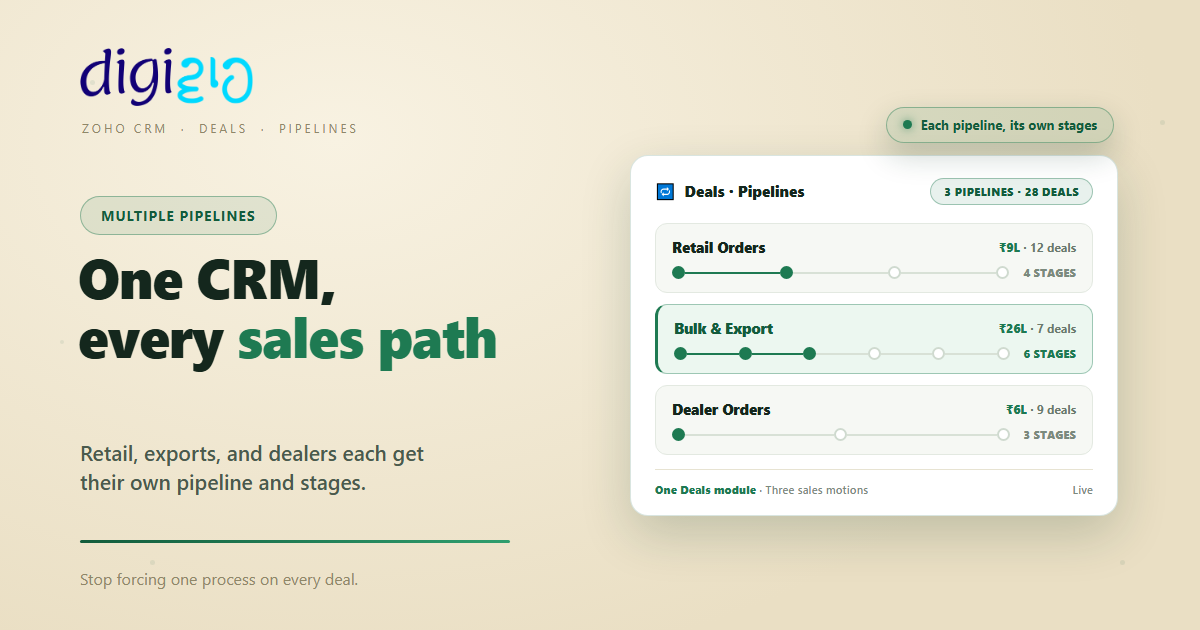
Every deal sat in one pipeline. Retail orders closed in four days, but export orders took four months — through the same five stages. Reps skipped stages daily, and the owner’s conversion report was fiction. Then they split the Deals module into three pipelines. Retail Orders runs four stages. Bulk & Export runs six, including sampling and shipping terms. Dealer Orders runs three. Now 28 open deals worth ₹41L each sit at a stage that actually describes them. As a result, the export bottleneck — stuck sampling approvals — became visible in one week.
Nothing about their products changed. But the CRM finally mirrored how they really sell. So the reports started telling the truth, and the fixes became obvious.
Frequently Asked Questions
What are multiple pipelines in Zoho CRM?
They are separate stage sequences inside the Deals module, one per sales process. Each pipeline has its own stages, so different products, services, or regions can each follow the path they actually take.
Which modules support multiple pipelines?
Only the Deals module. Per Zoho’s documentation, pipelines cannot be created for custom modules or any other standard module. Pipelines are also layout-specific, and you can create multiple pipelines per layout.
Is there a default pipeline?
Yes. The first time you create a pipeline, Zoho CRM auto-creates a standard pipeline and associates all existing deals with it. You can also mark any pipeline as default, and new deals will pre-fill with it.
Can I move deals from one pipeline to another?
Yes. Within a layout, edit the deal or use Mass Update for batches. To move a deal to a pipeline in a different layout, change the deal’s layout first — pipelines are layout-specific.
What happens when I delete a pipeline?
Zoho asks you to transfer its open deals to another pipeline, mapping old stages to new ones. However, already-closed deals stay in the deleted pipeline, and any Blueprints built for that pipeline are deleted with it.
Do Blueprints and forecasts work per pipeline?
Yes. Blueprints built on the Stage field are pipeline-specific, so each process gets its own enforcement. Forecast conditions can also target specific pipelines, keeping each motion’s targets separate.
Conclusion
One pipeline is a great start, and a poor finish. Because the moment you sell in two different ways, a single stage list starts lying to you. Multiple pipelines fix that at the root. Each motion gets true stages, honest reports, and its own rhythm — all inside one Zoho CRM.
Start with the test, not the settings page. Write down how each deal type actually moves. If two lists match, keep them together. If they differ, split them — Setup > Customization > Pipelines, and ten minutes of work. Then let the Kanban boards, Blueprints, and forecasts follow the same clean lines.
Look at your own stage names today. How many exist only because one pipeline is doing two jobs?
Want your pipelines mapped to how your business really sells? Talk to a Zoho Authorized Partner.
