

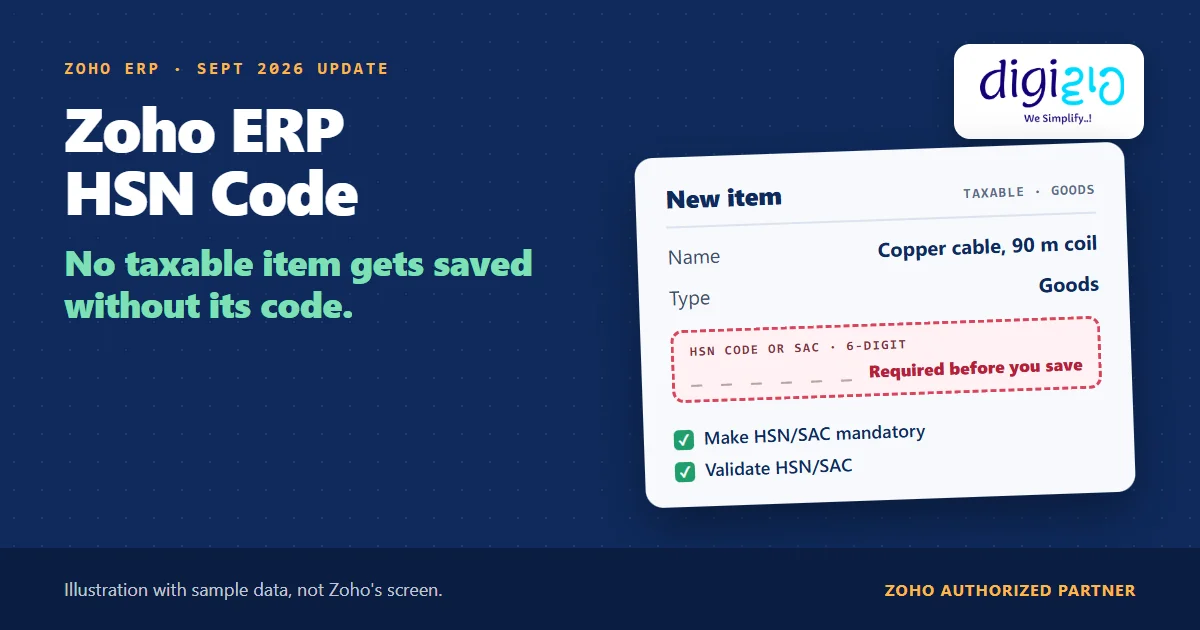
Short answer Zoho ERP HSN code controls arrived in the September 2026 update. Under Settings, General, Items, Preferences, HSN Code or SAC, you can make HSN/SAC mandatory for taxable items and validate that the code matches a goods or service item. A new search also suggests matching codes, so a wrong or blank code stops at the item, not at the GST portal.
Three hundred items in your master. One of them has no HSN code, and another is a service carrying a goods code. Usually, nobody notices until the GST return does.
Zoho ERP’s September 2026 update moves that check to the moment someone creates or edits the item. So the mistake gets caught by the person who made it, on the day they made it.
Who this guide is for
This guide is for owners, accounts heads and GST executives who run Zoho ERP, or plan to. It suits any GST-registered business with a long item master: goods, services, or both. You will learn what the law asks of your HSN codes, how to switch on the new Zoho ERP checks, how to clean up the items you already have, and what Zoho does not do for you.
- The digits depend on your turnover. CBIC says businesses above ₹5 crore must show a 6-digit HSN or SAC on invoices, and those up to ₹5 crore a 4-digit HSN on B2B invoices.
- Zoho ERP can now make the code mandatory. The option reads “Make HSN/SAC mandatory while creating or updating a taxable item”.
- It can also check goods against services. “Validate HSN/SAC” checks that the code matches the item’s goods or service type.
- Search helps you pick the code. While you create an item or transaction, Zoho ERP now suggests matching HSN/SAC codes.
- Old items get a bulk fix. Items, More, Validate HSN/SAC lists items with invalid or missing codes, and you correct them in one screen.
- Zoho does not classify for you. Choosing the right code for an item stays your call, with your CA.
- What is an HSN code, and where does it sit in Zoho ERP?
- How many digits does your HSN code need?
- What changed for the Zoho ERP HSN code in September 2026?
- How to set up Zoho ERP HSN code checks
- How to fix existing items in bulk
- A worked example: 300 items, 52 gaps
- Why the GST portal cares: Table 12 of GSTR-1
- What Zoho ERP HSN code checks do not do
- Frequently asked questions
What is an HSN code, and where does it sit in Zoho ERP?
HSN stands for Harmonised System of Nomenclature, and it classifies goods. SAC stands for Service Accounting Code, and it classifies services. Zoho ERP’s Validate HSN/SAC help puts it simply: “HSN is applied to goods, while SAC is used for services.”
GST did not invent these codes. A CBIC press release explains that “codes prescribed in the Customs tariff are used for the GST purposes too.” In other words, the same 6-digit HSN that an importer uses at customs is the one you print on a GST invoice.
In Zoho ERP, the code lives on the item. When you create an item, the Create Item help asks you to pick a Type (Goods or Service), enter the HSN or SAC Code, and set a Tax Preference such as Taxable or Non-Taxable. Then every invoice, bill and return that uses the item carries that code.
How many digits does your HSN code need?
The rule comes from the government, not from Zoho. CBIC’s press release says that from 1 April 2021, a taxpayer “having turnover of more than five crore rupees in the preceding financial year” must “furnish 6 digits HSN Code … or, as the case may be, SAC” on invoices for taxable goods and services. It adds that a taxpayer “having turnover of upto five crore in the preceding financial year is required to mandatorily furnish 4 digits HSN code on B2B invoices.” The legal basis is Notification No. 78/2020-Central Tax, dated 15 October 2020.
| Turnover in the previous financial year | What CBIC requires on invoices | Matching option in Zoho ERP |
|---|---|---|
| Up to ₹5 crore | 4-digit HSN code on B2B invoices | 4-digit HSN Code or SAC |
| More than ₹5 crore | 6-digit HSN code or SAC on invoices for taxable goods and services | 6-digit HSN Code or SAC |
Zoho ERP’s Items settings help offers exactly these two options once you enable the HSN Code or SAC field. So the first decision is simple: pick the option that matches your turnover, and confirm it with your CA each year.
What changed for the Zoho ERP HSN code in September 2026?
The Zoho ERP product updates for September 2026 list three related changes under Other Feature Enhancements. First: “You can now make HSN/SAC mandatory for taxable items and validate whether the entered code matches the goods or service type when creating or editing an item or transaction.” Second, a search: “You can now search for HSN/SAC codes when creating an item or transaction and get matching suggestions, helping you select the correct code and avoid GST portal validation errors.”
| Control | What it does | When it acts |
|---|---|---|
| Make HSN/SAC mandatory | A taxable item needs an HSN or SAC code | While you create or update a taxable item |
| Validate HSN/SAC | Checks that the code matches the goods or service type | When you create or edit an item or transaction |
| HSN/SAC search | Suggests matching codes as you type | When you create an item or transaction |
Notably, the update post carries no Early Access or plan note for these items, unlike several other features in the same post.
How to set up Zoho ERP HSN code checks
You do these steps once, as an admin. They follow Zoho ERP’s update post and its Items settings help.
-
Open the Zoho ERP HSN code preferences
Go to Settings, then General, then Items, then Preferences, and find the HSN Code or SAC section.
-
Enable the HSN Code or SAC field
Turn it on. Zoho says this option will “display the HSN Code or SAC field for items, which helps classify goods or services for GST compliance.”
-
Choose 4-digit or 6-digit
Next, pick 4-digit HSN Code or SAC, or 6-digit HSN Code or SAC, to match your turnover in the previous financial year.
-
Make the Zoho ERP HSN code mandatory
Then tick “Make HSN/SAC mandatory while creating or updating a taxable item”.
-
Switch on Validate HSN/SAC
Finally, tick “Validate HSN/SAC”, so Zoho ERP checks that each code matches the item’s goods or service type. Save your preferences.
From then on, the person who creates an item sees the check. If they don’t know the code, the Create Item help says to “click the Search icon next to the field to find the appropriate code.”
How to fix existing items with the Zoho ERP HSN validator
The new preferences act when someone creates or edits an item. Your existing master, however, may already hold gaps. For those, Zoho ERP has a bulk screen. According to the Validate HSN/SAC help, you go to Items, click the More icon at the top right, and click Validate HSN/SAC “to view items with invalid or missing HSN/SAC codes”. Then you select the correct codes from the dropdown and click Save.
Afterwards, the same More menu has HSN/SAC Update History, where “you can view the recently updated HSN/SAC codes”. That gives your accounts head a simple way to review what the team changed.
A worked example: 300 items, 52 gaps
Here is how it plays out for one business (sample data). An electrical goods company sells cables, switches and distribution boards, and it also bills installation and annual maintenance as services. Its turnover last year was above ₹5 crore, and its item master holds 300 taxable items.
- Day 1, settings: the admin enables the HSN Code or SAC field, picks 6-digit, and ticks both new options.
- Day 1, clean-up: next, the accounts executive runs Items, More, Validate HSN/SAC. The list shows 52 items with invalid or missing codes, out of 300.
- Day 2, the fix: together with the CA, the team settles the right code for each item and saves them from the same screen. As a result, HSN/SAC Update History now shows all 52 changes.
- Week 2, a new item: a sales executive adds a new cable from inside a sales order. Because the code is now mandatory, the item cannot be saved without one, so they use the search to find it.
Before the update, the same 52 gaps would have surfaced at return time, in the HSN summary, long after the invoices had gone out.
How many items in your master have a missing or wrong HSN code? We will switch on the HSN checks in Zoho ERP and clean up your item master with your CA before the next return.
Why the GST portal cares: Table 12 of GSTR-1
Your HSN codes end up in the HSN summary of GSTR-1, which is Table 12. A GSTN advisory on HSN validations says it is mandatory “to report minimum 4 digits or 6 digits of HSN Code in table-12 of GSTR-1 on the basis of Aggregate Annual Turnover (AATO) in the preceding Financial Year.”
The same advisory describes Phase 3 of the portal changes. There, “Manual user entry of HSN will not be allowed” and the “HSN code can be selected from drop down only.” It also splits Table 12 into two tabs, “B2B Supplies” and “B2C Supplies”. So a code that is only roughly right in your books becomes harder to fix at filing time. That is why Zoho frames the new search as a way to “avoid GST portal validation errors.”
From the implementation floor
When we migrate an item master into Zoho ERP, the HSN clean-up is a go-live task, not a month-end one. We run the bulk check before the first invoice, and we agree one owner for item creation. Then the mandatory setting does the rest, because a new taxable item cannot slip in without a code.
What Zoho ERP HSN code checks do not do
Knowing the limits keeps the feature honest. Based on Zoho ERP’s pages as of November 21, 2026:
- It does not pick the code for you. Search suggests matching codes, but classifying an item is your decision. Ask your CA when an item could fall under two headings.
- “Validate” checks goods against services. Zoho says it checks whether the code “matches the goods or service type”. Zoho does not say it checks that the code is the right one for the item.
- The error message is not documented. Zoho has not published what the user sees when Validate HSN/SAC finds a mismatch, or whether a mismatch blocks the save or only warns.
- Old items are not fixed by the new setting. The mandatory option acts while you create or update an item. For your existing master, run the bulk Validate HSN/SAC screen.
- The source of the suggestions is not documented. Zoho does not say which code list powers the search.
- No GST rates. The HSN code and the tax rate are separate settings, and this guide does not cover rates.
None of these stop a rollout. Rather, they are setup decisions, and they are the kind of work a Zoho ERP implementation partner should settle with your accounts team.
Related reading: Zoho ERP GSTR-2B reconciliation, every change in the Zoho ERP September 2026 update, what the Zoho ERP October 2026 update added, and, if you run Zoho Books rather than Zoho ERP, GST in Zoho Books.
Frequently asked questions about the Zoho ERP HSN code
How do I make the HSN code mandatory in Zoho ERP?
Go to Settings, General, Items, Preferences, and open HSN Code or SAC. Enable the field, pick 4-digit or 6-digit, then tick “Make HSN/SAC mandatory while creating or updating a taxable item”. Zoho ERP added this option in its September 2026 update.
What does Validate HSN/SAC check in Zoho ERP?
According to Zoho’s September 2026 update, Validate HSN/SAC checks whether the entered code matches the goods or service type when you create or edit an item or transaction. In other words, it catches a goods code on a service item. Zoho does not say it confirms the code is right for the item.
Should I choose a 4-digit or 6-digit Zoho ERP HSN code?
It depends on your turnover in the previous financial year. CBIC says a business above ₹5 crore must show a 6-digit HSN or SAC on invoices, while one up to ₹5 crore must show a 4-digit HSN on B2B invoices. Pick the matching option in Zoho ERP and confirm it with your CA.
How do I find items with a missing HSN code in Zoho ERP?
Go to Items, click the More icon at the top right, and choose Validate HSN/SAC. Zoho ERP lists items with invalid or missing HSN/SAC codes. Select the correct code for each item from the dropdown and click Save. HSN/SAC Update History, in the same menu, shows recent changes.
Can Zoho ERP suggest the right HSN code?
Zoho ERP can search and suggest matching HSN/SAC codes while you create an item or transaction, since the September 2026 update. The item form also has a Search icon next to the code field. However, the final choice is yours, so check unclear items with your CA.
What is the difference between HSN and SAC?
HSN classifies goods and SAC classifies services. Zoho ERP’s help says HSN is applied to goods, while SAC is used for services. CBIC also notes that GST uses the HSN codes prescribed in the Customs tariff, so the same goods code applies at customs and on your GST invoice.
Conclusion
In short, the Zoho ERP HSN code controls move the check from the GST return to the item itself. The setup takes minutes. The real work is cleaning up the items you already have, and agreeing who creates new ones.
So, one question for your accounts team: how many items in your master would fail the check today?
Get every HSN code right before filing
Digiwah, a Zoho Authorized Partner, switches on the HSN/SAC checks in Zoho ERP and cleans up your item master with your accounts team.
Prefer to write? Tell us how your item master is set up today.
