

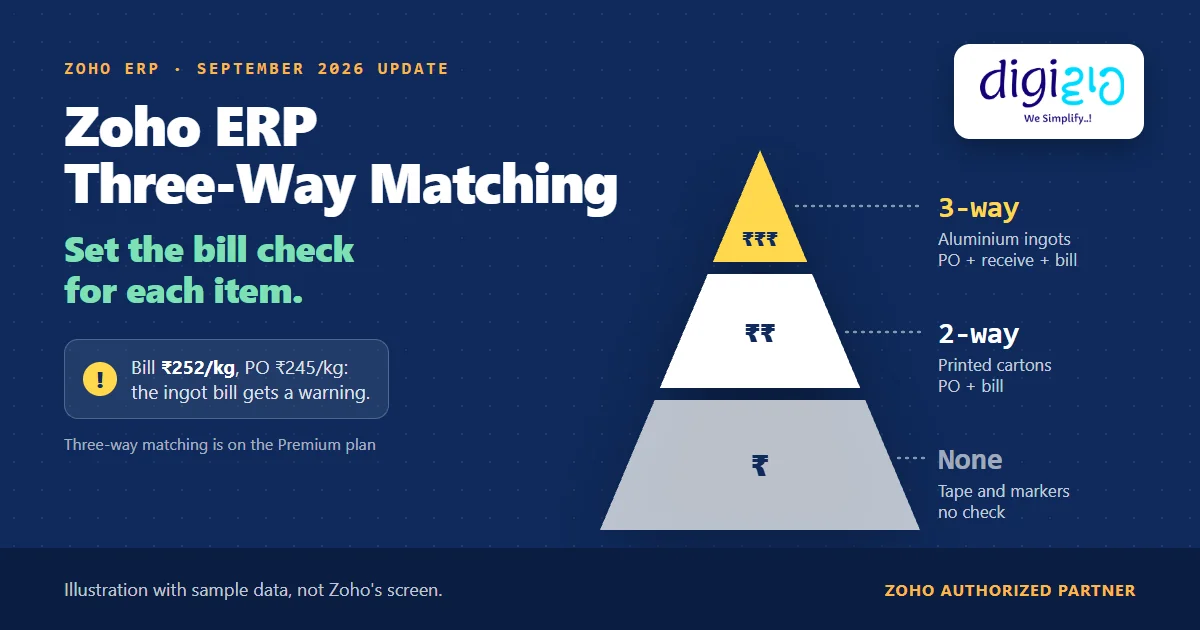
Short answer Zoho ERP three-way matching compares each bill item with its purchase order and purchase receive. If either one is missing, or the item price differs, Zoho ERP flags the bill with a warning. Since the September 2026 update, you can choose no reconciliation, two-way or three-way matching for each item, once bill reconciliation is on. Zoho’s pricing page lists three-way matching on the Premium plan.
A plant buys its main raw material by the truckload and packing tape by the roll. Yet until now, both bills went through the same check.
That is because Zoho ERP set one reconciliation method for the whole organisation. The September 2026 update moves that choice down to the item, so the expensive bills get the strict check and the small ones stop raising noise.
Who this guide is for
This guide is for owners, purchase heads and accounts teams who pay vendor bills in Zoho ERP, or plan to. If you have ever paid a bill at a higher rate than the purchase order said, it is for you. You will learn what two-way and three-way matching compare, what the update changes, which items deserve which check, how to set it up, and what Zoho has not documented yet.
- Two-way matching compares bill items with the purchase order. Three-way matching compares them with the purchase order and the purchase receive.
- Zoho ERP flags a bill when the purchase documents are missing or an item’s price does not match. It does not list quantity as a flag condition.
- The flag is a warning, not a block. It shows on the Bills list, the bill’s Details page and the Record Payment page.
- Now you can choose per item: no reconciliation, two-way matching or three-way matching, as long as bill reconciliation is enabled.
- Plan check: Zoho’s pricing page lists two-way matching on Standard and three-way matching on Premium.
What is Zoho ERP three-way matching?
Zoho ERP checks vendor bills through a setting called Bill Reconciliation. Its Validate Bills help page says it “helps you avoid overpaying for purchases by verifying bills against purchase orders and purchase receives.”
In practice, there are two methods. In two-way matching, Zoho ERP compares the items in the bill with the items in the purchase order. In three-way matching, it compares them with the purchase order and the purchase receive, the GRN step in plant language. In both cases, a missing document or a price mismatch flags the bill.
| Method | Bill items compared with | Zoho ERP flags the bill when |
|---|---|---|
| No reconciliation | Nothing | Never |
| Two-way matching | Purchase order | No associated purchase order, or the item price differs |
| Three-way matching | Purchase order and purchase receive | No associated purchase order and purchase receive, or the item price differs |
So the third document adds one thing: three-way matching also expects a purchase receive behind the bill. In other words, the bill must point to goods your store has recorded as received.
What the September 2026 update changes in Zoho ERP three-way matching
Before the update, you enabled Bill Reconciliation and chose one method for the organisation, under Settings, then Bills, then the General tab. As a result, every bill went through the same check.
The Zoho ERP product updates for September 2026 change that: “If bill reconciliation is enabled for your organization, you can now set the bill reconciliation preference for each item in your organization. You can choose from no reconciliation, two-way matching, and three-way matching.”
| Before September 2026 | With the update | |
|---|---|---|
| Where you choose the method | Once, for the organisation | For each item |
| Choices | Two-way or three-way matching | No reconciliation, two-way or three-way matching |
| Prerequisite | Bill Reconciliation enabled | Still Bill Reconciliation enabled |
| Low-value consumables | Checked like everything else | Can skip the check |
Which items need Zoho ERP three-way matching?
However, Zoho leaves this choice to you. Here is how we sort items when we set it up for a client. It is our rule of thumb, not a Zoho setting.
| Item type | Typical example | Our usual preference | Why |
|---|---|---|---|
| High-value raw material, received into stock | Metal, resin, bulk chemicals | Three-way matching | Big bills, and the store records every receipt |
| Bought-in parts and packaging on a PO | Printed cartons, labels, fasteners | Two-way matching | The rate on the PO is what matters most |
| Low-value consumables | Tape, markers, cleaning supplies | No reconciliation | A warning on every small bill becomes noise |
Still, one test helps. If your store never records a purchase receive for an item, three-way matching will flag every bill for it. In that case, start with two-way matching, or fix the receiving habit first.
How to set up Zoho ERP three-way matching, step by step
The steps below follow Zoho ERP’s Validate Bills, Create Bills and Purchase Order help, plus the update note. Zoho has not documented the item screen yet, so step 3 names the choice, not a field.
-
Check your Zoho ERP plan
First, check the Zoho ERP pricing page. Its comparison lists “2-way matching” on Standard and “3-way matching” on Premium.
-
Enable Bill Reconciliation
Next, go to Settings, click Bills under Purchases, and in the General tab slide Bill Reconciliation to Enabled. Then choose the reconciliation method and click Save.
-
Set the preference on each item
Then, for each item, choose no reconciliation, two-way matching or three-way matching. Start with your ten highest-value items.
-
Raise the PO and record the receipt
After that, raise the purchase order as usual, and share the PO through a public link if the vendor has no portal access. When the goods arrive, click Receive on the PO and Save as Received, so the purchase receive exists before the bill.
-
Create the bill from the PO or the receive
Afterwards, use Convert to Bill on the purchase order, or create the bill from the purchase receive. Either way, the bill links to the right documents.
-
Review three-way matching flags before you pay
Finally, filter the Bills list by Violated Bills. Open each one, read the banner with the reasons, and click View Item Details to see the line.
A worked example: ₹252 billed, ₹245 ordered
For example, take a manufacturing company that buys three kinds of item (sample data). It sets one preference for each:
| Item | Preference | What Zoho ERP compares |
|---|---|---|
| Aluminium ingots, bought by the kg | Three-way matching | Bill vs purchase order and purchase receive |
| Printed cartons | Two-way matching | Bill vs purchase order |
| Packing tape and markers | No reconciliation | Nothing |
First, the PO for ingots says 5,000 kg at ₹245/kg. Then the store weighs the truck in and records a purchase receive for 5,000 kg. However, the vendor’s bill says ₹252/kg.
Price gap between the bill (₹252) and the purchase order (₹245)
Flagged by three-way matching · sample data
Extra you would pay on 5,000 kg if nobody read the warning (₹12,60,000 vs ₹12,25,000)
Our arithmetic · sample data
Because the item price differs, Zoho ERP flags the bill. The warning shows on the Bills list, on the bill itself, and again when accounts select it on the Record Payment page.
Now take a second case. Suppose the vendor’s bill arrives and someone saves it before the store records the receipt. Under three-way matching, the bill has no associated purchase receive, so Zoho ERP flags it too. Meanwhile, the tape bill goes through with no check at all, which is exactly what the company wanted.
Not sure which of your items deserve three-way matching? We will sort your item master by value and receiving habit, set the preference per item in Zoho ERP, and train accounts to clear flagged bills before payment.
What happens to a bill flagged by Zoho ERP three-way matching?
It gets a warning, in three places. In Zoho’s words: “A warning is displayed on the Bills List page, the Details page of those bills, and the Record Payment page when such bills are selected for payment.”
- Bills list. The Violated Bills filter lists every flagged bill, “along with a warning icon next to them.”
- Bill details. A banner gives “the reasons why the bill was flagged”, and View Item Details shows the line behind each reason.
- Payments. When you record a vendor payment, “If there are flagged bills for the selected vendor, a warning will be displayed below those bills.”
Zoho’s help does not say the warning stops payment. So the control is a person: someone has to read the warning and decide. That is why we pair it with a simple rule for accounts: no payment on a flagged bill until purchase confirms the rate.
The same payment screen now shows one more check. With Zoho ERP GSTR-2B reconciliation insights, you also see whether the supplier filed the invoice in GSTR-1. Together, the two answer “did we order this at this rate?” and “will we get the input tax credit?” before money leaves.
Who approves the payment after Zoho ERP three-way matching?
Since October 2026, you can add a formal sign-off as well. The October 2026 Zoho ERP update says that with payment approval enabled, “You can record payment details and submit them for approval before initiating an online bank transfer.” In other words, accounts can approve the vendor payment before it leaves, after the bill is matched.
Matching covers what comes in at your gate. On the sales side, the mirror check is proof of delivery at the customer’s door.
From the implementation floor
Teams switch three-way matching on for every item, then learn to ignore the warnings within a month, because half of them come from bills for tape and stationery. The per-item setting fixes that. In our setups, the bigger change is upstream: three-way matching only works if the store records the purchase receive on the day the truck arrives. So we fix the gate habit first, then switch on the strict check.
What Zoho has not documented about Zoho ERP three-way matching yet
The update is one sentence. Based on Zoho ERP’s pages as of October 29, 2026, these points are still open:
- The item screen. The update says you can set the preference “for each item,” but no Zoho ERP help page shows where, and the item help pages don’t mention it yet.
- Org method vs item choice. Zoho does not say which one wins, or what an item uses before you set it.
- Quantity. The help page’s introduction mentions “comparison of quantities, prices, and items”, but the flag rule lists only missing documents and “a mismatch of items’ prices”. So don’t count on a flag for a short delivery.
- Tolerance. No price tolerance is documented, so treat any difference as a flag.
- Old bills. It does not say whether a new item preference re-checks bills you already saved.
None of these stop you from using it today. Rather, they are points to test with your own items and vendors, which is the kind of work a Zoho ERP implementation partner should do before accounts depend on it.
Related reading: purchase orders in ERP, Zoho ERP netting, inventory management in ERP, and every change in the September 2026 update.
Frequently asked questions about Zoho ERP three-way matching
What is three-way matching in Zoho ERP?
It is a Bill Reconciliation method. Zoho ERP compares the items in a bill with the items in the purchase order and the purchase receive. If the bill has no associated purchase order and purchase receive, or an item’s price does not match, Zoho ERP flags the bill with a warning.
What is the difference between two-way and three-way matching?
Two-way matching compares bill items with the purchase order only. Three-way matching also brings in the purchase receive, so the bill must have recorded goods behind it. Both flag a bill when an item’s price differs from the purchase order. Zoho’s pricing page lists two-way matching on Standard and three-way on Premium.
Can I set three-way matching for each item in Zoho ERP?
Yes, since the September 2026 update. If bill reconciliation is enabled for your organisation, you can set the bill reconciliation preference for each item and choose no reconciliation, two-way matching or three-way matching. Zoho has not yet documented where the setting sits on the item.
Does a flagged bill stop payment in Zoho ERP?
Zoho’s help describes a warning, not a block. The warning shows on the Bills list, the bill’s Details page and the Record Payment page when you select the bill. So your team decides whether to pay. Set a clear rule, such as no payment until purchase confirms the rate.
Does Zoho ERP flag a quantity mismatch?
The documented flag conditions are a missing purchase order or purchase receive, and “a mismatch of items’ prices.” The help page mentions quantities in its introduction, but quantity is not in the flag rule. So test it with your own data before you rely on it for short deliveries.
How do I find bills flagged by bill reconciliation?
Go to the Bills list and pick Violated Bills from the filter dropdown. Each flagged bill shows a warning icon. Then open a bill to see a banner with the reasons, and click View Item Details next to a reason for the line-level detail.
Conclusion
In short, Zoho ERP three-way matching is no longer all or nothing. Your raw material can get the strict check, your packaging a lighter one, and your tape none at all. The setting is small. The real work is deciding which items deserve which check, and making sure the store records every receipt.
So, one question for your next purchase review: which of your bills deserve the strictest check?
Check the bills that matter most
Digiwah, a Zoho Authorized Partner, sets up purchase orders, purchase receives and per-item bill matching in Zoho ERP, and trains your store and accounts teams to work the flags.
Prefer to write? Send us how your purchase team works today.
