

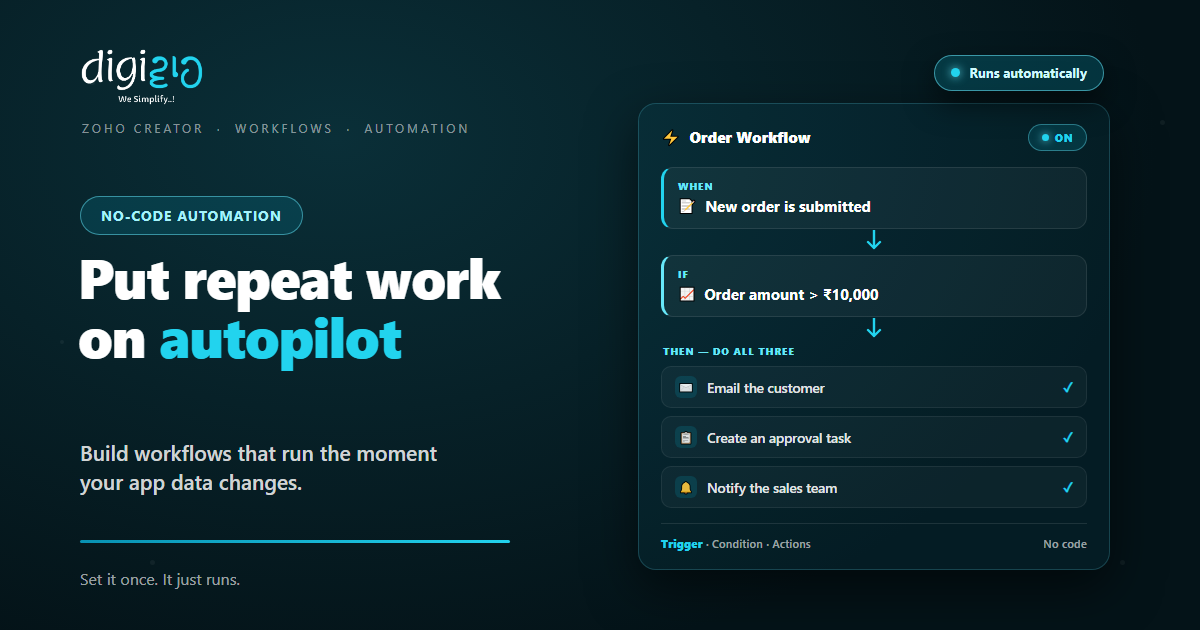
Zoho Creator Workflows: Put Repeat Work on Autopilot
Your app collects the data. So let workflows send the emails, chase the approvals, and update the records for you.
Last Updated: July 9, 2026
A Zoho Creator workflow tells your app what to do when something happens. So when a new record arrives, or a date comes due, the app acts on its own. It can send an email, alert the team, or update a field. Best of all, you set it up once, without code.
This matters because repeat work eats your day. After all, someone has to email the customer, ping the manager, and update the sheet. But none of that needs a human. So workflows hand that busywork to the app itself.
Key Takeaways
- Three parts. Every workflow has a trigger, a condition, and one or more actions.
- Many triggers. Form events, schedules, payments, and approvals can all start one.
- Real actions. Send email, SMS, and push alerts, update fields, or call other apps.
- Approvals built in. Structured requests replace phone calls and long email threads.
- No code needed. Point and click to build; add Deluge script only if you want more.
Table of Contents
- What Is a Workflow in Zoho Creator?
- Why Repeat Work Deserves a Workflow
- Triggers: When a Workflow Starts
- Actions: What a Workflow Can Do
- Schedules: Automation on a Timer
- Approvals Without the Chase
- Need More Power? Meet Deluge
- Manual Work vs Workflow
- How to Build Your First Workflow
- A Workflow in Action
- Frequently Asked Questions
- Conclusion
What Is a Workflow in Zoho Creator?
A workflow is a simple rule with three parts. First, a trigger says when to act. Next, a condition says which records qualify. Finally, one or more actions say what to do. In short: when this happens, if this is true, do that.
For example, take an order form. When a new order is submitted, and the amount is above ₹10,000, the app emails the customer, creates an approval task, and alerts the sales team. Because Zoho Creator is a low-code platform, you build this rule by pointing and clicking, not by writing code.
Why Repeat Work Deserves a Workflow
Every business runs on small repeated steps. So an order comes in, and someone sends a confirmation. A payment fails, and someone follows up. Also, a stock count dips, and someone raises a purchase request.
Each step is tiny. But together they fill hours every week. Worse, humans forget steps when things get busy. So the customer who never got a reply is usually not a people problem. In fact, it is a process problem.
Workflows fix this at the root. Because the app itself does the step, it never skips one. Plus, it acts the moment the data changes, not when someone finds time. As a result, the process runs the same way every single time.
Triggers: When a Workflow Starts
A trigger is the starting gun. So Creator gives you several kinds, and each suits a different job. Then you pick the one that matches your process.
Form Events
Run when a record is created, edited, or deleted. So a new order or an updated status can kick off actions instantly.
Schedules
Run at a set time — daily, weekly, monthly, yearly, or once. Also, run before or after a date stored in a record.
Payment Events
Run on a successful or failed transaction. So a paid invoice can trigger a receipt, and a failed one a follow-up.
Approval Outcomes
Run when a request is approved or rejected. So the next step starts the moment a manager clicks the button.
Conditions then narrow things down. For example, act only when the amount crosses a limit, or only for one region. So the workflow fires for the records that matter, and stays quiet for the rest.
Actions: What a Workflow Can Do
Actions are the payoff. So once a trigger fires, Creator can carry out real work across your apps. Here are the ones teams use most.
Email, SMS & Push Alerts
Notify customers or staff by email, SMS, or push notification — on mobile, tablet, and the web.
Update Records & Fields
Change field values, create records, or modify related ones. So the data stays current without manual edits.
Route for Approval
Send a record to the right approver by role or hierarchy. So sign-offs follow a path, not a phone call.
Call Other Apps
Push data to third-party services and other Zoho apps. For example, update your CRM when a deal form is filled.
One trigger can run several actions together. So a single new order can email the customer, alert the team, and update stock at once. In short, one event, a full response.
Schedules: Automation on a Timer
Not every process starts with a form. Some run on the calendar. So Creator lets you schedule workflows to “get executed on a specific date and time.” You can run them daily, weekly, monthly, yearly, or just once.
Date fields make this smarter. Because a schedule can key off a date in the record, it can act minutes, hours, days, or weeks before or after that date. For example, remind a customer three days before a renewal. Or, chase a pending order two days after it was placed.
Official details live on the Zoho Creator schedules and notifications page. It is a short read, and worth it.
Approvals Without the Chase
Approvals are where processes usually stall. So a discount, a leave request, or a big order waits on one busy person. Then someone chases them on calls and WhatsApp.
Creator replaces that chase with a structured request. In Zoho’s words, you can “replace phone calls and long email threads with structured approval requests.” So the approver gets an alert, opens the record, and clicks approve or reject.
Setup is just as light. You can create, edit, and delete approval flows with the toggle of a button. Also, approvers can be set by role or hierarchy, so the request always reaches the right desk. By default, an email alert goes out on every approval or rejection. Then follow-up actions — like emails or field updates — run on the outcome.
Need More Power? Meet Deluge
Point-and-click covers most needs. But sometimes you want custom logic. So Creator includes Deluge, Zoho’s own scripting language, as the next step up.
Deluge is built to stay readable. In fact, Zoho pitches it as low-code with an “elegant syntax” that avoids technical jargon. Plus, it connects across 50+ Zoho products. So one short script can move data between Creator and the rest of your stack.
The key point: Deluge is optional. First, build workflows visually. Then reach for script only when a rule gets too clever for clicks. That way, the simple stays simple. The same trigger-and-action thinking also powers workflow rules in Zoho CRM, so the skill carries over.
Manual Work vs Workflow
Both get the step done. But they behave very differently under pressure. So the table below shows the shift.
| Situation | Manual Process | Creator Workflow |
|---|---|---|
| New order confirmation | Sent when someone is free | Sent the moment it arrives |
| Big order sign-off | Chased on calls and chats | Routed to the right approver |
| Renewal reminders | Lives in someone’s memory | Scheduled off the date field |
| Busy season | Steps get skipped | Runs the same every time |
| After office hours | Waits for morning | Runs 24×7 |
So manual effort should go where judgment lives. Meanwhile, the routine steps belong to the app. In short, people decide, workflows execute.
How to Build Your First Workflow
Your first workflow takes minutes, not days. So here is a clear path from idea to autopilot.
-
1Pick one repeated task
First, choose a step someone does the same way every time, like emailing new orders. Small is good. -
2Choose the trigger
Next, decide when it should run — on a form event like record created, or on a schedule. -
3Set the condition
Then add criteria so it acts only on the right records, like orders above ₹10,000. -
4Add the actions
Now attach what happens — send an email or SMS, update a field, or route for approval. -
5Test, then switch it on
Finally, submit a test record and check each action fired. A Zoho partner can help you tune it.
Automate the step your team forgets most often. That one workflow pays for the learning curve by itself.
A Workflow in Action
The steps are simple. But a real story shows the payoff. So here is how one team stopped chasing sign-offs.
Sales logged every order in a Zoho Creator app. But big orders needed the owner’s sign-off, and that meant calls and WhatsApp chases. Some approvals took two days. Then they built one workflow. Now, any order above ₹10,000 emails the customer, creates an approval request, and alerts the sales lead. Also, a weekly schedule mails a list of pending orders every Monday. As a result, sign-offs happen in hours, and nobody chases anyone.
Notice what changed. The app already had the data. So the workflow only added the follow-through. Once the data starts moving on its own, a Creator dashboard shows you the results at a glance.
Frequently Asked Questions
What is a workflow in Zoho Creator?
A workflow is an automation rule inside your Creator app. It has a trigger (when to run), a condition (which records qualify), and actions (what to do). So the app can send alerts, update fields, or route approvals on its own.
What can trigger a Zoho Creator workflow?
Form events like a record being created, edited, or deleted; schedules that run at a fixed time or off a date field; payment events like a successful or failed transaction; and approval outcomes. So most business moments can start an automation.
Do I need to code to build workflows?
No. You build workflows by pointing and clicking, and schedules offer point-and-click creation too. Deluge, Zoho’s low-code scripting language, is there only if you want custom logic beyond the visual builder.
Can workflows send SMS and push notifications?
Yes. Workflows can send email, SMS, and push notifications, and push alerts appear on mobile, tablet, and the web. They can also show custom success messages and redirect users to a URL after an action.
How do scheduled workflows work?
A schedule runs a workflow daily, weekly, monthly, yearly, or just once. It can also key off a date field in a record and act minutes, hours, days, or weeks before or after that date — ideal for reminders and follow-ups.
How do approvals work in Zoho Creator?
You switch on an approval flow with a toggle and set approvers by role or hierarchy. The approver gets an alert and approves or rejects in a click, and an email goes out on the outcome. Follow-up actions can then run automatically. Approvals are part of Zoho Creator, alongside forms and reports.
Conclusion
In the end, a workflow is your process written down and switched on. So the steps your team repeats by hand become rules the app runs by itself. After all, a process that depends on memory will break on a busy day. But a workflow runs the same at 11 pm as it does at 11 am.
Start small. First, pick one repeated task and automate it end to end. Then add a schedule for the follow-ups everyone forgets. Next, move your slowest sign-off into an approval flow. Soon the app is doing the chasing, and your team is doing the thinking.
Look at your team’s week. Which repeated step would you hand to a workflow first?
Want workflows mapped to the way your business actually runs? Talk to a Zoho Authorized Partner.
