

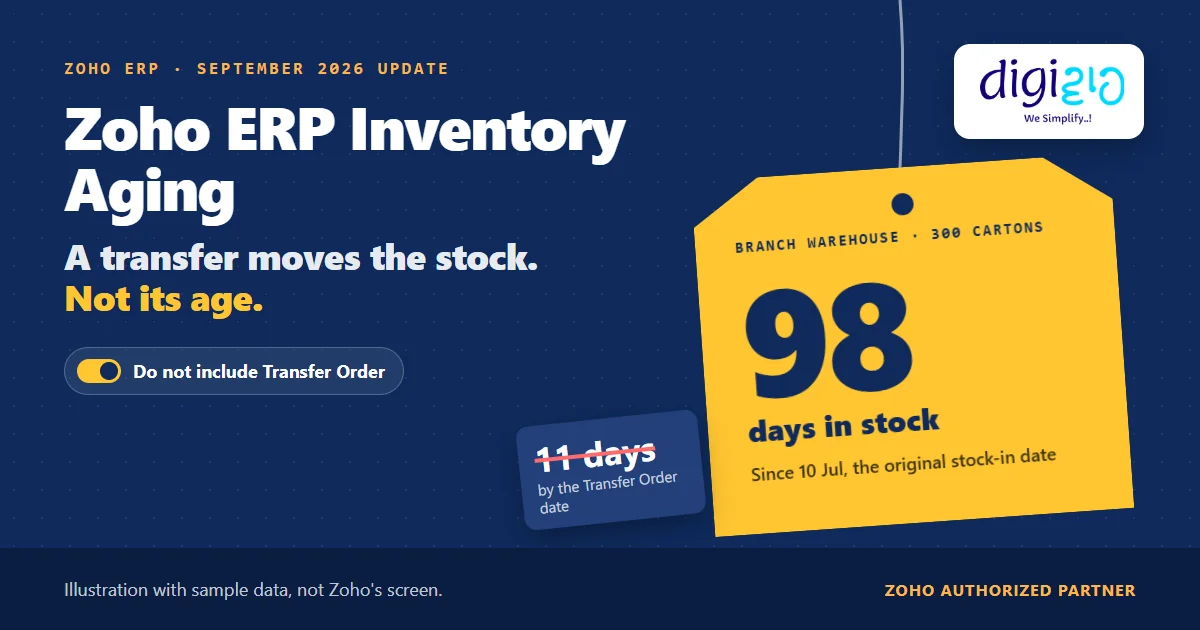
Short answer Zoho ERP inventory aging lives in the Inventory Aging Summary report, which groups stock by the number of days in storage. Until September 2026, however, Zoho ERP aged stock moved by a Transfer Order from the transfer date. Now you can enable the Do not include Transfer Order option, so moved stock keeps its original stock-in date and its true age.
300 cartons of finished goods arrive at the main warehouse on 10 July. On 5 October, you move them to a branch. Then, on 16 October, the aging report says they are 11 days old.
However, they are not. They have sat in your business for 98 days. The transfer simply restarted the count, so old stock started to look new.
Who this guide is for
This guide is for owners, store heads and finance teams who run Zoho ERP across two or more warehouses or branches. If you move stock between locations and use the aging report to decide what to push, discount or stop buying, it is for you. You will learn what the Inventory Aging Summary shows, how transfers changed its numbers, how to turn on the new option, how the new Age column works on FIFO lots, and what Zoho has not documented yet.
- The Inventory Aging Summary shows how many days each item has sat in stock. It groups items by days in storage, so slow-moving stock stands out.
- Before September 2026, a transfer reset the age. Zoho ERP used the Transfer Order date for stock moved between locations.
- A new option fixes that. Customise the report and enable Do not include Transfer Order to keep the original stock-in date.
- FIFO lots get an Age column too. In addition, the FIFO Cost Lot Tracking report now shows, under Product In, the age of each lot from the day you received it.
- It is a report setting, not a stock change. In other words, it moves no stock, sends no alert and, as far as Zoho says, does not touch valuation.
What is Zoho ERP inventory aging?
Zoho ERP’s Inventory Reports help describes the report like this: “The Inventory Aging Summary report provides a detailed overview of how long each item has been held in stock. By categorizing inventory based on the number of days in storage, this report helps identify slow-moving, obsolete, or stale goods.”
In other words, the report answers one question for every item: how long has this stock been sitting with us? So it drives real decisions. For example, you use it to decide which stock to sell first, what to stop reordering, and which branch holds cash that does not move.
It sits next to the Inventory Turnover By Quantity report, which “shows how quickly your stock moves in terms of units.” Turnover gives you the speed; aging, on the other hand, shows you the oldest stock by name.
Why did transfers make old stock look new in Zoho ERP inventory aging?
First, some background: Zoho ERP moves stock between locations with a Transfer Order. Its Transfer Orders help says they are “used to move items between warehouses within the same organization,” and are “commonly used to replenish stock, balance inventory across locations, or relocate items.”
The trouble, however, was the date. For stock moved between locations, the Inventory Aging Summary counted age from the Transfer Order date. We know this because Zoho’s own update note says so: the new option works “instead of using the Transfer Order date.”
As a result, every transfer restarted the clock. The oldest stock in the business could reach a branch and show up as a few days old. Worse, the more you moved slow stock around to sell it, the newer it looked.
What the September 2026 update changes in Zoho ERP inventory aging
The Zoho ERP product updates for September 2026 list the change under Other Feature Enhancements: “You can customize the Inventory Aging Summary report and enable the Do not include Transfer Order option to retain the stock’s original stock-in date even after it is moved between locations, instead of using the Transfer Order date.”
| Before September 2026 | With Do not include Transfer Order | |
|---|---|---|
| Stock-in date for moved stock | The Transfer Order date | The original stock-in date |
| Age after a transfer | Starts again from zero | Keeps counting from the first day |
| What the branch report shows | How long stock has been at this branch | How long stock has been in the business |
The same update also adds a second, separate change: a new Age column on the FIFO Cost Lot Tracking report. We cover it below, because the two reports answer different questions.
How to run the Zoho ERP inventory aging report with the original date
The report path comes from Zoho ERP’s Inventory Reports help; the option name comes from the September 2026 update.
-
Open the Inventory reports
Go to Reports on the left sidebar, then click Inventory under Reports Category.
-
Open the Inventory Aging Summary
Pick the Inventory Aging Summary from the list. First, run it once as it is, so you have the old view to compare against.
-
Customise the Zoho ERP inventory aging report
Next, customise the report and enable Do not include Transfer Order. Zoho does not document the exact screen, so look for the option in the report’s customisation settings.
-
Run it again and compare
Then run the report again. Items that came in by transfer now show their age from the original stock-in date. The gap between the two runs is the stock your branches were hiding.
A worked example: 300 cartons, 11 days or 98
For example, take one lot of finished goods in a business with a main warehouse and one branch (sample data).
| Date | What happened | Where the stock is |
|---|---|---|
| 10 Jul | 300 cartons stocked in | Main warehouse |
| 5 Oct | Transfer Order: all 300 cartons moved | Branch warehouse |
| 16 Oct | Inventory Aging Summary run | Branch warehouse |
Days old, counted from the Transfer Order date (5 Oct to 16 Oct)
Before the option · sample data
Days in stock, counted from the original stock-in date (10 Jul to 16 Oct)
With Do not include Transfer Order · sample data
As a result, the same 300 cartons move from the newest rows of the report to the oldest. Nothing changed on the shelf. Instead, only the date the report counts from changed.
Now picture a branch manager who reads the old view. Eleven days looks fine, so nobody pushes the stock. With the original date, however, 98 days puts it near the top of the list to clear.
Not sure how old your branch stock really is? We will set up your warehouses, transfers and aging reports in Zoho ERP, and show your team which view to use for which decision.
The new Age column on FIFO lots in Zoho ERP
The second change, by contrast, works at lot level. Zoho ERP’s Inventory Valuation Reports help explains the report: “Zoho ERP employs the First In First Out principle to track goods. In this report, you can view a detailed account of all the items going out against the items coming in as per the FIFO rule.” You find it under Reports, then Inventory Valuation.
Its Product In section lists what came in, for example each purchase. Now, according to the update, “a new Age column has been added under the Product In section of the FIFO Cost Lot Tracking report, showing how long each lot of stock has been held based on the date it was received.”
| Lot received | Quantity in | Age on 16 Oct |
|---|---|---|
| 10 Jul | 300 cartons | 98 days |
| 22 Aug | 200 cartons | 55 days |
| 30 Sep | 250 cartons | 16 days |
In short, the aging summary tells you which items are old. The Age column, by contrast, tells you which lot of an item is old, which matters when one item has several receipts at different costs.
From the implementation floor
Both views are useful, so do not just switch one off. The Transfer Order view tells a branch how long stock has sat with them; the original-date view, on the other hand, tells the owner how long cash has sat in the business. So we first agree with the team which view goes in the monthly stock review. Then we check that the team records every transfer as a Transfer Order, not as a sale and a fresh receipt, because a fresh receipt restarts the age in any view.
What Zoho has not documented about Zoho ERP inventory aging yet
The update is two sentences long, so some details are still open. Based on Zoho ERP’s pages as of October 21, 2026:
- No default stated. The update says to “enable” the option. It does not say whether the setting stays on for the next run.
- No age bucket labels. The help page says the report categorises stock “based on the number of days in storage,” but it does not list the buckets or say whether you can change them.
- Inter-GSTIN transfers. When locations have different GSTINs, “an invoice and a bill are automatically generated.” Zoho does not say how the new option treats those transfers.
- Age column after a transfer. The FIFO lot Age column counts from “the date it was received.” Zoho does not say whether a transfer changes that date.
- No alerts, no valuation change. Both changes are report options. Neither moves stock or warns anyone. Also, as far as Zoho says, neither changes the stock value.
None of these block you from using the option today. Rather, they are checks to run on your own data, and the kind of thing a Zoho ERP implementation partner should test before your team relies on the numbers.
Related reading: inventory management in ERP, Zoho ERP batch tracking, and every change in the September 2026 update.
Frequently asked questions about Zoho ERP inventory aging
Where is the inventory aging report in Zoho ERP?
Go to Reports on the left sidebar and click Inventory under Reports Category. You will then find the Inventory Aging Summary in that list. Zoho describes it as a report that shows “how long each item has been held in stock,” by days in storage.
What does Do not include Transfer Order do?
It changes the date the Inventory Aging Summary counts from. With the option enabled, stock moved between locations keeps its original stock-in date instead of the Transfer Order date. So a transfer no longer makes old stock look new. Zoho added the option in its September 2026 ERP update.
Why does my aging report show branch stock as new?
Without the new option, Zoho ERP ages stock moved by a Transfer Order from the transfer date. So stock that sat in your main warehouse for months shows only the days since it reached the branch. To fix it, enable Do not include Transfer Order in the report to count from the original stock-in date.
What is the Age column in FIFO Cost Lot Tracking?
Put simply, it is a new column under the Product In section of the FIFO Cost Lot Tracking report. It shows “how long each lot of stock has been held based on the date it was received.” You find the report under Reports, then Inventory Valuation. It helps when one item has several lots received on different dates.
Does the new option change stock valuation in Zoho ERP?
Zoho does not say it does. The update describes Do not include Transfer Order as an option on the Inventory Aging Summary report only. It changes which date the report counts from. Instead, you choose the inventory valuation method, FIFO or weighted average, on the item itself, and that is a separate setting.
Do I need Transfer Orders to use this option?
The option only matters when you move stock with Transfer Orders. Zoho ERP’s help says you need “at least two warehouses in Zoho ERP to be able to transfer stock.” Therefore, if you run a single warehouse, your aging report already counts from the stock-in date.
Conclusion
In short, Zoho ERP inventory aging was only as honest as the date it counted from. With one report option, moved stock now keeps its real age, and the FIFO lot report shows the age of every lot. The setting takes a minute. However, the harder part is acting on what the corrected report shows.
So, one question for your next stock review: how much of your branch stock is older than the report says?
See the real age of every carton
Digiwah, a Zoho Authorized Partner, sets up warehouses, Transfer Orders and inventory reports in Zoho ERP, and builds a monthly stock review your team will actually use.
Prefer to write? Send us how your stock moves today.
