

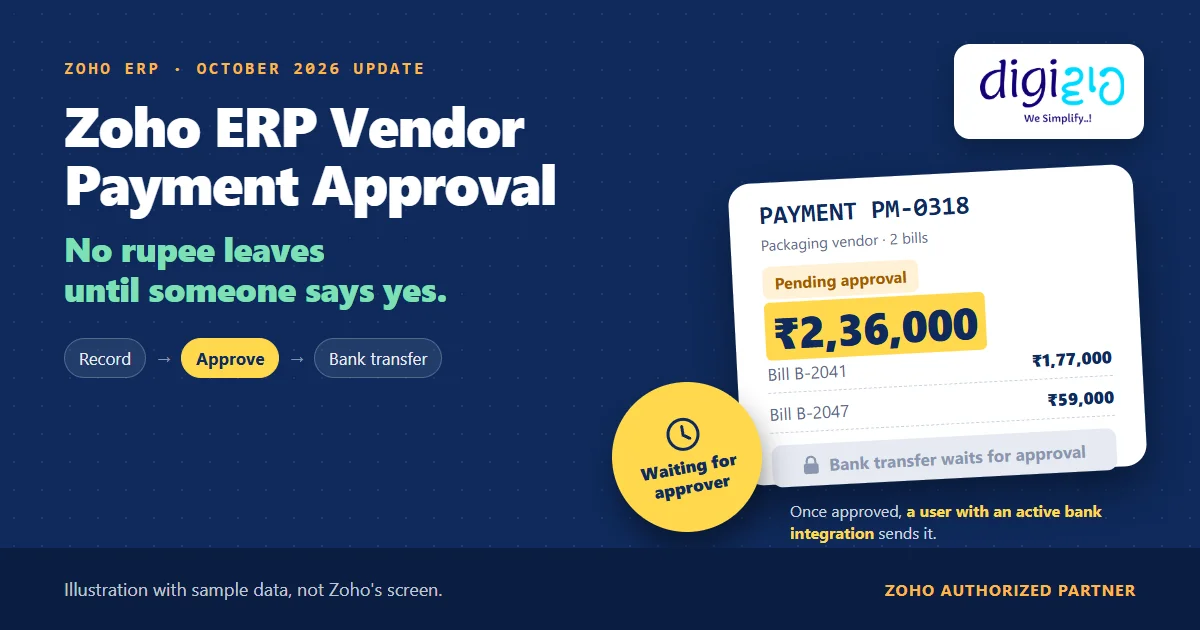
Short answer Zoho ERP vendor payment approval makes every vendor payment wait for a reviewer before money moves. You switch on Approvals for Payments Made (Simple or Multi-Level). Since the October 2026 update, the same flow covers online bank transfers too: you record the payment, submit it, and only after approval can a user with an active bank integration send it.
No rupee should leave for a vendor until someone has said yes to it. Yet in many businesses, the person who keys in the payment is also the person who sends it.
Zoho ERP already had approvals for payments you record by hand. However, online bank transfers ran on their own track. The October 2026 update puts both on one path, so even a transfer from your connected bank account now waits for approval first.
Who this guide is for
This guide is for owners, finance heads and accounts teams who pay vendors from Zoho ERP, or plan to. You will learn what Zoho ERP vendor payment approval does, what the October 2026 update changed, who approves and who sends the money, how to set it up, a worked example, and what Zoho has not documented yet.
- Approvals for Payments Made are off by default (No Approval). You can switch to Simple or Multi-Level approval in Settings.
- The October 2026 update gives vendor payments one flow when approval is on: record the payment, submit it, and initiate the online bank transfer only after approval.
- Any user with an active bank integration can initiate an approved payment, says Zoho. The bank integration itself is user-level, so each user who sends money needs their own access.
- A rejected payment comes back with a reason. You edit it and click Resubmit.
- Your bank can add a second check. ICICI’s portal and SBI’s Non-STP mode can ask for one more approval on the bank side.
- What is Zoho ERP vendor payment approval?
- What changed in the October 2026 update?
- Who approves, and who sends the money?
- Which banks connect for vendor payments?
- How to set it up, step by step
- A worked example: ₹2,36,000 to a packaging vendor
- What happens when an approver rejects a payment?
- What Zoho has not documented yet
- Frequently asked questions
What is Zoho ERP vendor payment approval?
In Zoho ERP, a vendor payment is a record in the Payments Made module. It captures when and how you settled a vendor’s dues, and it updates the bill’s status. Zoho ERP’s Approvals for Payments Made help page explains the control: “If your business requires payments made to be approved by other users, you can configure Approvals for the Payments Made module in Zoho ERP.”
By default, “the approval type will be No Approval”. So nothing waits for anyone until you change it. You can choose from two types for this module:
| Approval type | What it means for vendor payments |
|---|---|
| No Approval | The default. A user records the payment and it goes through. |
| Simple | A payment needs approval before it goes through. |
| Multi-Level | A payment passes through more than one approval level. |
Zoho ERP’s Approvals overview lists Payments Made under Simple and Multi-level approval. Custom Approval is not listed for Payments Made, although Bills and Batch Payments support it. Zoho describes the purpose plainly: approvals help owners “cross-check, eliminate errors, maintain control over spending”.
What changed in Zoho ERP vendor payment approval in October 2026?
The Zoho ERP product updates for October 2026 describe the change in four sentences:
“Vendor payments now follow a unified flow when payment approval is enabled. You can record payment details and submit them for approval before initiating an online bank transfer. Once approved, any user with an active bank integration can initiate the payment. This simplifies the payment process, eliminates separate online and offline workflows, and provides a consistent experience across vendor payments and bills.”
In other words, the order of events is now fixed when approval is on. First you record, then a reviewer approves, and only then does the money go to the bank.
| What the update says | |
|---|---|
| Before | Online and offline vendor payments had “separate” workflows. |
| Now | One “unified flow” for vendor payments and bills, when payment approval is enabled. |
| Order of steps | Record payment details, submit for approval, then initiate the online bank transfer. |
| Who can send it | “Any user with an active bank integration”, once the payment is approved. |
Who approves, and who sends the money?
Zoho ERP vendor payment approval separates three jobs. Often, three different people do them.
- The maker records the payment in Payments Made and clicks Submit for Approval.
- The approver opens the payment and clicks Approve, or chooses Reject from the dropdown next to it. You pick the approval type in Settings; the help page does not list which roles can approve.
- The sender initiates the approved payment through the bank. According to the update, that is any user with an active bank integration.
The last point needs care. Zoho ERP’s ICICI Bank help page says: “This is a user-level integration and only the user who had set up the integration will be able to access or make payments using it.” Similarly, the SBI page says you “will have to provide access to each user to allow them to initiate payments.” So the sender list is short by design. It is only the people your bank has set up.
Which banks connect to Zoho ERP for vendor payments?
Zoho ERP’s help has a connected banking guide for each of these banks. All of them describe the India edition of Zoho ERP. For example, the ICICI and SBI pages say the integration is “available only for users in the India edition of Zoho ERP, created under the zoho.in domain.”
| Bank | Zoho ERP help page |
|---|---|
| ICICI Bank | Connected Banking with ICICI Bank |
| State Bank of India | Connected Banking with SBI |
| Axis Bank, Kotak, HSBC, Standard Chartered, Yes Bank | One “Connected Banking with …” page each, under Vendor Payments |
Moreover, the Zoho ERP pricing page shows “Connected Banking with partner banks” and “Purchase approval” on both the Standard and Premium plans. Batch payments, by contrast, show on Premium only.
How to set up Zoho ERP vendor payment approval, step by step
These steps follow Zoho ERP’s help pages for Payments Made approvals and connected banking. The labels are Zoho’s own.
-
Turn on Zoho ERP vendor payment approval
First, go to Settings in the top right corner and click Payments Made under Purchases. Open the Approvals tab, select Simple or Multi-Level as the Approval Type, configure the preferences, and click Save.
-
Connect your bank account
Next, go to Settings and open Vendor Payments under Online Payments. Set up your bank there. Expect document checks and an approval step on your bank’s portal before the account turns Active.
-
Add your vendors’ bank accounts
Then open each vendor under Purchases, click More and select Add Bank Account. By default, only admins can add these details, but you can give other roles the permission.
-
Record the vendor payment and submit it
After that, go to Purchases, then Payments Made, and click + New. Pick the vendor, enter the amount against the open bills, and save. Then click Submit for Approval and confirm.
-
Approve the payment in Zoho ERP
Now the approver opens the payment from Payments Made and clicks Approve. If something looks wrong, the approver picks Reject from the dropdown and enters a reason.
-
Initiate the online bank transfer
Finally, a user with an active bank integration initiates the approved payment. With ICICI, for example, you confirm with an OTP and the token from the bank’s portal. The payment shows Uncleared until the bank processes it, then Cleared.
A worked example: ₹2,36,000 to a packaging vendor
Take a plant that makes pump parts and buys cartons from one packaging vendor (sample data). The vendor has two open bills, both already matched against the purchase order and the receipt.
| Step | Who | What happens in Zoho ERP |
|---|---|---|
| 1 | Accounts executive | Records one payment of ₹2,36,000 in Payments Made: ₹1,77,000 against bill B-2041 and ₹59,000 against bill B-2047. Clicks Submit for Approval. |
| 2 | Finance head | Opens the payment, checks both bills, and clicks Approve. |
| 3 | Owner (has the ICICI integration) | Initiates the approved payment by RTGS, enters the OTP and the bank token. |
| 4 | Zoho ERP | Shows the payment as Uncleared, then Cleared once the money reaches the vendor’s account. |
Now suppose the executive had typed ₹2,63,000 by mistake. In that case, the finance head rejects it with the reason “Amount does not match bills”. The executive edits the amount, saves, and clicks Resubmit. As a result, the wrong figure never reaches the bank.
This is also where your earlier checks pay off. If you match each bill to its PO and receipt first (see Zoho ERP three way matching), the approver reviews a payment against bills you already trust.
Who should approve your vendor payments, and who should send them? We map your approval levels, connect your bank to Zoho ERP, give bank access to the right users only, and test the whole flow with your accounts team before go-live.
What happens when an approver rejects a vendor payment?
A rejection is not a dead end. Zoho ERP’s help says that if “your approver rejected a vendor payment due to reasons such as incorrect or missing information, you can make the necessary changes and resubmit the vendor payment for approval.”
So the loop is short. You select the rejected payment, click Edit, make the change, click Save, and then click Resubmit. If you later decide your business no longer needs the control, you can go back to the Approvals tab and choose No Approval.
Can the bank add a second approval?
Yes, on some banks. On ICICI, “If you have enabled an approval workflow in your CIB portal”, approvers approve or reject the transfer under Transaction Approvals in the bank’s portal. On SBI, the Non-STP mode means “the payment will be initiated from Zoho ERP but will have to be authorised again at the SBI portal”. So you can run two checks: one in Zoho ERP before the transfer, and one at the bank after it.
From the implementation floor
The weak spot is rarely the approval rule. Usually it is the bank login. In many setups, the owner connects the bank under their own Zoho user, then forgets that the integration is user-level. When that user leaves or changes, payments stop. So we decide two things before go-live: which users get bank access, and who approves in Zoho ERP. Ideally, those are not the same person who records the payment.
What Zoho has not documented yet
The October 2026 update is short, and the help pages have not caught up fully. Here is what Zoho ERP’s own pages do not yet say, as of November 12, 2026:
- The new flow, screen by screen. The Approvals for Payments Made page covers submit, approve, reject and resubmit. However, it does not yet describe how you initiate a bank transfer from an approved payment.
- Who can approve. The page tells you to “configure the required preferences” for Simple or Multi-Level approval, but it does not list those preferences or approver roles.
- Payments from the bill screen. The ICICI page shows “Pay via ICICI Bank” on a bill. The update says the experience is “consistent across vendor payments and bills”, but the help does not yet show approval on that path.
- Amount limits or rules. Nothing on the Payments Made page sets a rupee limit that triggers approval. SBI’s page notes that its portal admin sets approvers and limits on the bank side.
- Banks. We cover only the banks with a Zoho ERP help page. Check yours with your bank before you plan the setup.
What Digiwah, as a Zoho ERP implementation partner, sets up around these gaps: the approval type and levels, bank access for named users only, vendor bank details, and a test payment end to end before your team relies on it.
Related reads: if a customer is also your vendor, Zoho ERP netting can offset the two balances before you pay. For every other change this month, see the Zoho ERP October 2026 update.
Frequently asked questions about Zoho ERP vendor payment approval
How do I turn on vendor payment approval in Zoho ERP?
Go to Settings in the top right corner and click Payments Made under Purchases. Open the Approvals tab, choose Simple or Multi-Level as the Approval Type, set the preferences and click Save. By default, the approval type is No Approval, so payments go through without review until you change it.
What did the October 2026 update change for vendor payments?
When payment approval is on, vendor payments now follow one unified flow. You record the payment details and submit them for approval before you initiate an online bank transfer. Once approved, any user with an active bank integration can initiate it. Zoho says this removes the separate online and offline workflows.
Who can send an approved vendor payment to the bank?
Zoho’s October 2026 update says any user with an active bank integration can initiate an approved payment. The bank integration is user-level. On ICICI, only the user who set it up can make payments with it, and on SBI you give each user access to initiate payments.
What happens if a vendor payment approval is rejected?
The approver chooses Reject and enters a reason. The person who recorded the payment then opens it, clicks Edit, fixes the details and saves. After that, they click Resubmit and confirm, and the vendor payment goes back to the approver for review.
Which banks work with Zoho ERP vendor payments?
Zoho ERP’s help has connected banking pages for ICICI Bank, SBI, Axis Bank, Kotak, HSBC, Standard Chartered and Yes Bank. The ICICI and SBI pages say the integration is only for the India edition of Zoho ERP, created under the zoho.in domain.
Is Zoho ERP vendor payment approval on the Standard plan?
Zoho’s pricing page shows Purchase approval and Connected Banking with partner banks on both the Standard and Premium plans. Batch payments show on Premium only. Plan contents can change, so check the pricing page before you plan your setup.
Conclusion
In short, Zoho ERP vendor payment approval now covers the last step that used to slip past it: the online bank transfer. Record, approve, then pay, in that order, every time. The setting takes minutes. The real decision is who records, who approves and who holds the bank access.
So, one question for your next finance review: in your business today, can the person who enters a vendor payment also send it?
Approve every rupee before it leaves
Digiwah, a Zoho Authorized Partner, sets up vendor payment approval, connected banking and user access in Zoho ERP, and trains your accounts team on the new flow.
Prefer to write? Tell us how your vendor payments run today.
