

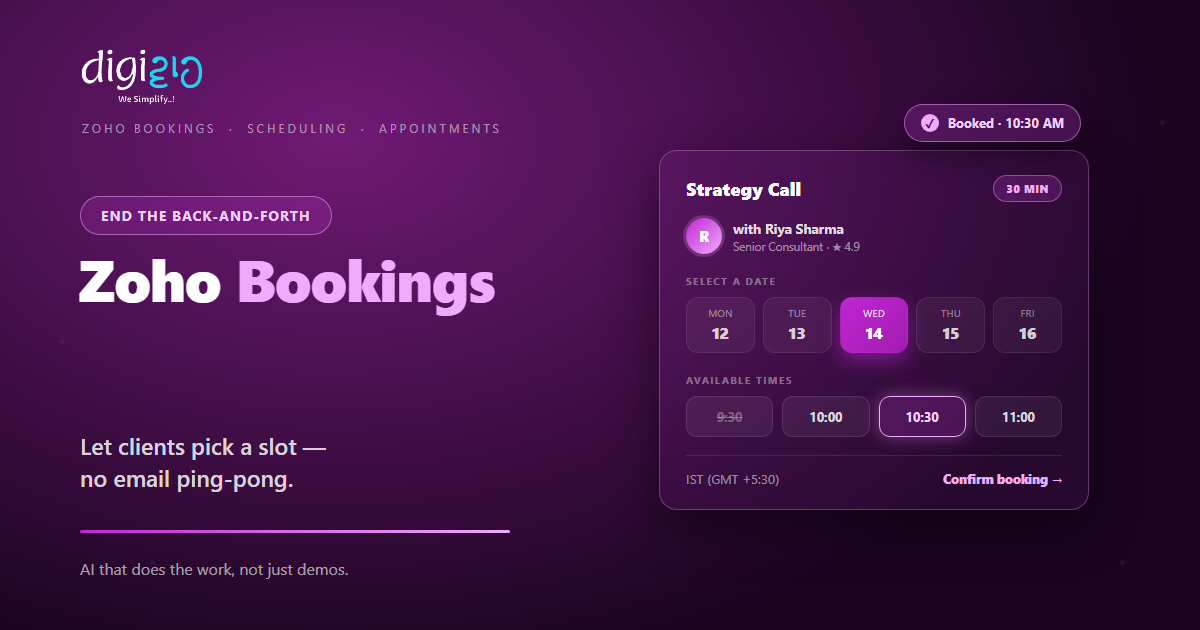
Zoho Bookings: Let Clients Book You Without the Back-and-Forth
Zoho Bookings turns scheduling into a self-serve page — synced to your calendar, with reminders that cut no-shows.
Last Updated: June 24, 2026
Zoho Bookings is appointment scheduling software. In short, it lets clients pick a free slot themselves. So the endless email back-and-forth stops. Plus, every booking lands on your calendar at once.
This matters because manual scheduling wastes hours. After all, you trade emails just to find one time that works. But a booking page does that job for you. In this guide, you will see how Zoho Bookings works, what it does, and how to start.
Key Takeaways
- Clients book themselves. They pick a free slot on your page, any time of day.
- Calendars stay in sync. Two-way sync with Google and Outlook stops double-bookings.
- Reminders cut no-shows. Automated emails confirm and remind every client.
- Take payment up front. Collect fees at booking via Stripe, PayPal, or Razorpay.
- It joins your stack. Connect Zoho CRM, Meet, WhatsApp, and 75+ more apps.
Table of Contents
- What Is Zoho Bookings?
- Why Online Scheduling Matters for SMEs
- Features That Make Booking Effortless
- A Quick Note on Appointment Types
- Zoho Bookings vs Email Scheduling
- Is Zoho Bookings Right for You?
- How to Get Started With Zoho Bookings
- Zoho Bookings in Action: A Quick Example
- Frequently Asked Questions
- Conclusion
What Is Zoho Bookings?
Zoho Bookings is cloud appointment scheduling software. In short, it gives you a booking page clients can use on their own. So they see your free slots and pick one. For example, a client books a 30-minute call without a single email.
It is also part of the wider Zoho suite. So your bookings share data with your other tools. For instance, it connects to Zoho CRM and sits inside Zoho One. As a result, a new booking can update your records on its own.
For Indian SMEs, the value is time saved. After all, clinics, salons, and consultants lose hours to phone tag. But a self-serve page handles that for you. So your team books more and chases less.
Why Online Scheduling Matters for SMEs
Many small firms still book by phone and email. But that leaks time and clients. So a proper tool pays off fast.
First, a booking page works even after hours. Second, automatic reminders cut costly no-shows. So your calendar stays full without the chasing. Plus, clients enjoy booking in seconds, not in a queue.
Features That Make Booking Effortless
Zoho Bookings was built to kill scheduling friction. So below are the features that help most. Plus, each one works inside the same platform.
Self-Service Booking Page
First, share a clean booking page or embed it on your site. Clients see your free slots and pick one. So the back-and-forth simply ends.
Two-Way Calendar Sync
Next, sync both ways with Google Calendar and Outlook. Booked time blocks itself off at once. So double-bookings stop for good.
Staff & Resource Scheduling
Also, add staff with their own roles and services. Assign each person to the right appointment type. You can even book rooms or equipment as resources.
Automated Reminders
Meanwhile, send confirmation and reminder emails on their own. Add SMS and WhatsApp through workflows too. So fewer clients forget and miss.
Payments & Video Meetings
Plus, collect fees at booking via Stripe, PayPal, or Razorpay. Online meetings get a Zoho Meet, Zoom, or Teams link by default. So money and the call are sorted up front.
A Quick Note on Appointment Types
People often ask which booking style to use. But the choice is simple. So here are the four types Zoho Bookings supports.
- One-on-one: one staff member meets one client. For example, a consultation or a demo call.
- Group: many people join one slot. So this fits classes, workshops, and webinars.
- Collective: several staff are needed for one booking. As a result, a panel or a joint review books in one go.
- Resource: you book a room or equipment, not just a person. So a clinic room or a demo car never clashes.
This split helps you set things up right. Because each type fits a different need, your page stays clear for clients. You can review all four on the official Zoho Bookings page.
Zoho Bookings vs Email Scheduling
Many SMEs still set times over email. But that breaks down fast. So the table below shows the main gaps.
| Factor | Email Scheduling | Zoho Bookings |
|---|---|---|
| Finding a slot | Endless back-and-forth | Clients pick a free slot |
| Double-bookings | Easy to miss | Calendar sync blocks them |
| Reminders | You send each by hand | Automated email and SMS |
| Payments | Chased after the call | Collected at booking |
| Time zones | Worked out by hand | Converted automatically |
So the takeaway is clear. For a rare meeting, email may do. But once bookings pile up, a real tool wins every time.
Is Zoho Bookings Right for You?
Zoho Bookings fits many businesses. But not every case. So here is a quick, honest check.
It fits well when…
- You run on appointments. So clinics, salons, and consultants gain the most.
- You want fewer no-shows. As a result, automatic reminders save real money.
- You already use other Zoho apps. So your bookings join up with no extra work.
Think twice when…
- You take just one or two meetings a month. Then a shared calendar may still be fine.
- Your work never runs on fixed slots. In that case, a booking page adds little.
How to Get Started With Zoho Bookings
You do not need a big rollout to start. Instead, set up one service first. So here is a clear path for an Indian SME.
-
1Connect your calendar
First, link Google or Outlook with two-way sync. So your free time shows up correctly from day one. -
2Add your services and staff
Next, set each service, its length, and its price. Then assign the staff who deliver it. -
3Set your availability
Now add working hours, buffers, and days off. So clients only ever see slots you can keep. -
4Share your booking page
Then send the link or embed it on your website. So clients can book in just a few taps. -
5Automate reminders and follow-ups
Finally, turn on reminders and link your CRM. A Zoho partner can help you wire it up right.
Set up one service this week. Your phone will ring less, and your calendar will fill on its own.
Zoho Bookings in Action: A Quick Example
Numbers are useful. But a real story lands better. So here is how one clinic changed its front desk.
A busy clinic booked every patient by phone. So the front desk juggled calls, and no-shows ate into the day. Then they added Zoho Bookings. Now patients pick a slot online and get an instant reminder. Meanwhile, each doctor’s calendar blocks itself to avoid clashes. As a result, no-shows dropped, and the front desk finally caught its breath.
In short, Zoho Bookings did not just take appointments. Instead, it freed the team from the phone. So they spent more time on patients and less on the diary.
Frequently Asked Questions
What is Zoho Bookings?
Zoho Bookings is cloud appointment scheduling software. In short, it gives clients a page to self-book your free slots. So the email back-and-forth ends and bookings land on your calendar.
Does Zoho Bookings sync with Google Calendar?
Yes. It offers two-way sync with Google Calendar and Outlook. So booked time blocks itself off and double-bookings stop.
Can clients pay when they book?
Yes. You can collect fees at the time of booking. It works with Stripe, PayPal, Razorpay, and other payment providers.
Does Zoho Bookings send reminders?
Yes. It sends confirmation and reminder emails on its own. You can also add SMS and WhatsApp through workflows, so fewer clients miss.
Is Zoho Bookings free?
Yes, it offers a free plan, with paid tiers priced per staff member. So you can test it before paying. For current limits and prices, check the official Zoho Bookings page.
Can Zoho Bookings connect to Zoho CRM?
Yes. It connects to Zoho CRM and 75+ other apps. So a new booking can update your records and trigger follow-ups.
Conclusion
In the end, Zoho Bookings turns scheduling from a chore into a system. So if your work runs on appointments, it is worth a look. After all, you get a self-serve page, synced calendars, and reminders that cut no-shows. Plus, it pairs well with Zoho CRM and the rest of the suite.
First, connect your calendar and add one service. Then set your hours and share the booking page. Next, turn on reminders and link your CRM. That way, clients book themselves while you focus on the work.
Think about last week’s missed calls and no-shows. How many bookings slipped away while the phone was busy?
Want Zoho Bookings set up for your business — booking pages, calendar sync, reminders, and payments wired into your CRM? Talk to a Zoho Authorized Partner.
