

Short answer Zoho ERP stock count is the transaction that checks whether the quantity on your shelves matches the quantity in the system. You can create one by hand or schedule a recurring stock count by day, week, month or year. Zoho ERP then creates each count, reminds the assignee, and after approval posts inventory adjustments. Someone still has to count.
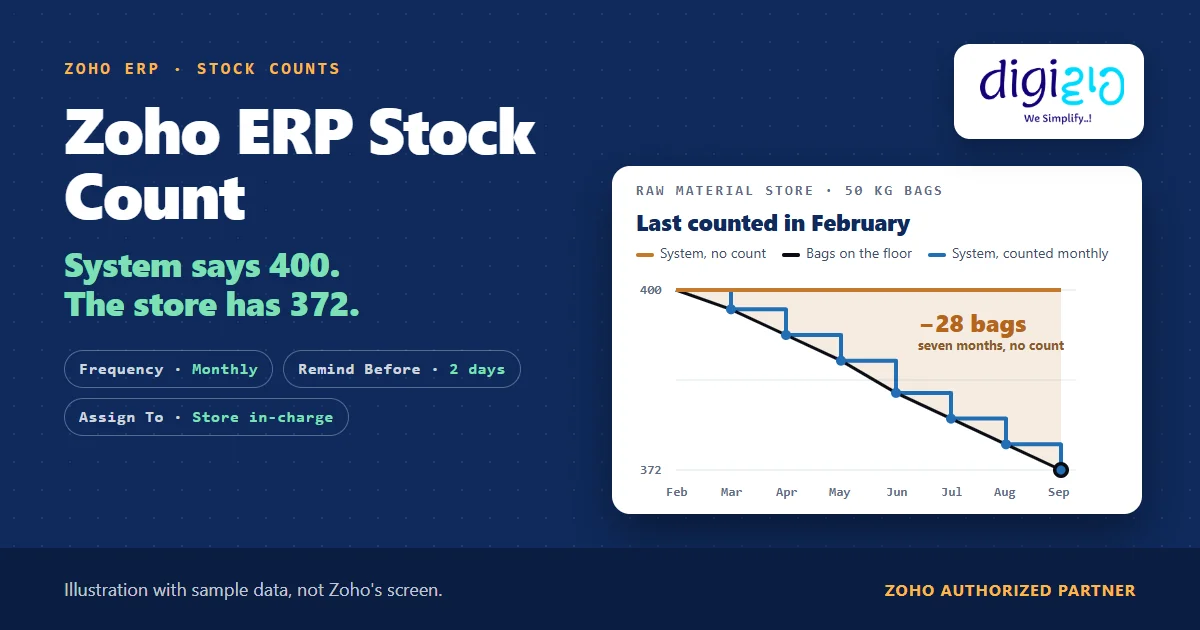
400 bags in the system. 372 on the floor. Last counted in February.
A system quantity is only as current as its last count, in any ERP. Those 28 bags are gone either way. However, the real cost is the months the plant spent buying and quoting against 400.
Who this guide is for
This guide is for owners, plant heads and store managers who run a raw material store in Zoho ERP, or plan to. You will learn what a stock count does, how to schedule a recurring stock count, how counting and approval work on the web and the mobile app, what a count changes in your books, and where Zoho’s help pages stop. The example is a manufacturer’s raw material store, with sample data.
- A count checks the number. In Zoho ERP, a stock count compares the counted quantity at a location with the quantity recorded in the system.
- You can schedule it. A recurring stock count repeats by day, week, month or year (Periodic), or on up to 3 custom dates (Count Custom).
- The assignee gets the reminder. Zoho ERP sends in-app and mail reminders to the user in Assign To, a set number of days before the count.
- Approval moves the system number. When you approve a difference, you pick an Adjustment Reason, and Zoho ERP creates the inventory adjustment automatically.
- An ignored count expires. A count that crosses its scheduled period goes to Expired. Zoho ERP creates and reminds; it does not count for you.
What is a Zoho ERP stock count?
Zoho’s Understanding Stock Counts help defines it in one line: “A stock count is a transaction that an organization records to verify whether the quantity of items available in its inventory matches the quantity recorded in the system.” In other words, someone physically counts items at one location, and Zoho ERP compares that figure with its own.
The same page lists what it catches: “discrepancies caused by damages, losses, incorrect receipts, or data entry errors.” So in a plant, a count finds the spilled bag, the short receipt nobody noticed, and the issue to the line that never got recorded.
Every count follows the same lifecycle. First, you create it and assign it to a user. Then that user records the counted quantities and submits the count for approval. Finally, an approver reviews it in the web application. As a result, the status moves through Yet To Start, Counting In Progress, Pending Approval and Completed.
One prerequisite comes first. The Create Stock Counts help says: “To enable Stock Counting you should have enabled locations in your organisation.” So if your plant runs a single location today, set up locations before you plan counts.
How does a recurring Zoho ERP stock count work?
A one-off count answers today’s question. However, the gap between system and floor grows every week nobody checks. That is why Zoho ERP lets you repeat it: “If you want a stock count to be repeatedly created at a certain point of time, day, week, month or year, you can create recurring stock counts.”
There are two ways in. You can pick New Recurring Stock Counts from the dropdown next to + New. Or, on the normal New Stock Count page, you can “check the Schedule Counts box”. Then you choose one of two schedule types:
| Schedule type | Fields | Use it when |
|---|---|---|
| Periodic | Frequency, Generate Count On, Schedule Starts On, Generate Count At, Schedule Expires After, Remind Before | The count repeats on a steady cycle, for example every month |
| Count Custom | Date (up to 3), Execution Time, Remind Before | You want a few fixed dates, for example before each quarter closes |
Two fields matter most on the floor. Remind Before sets how many days ahead the reminder goes out. Assign To names the user “in charge of this stock count”. According to Zoho, “You will get reminder notifications inside the application and mails regarding the stock counts to be done,” and only the assigned user gets them. So the assignee should be the person who actually walks into the store.
You can also pause a schedule. On the Stock Counts Operations help, More > Mark as Inactive stops a recurring stock count for a while, and Mark as Active brings it back.
How to schedule a Zoho ERP stock count, step by step
These steps follow Zoho ERP’s help. The path is Inventory on the left sidebar, then Inventory Control > Stock Counts.
-
Enable locations and Stock Counting
First, make sure locations are on in your organisation. Then enable Stock Counting under Settings. Zoho ERP needs both before you can create a stock count.
-
Start a new recurring stock count
Next, go to Inventory > Inventory Control > Stock Counts. Click the dropdown near + New and select New Recurring Stock Counts. Give it a Stock Count Name, a Description, a Location and an assignee under Assign To.
-
Set the Zoho ERP stock count schedule
Then choose Periodic and set Frequency, for example every month. Fill Generate Count On, Schedule Starts On and Generate Count At. Under Schedule Expires After, pick an end date, a number of counts, or Never Expires.
-
Set Remind Before
Enter how many days before the count the assignee should hear about it, for example 2. That gives the store time to stop issues and arrange a counter.
-
Add the items to count
Click Next, then Select items. You can check items one by one, select all in bulk, or filter by Availability, Category, Manufacturer and Brand. Finally, click Save.
To check your schedules later, click View Recurring Counts in the top right of the Stock Counts page. Keep one more rule in mind: “You can edit a stock count only if it is in the Yet To Start status.”
How do you count stock in Zoho ERP: web app or Warehouse app?
You can count in either. The Operations help says that after you create a count in the web application, “you can count stock using our Zoho ERP Warehouse mobile application.” The count shows up in the app as Yet To Start. The counter taps Start Counting and either enters items by hand or scans the item barcode “using mobile scanner and barcode scanners”. For batch or serial tracked items, the counter enters the batch or serial details too.
On the web app, Start Counting and then View Items shows the stock for each bin “based on system records”. After that, you enter the Counted Quantity, or add batches and serial numbers for tracked items. A matching line shows in green; a mismatch shows in red, with arrows for more or less.
A few rules from the help are worth knowing before count day:
- Create, edit and approve stay on the web. “Other actions like create, edit, and approval can only be done using the web app.”
- Tracking gaps block the start. “Stock Count cannot be started if there’s a mismatch in quantity and available tracking details.” If you run batch tracking, fix missing batch details first.
- Movements during the count raise a flag. “If inventory adjustments are recorded while your counting is in progress, a variation alert will pop-up.”
- Uncounted items need a decision. At submission, you can resume counting or click Mark Uncounted as Zero & Submit.
- Submission is final. “Once you’ve submitted the stock counts for approval you’ll not be able to edit it later.”
What does approving a Zoho ERP stock count change?
Approval is where the system number moves. The approver clicks Start Approving, checks unmatched items bin by bin, and marks each item Approve or Reject. If you approve an unmatched item, Zoho says “you should select an Adjustment Reason from the dropdown.”
Then the lifecycle help explains the effect: “If the counted items are approved, an adjustment reason is recorded for items with differences, and inventory adjustments are automatically created to update stock levels. If the items are rejected, no inventory adjustments are made for those items.”
In other words, a count moves the system number down (or up) onto the counted figure. It does not bring missing bags back. The Stock Counts Preferences help lets you set a default Adjustment Account and Adjustment Reason, and Manage Reasons adds your own. In addition, the Stock Count Summary Report shows completed and pending counts, count outcomes and adjustment reasons across a period and location.
The adjustments that approved counts create also feed the inventory reports. Since Zoho ERP’s October 2026 update, “Chart View, Forecasting, Anomaly Detection, and Insights are now supported in” the Inventory Adjustment Summary, Inventory Adjustment Detail and Stock Summary reports. So once counts run every month, you can chart the quantity decreased month by month instead of reading one adjustment at a time. The update does not describe what anomaly detection flags in these reports. For the full list of changes, see our Zoho ERP October 2026 update roundup.
Worked example: a Zoho ERP stock count in a raw material store
Take a manufacturer’s raw material store (sample data). Its main raw material arrives in 50 kg bags. The last count was on 1 February, and the system has said 400 bags ever since. On the floor, bags go missing a few at a time: a split bag, a short receipt, an issue to the line nobody entered. By 1 September, the store holds 372.
| Date | Bags on the floor | System, no count since Feb | System, counted monthly | Gap found by the monthly count |
|---|---|---|---|---|
| 1 Mar | 397 | 400 | 397 | 3 |
| 1 Apr | 393 | 400 | 393 | 4 |
| 1 May | 389 | 400 | 389 | 4 |
| 1 Jun | 384 | 400 | 384 | 5 |
| 1 Jul | 380 | 400 | 380 | 4 |
| 1 Aug | 376 | 400 | 376 | 4 |
| 1 Sep | 372 | 400 (28 off) | 372 | 4 |
For simplicity, the table leaves out receipts and issues that the store did record, because those reach the system either way. The bags on the floor are identical in both columns. Counting does not stop the loss. Instead, it changes how long the plant plans against a wrong number.
The monthly Zoho ERP stock count setup for this store
So here is the monthly setup: a Periodic recurring stock count, Frequency every month, Generate Count On the 1st, Remind Before 2 days, Assign To the store in-charge. Each month the count finds 3 to 5 bags. The approver picks an Adjustment Reason, Zoho ERP posts the adjustment, and the system figure drops onto the counted one.
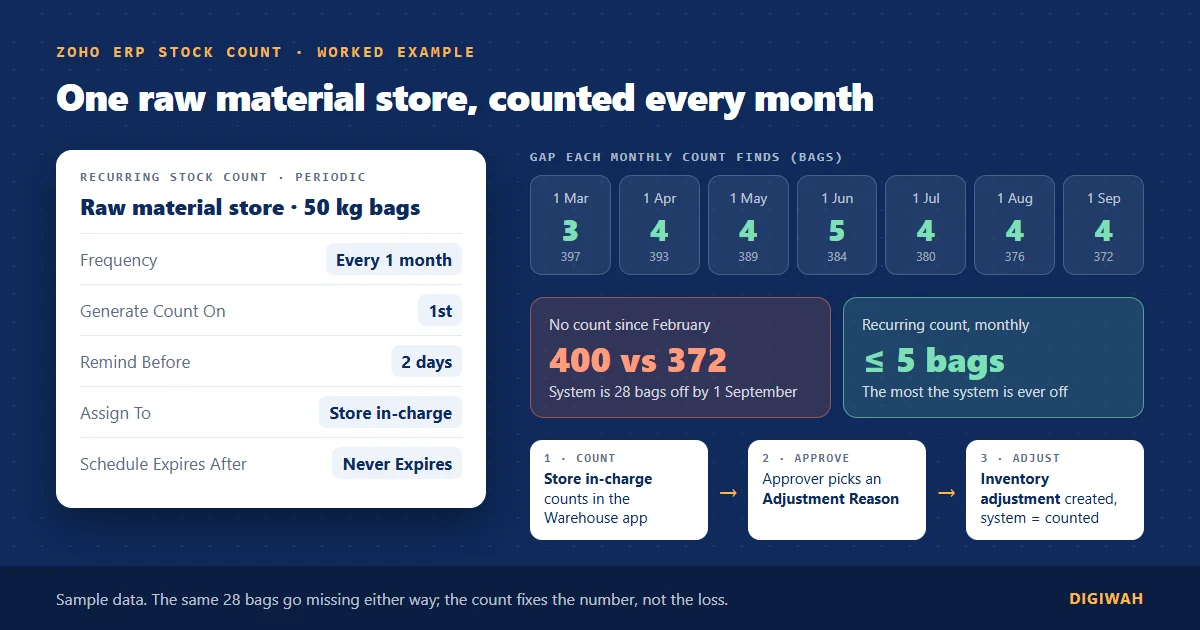
Gap between system and floor after seven months with no count
400 − 372 · sample data
The most the system is ever off when the store is counted every month
Worst month: June · sample data
The 28 bags are lost either way. However, without counts, purchase planned against 400 for seven months, and sales quoted stock that was not there. With monthly counts, the planner was never more than 5 bags behind.
When was your raw material store last counted? We map which items need a monthly count and which can wait, then set up locations, recurring stock counts, assignees and adjustment reasons in Zoho ERP for your plant.
From the implementation floor
The schedule is the easy part. The hard part is who counts and who approves. So we keep them apart: the store in-charge is the assignee, and someone outside the store approves. We also split items into separate recurring counts, for example costly raw materials every month and packing material every quarter, so no single count day takes the whole shift. And we tell every store team the same thing about Mark Uncounted as Zero: it means zero, so count first.
What a Zoho ERP stock count does not do
Based on Zoho ERP’s help pages as of November 21, 2026, these limits are worth planning around:
- It does not count for you. Zoho ERP creates the count and sends the reminder. If nobody counts, the status becomes Expired: “The stock counts that have crossed the scheduled period will come under expired stock counts.”
- It does not recover stock. Approval moves the system number onto the counted figure. The loss itself still needs a cause, and the Adjustment Reason is only a label for it.
- It does not choose items by value or movement. You select items by hand, in bulk, or by Availability, Category, Manufacturer and Brand. The help describes no automatic item ranking.
- No blind count is documented. On the web app, View Items shows stock “based on system records”. The help describes no option to hide system quantities from the counter.
- Custom schedules have a cap. Count Custom takes “a maximum of 3 dates”. For more dates, use a Periodic schedule.
- What happens after Expired is not documented. The help does not say whether an expired count can still be counted, or how it affects the next scheduled one.
None of this makes recurring counts less useful. Rather, it is the setup work a Zoho ERP implementation partner should do with your store team before the first count date.
Related reading: inventory management in ERP, Zoho ERP material consumption (unrecorded consumption is a common cause of count gaps), Zoho ERP batch tracking, and Zoho ERP inventory aging.
Frequently asked questions about Zoho ERP stock count
How do I create a recurring stock count in Zoho ERP?
Go to Inventory, then Inventory Control > Stock Counts. Click the dropdown near + New and select New Recurring Stock Counts, or check the Schedule Counts box on the New Stock Count page. Then set the location, assignee, schedule type and Remind Before, add the items, and click Save.
How often can a Zoho ERP stock count repeat?
With a Periodic schedule, it can repeat every day, week, month or year, and Change lets you set a frequency other than 1. With a Count Custom schedule, you pick up to 3 dates. You also choose when the schedule ends: on a date, after a number of counts, or never.
Who gets the stock count reminder?
Only the user in Assign To. Zoho ERP sends reminder notifications inside the application and by mail, the number of days set in Remind Before ahead of the count. So name the person who will actually do the counting, not a manager who will forward it.
Can I do a Zoho ERP stock count on a phone?
Yes. Once you create the count in the web application, it appears in the Zoho ERP Warehouse mobile app as Yet To Start. There you can enter items by hand or scan barcodes, and save each bin as a draft. However, creating, editing and approving a count are web-only actions.
What happens when a stock count is approved?
For each approved item with a difference, Zoho ERP records an adjustment reason and creates inventory adjustments automatically, so the system quantity matches the counted one. For rejected items, no adjustment is made. If you approve an unmatched item, you select an Adjustment Reason from the dropdown first.
What does the Expired status mean in Zoho ERP stock counts?
Expired holds stock counts that have crossed their scheduled period. In practice, it means a count was created and nobody finished it in time. Zoho ERP describes inventory adjustments only on approval, so an expired count leaves the system quantity unchecked until the next one.
Conclusion
In short, a Zoho ERP stock count does not keep stock on the floor. It keeps the number honest, and a recurring schedule decides how long a wrong number can live. Set the frequency per item group, name the right assignee, and keep the approver outside the store. Then the gap you find each month stays small enough to explain.
So, one question for this week: when was your raw material store last counted?
Count the store before it costs you
Digiwah, a Zoho Authorized Partner, sets up locations, recurring stock counts, assignees, approvals and adjustment reasons in Zoho ERP, and trains your store team on the Warehouse app.
Prefer to write? Tell us how your store counts stock today.
