

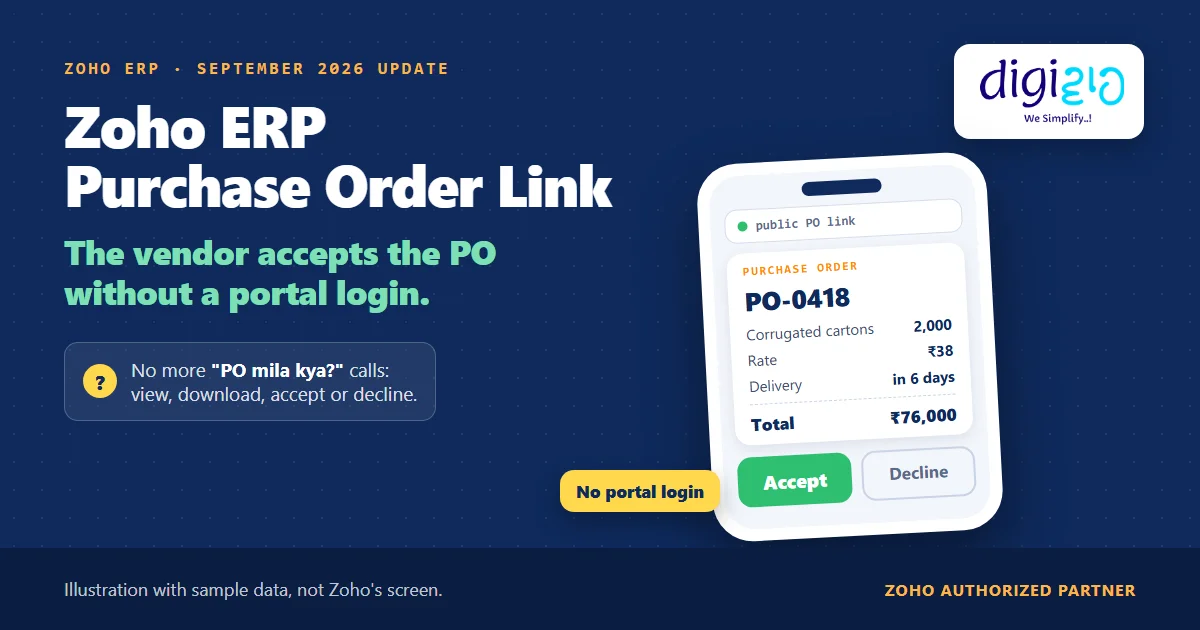
Short answer Zoho ERP purchase order link is a public, shareable link to a purchase order, added in the September 2026 update. Your vendor opens it without Vendor Portal access and can view, download, accept or decline the PO, also when you share the PO by email. So it suits vendors who will never log in to a portal, while regular vendors can stay on the Vendor Portal.
“PO mila kya?” Every purchase team knows the call. You email the purchase order, and then you phone the vendor to ask if they got it, opened it and agreed to it.
The September 2026 update to Zoho ERP gives the vendor a simpler answer. Instead of a PDF they have to reply to, they get a link where they can accept or decline the PO itself, with no portal login.
Who this guide is for
This guide is for owners, purchase heads and buyers who raise purchase orders in Zoho ERP, or plan to. It is especially for teams with many small vendors who will never sign up for a portal. You will learn what the public PO link does, how it differs from the Vendor Portal, how to send one, and what Zoho has not documented yet.
- The update: you can now share a purchase order with a vendor through a public shareable link, “without requiring Vendor Portal access.”
- From the link, the vendor can view, download, accept or decline the purchase order.
- Email counts too. Zoho says this works “including when the Purchase Order is shared via email.”
- The Vendor Portal still exists for regular vendors. There, accept/reject is a portal preference, and vendors also get comments, uploads and statements.
- Not documented yet: where the vendor’s answer shows in Zoho ERP, link expiry, and the plan. Test these on your first PO.
What is the Zoho ERP purchase order link?
It is a new way to share a purchase order. Zoho’s September 2026 product update puts it in one sentence: “You can now share Purchase Orders with vendors through a public shareable link, without requiring Vendor Portal access. Vendors can view, download, accept, or decline Purchase Orders directly from the link, including when the Purchase Order is shared via email.”
In other words, the vendor needs nothing but the link. They don’t sign up, they don’t set a password, and they don’t learn a new screen. As a result, the PO stops being a file you send and becomes a page the vendor answers.
Before this, Zoho ERP gave you two routes. First, you could send the PO by email, which the Purchase Order Operations help describes as Send Email from the PO. Second, you could invite the vendor to the Vendor Portal, where they “view purchase orders in the portal and accept or reject them directly”, once you enable that preference.
| What the vendor can do | Public PO link | Vendor Portal |
|---|---|---|
| Open the PO without a login | Yes | No, they sign up from an invite |
| View and download the PO | Yes | Yes |
| Accept or decline the PO | Yes | Yes, if you allow it in portal preferences |
| Comment on POs and invoices | Not mentioned | Yes |
| Upload invoices for you to convert into bills | Not mentioned | Yes |
| See a statement and track payments | Not mentioned | Yes |
Zoho ERP purchase order link or Vendor Portal: which one?
The answer depends on the vendor, not on your team. So decide it vendor by vendor.
- Use the purchase order link for occasional and small vendors. For example, a local carton maker, a transporter or a tooling shop will rarely sign up for a portal. However, they will tap a link on their phone.
- Use the Vendor Portal for regular, high-volume vendors. Because the portal also lets them upload invoices, add comments and pull a statement of accounts, it saves more work over a year.
Also check your plan. On the Zoho ERP pricing page, “Vendor portal” is ticked on both Standard and Premium, while “Self-service vendor portal with collaborative chats” is ticked on Premium only. Zoho does not list the public PO link as a separate row.
How to send a Zoho ERP purchase order link, step by step
These steps follow Zoho ERP’s Purchase Order help pages plus the update note. Zoho has not published a help page for the link itself yet, so the last two steps quote the update.
-
Set your PO terms once
First, go to Settings, click Purchase Orders under Purchases, and add your Terms and Conditions and Notes. Zoho says these are “automatically reflected in all the purchase orders created in your organization,” so the vendor reads them before accepting.
-
Create the purchase order
Next, go to Purchases, click Purchase Orders, then + New. Pick the Vendor Name, set the Delivery Date, add the items, and click Save.
-
Get it approved, if approvals are on
Then, if your organisation uses PO approvals, open the PO and click Submit for Approval. Then send it once an approver has approved it.
-
Send the Zoho ERP purchase order link by email
After that, open the PO and click Send Email. Verify the details on the Email To page and click Send. According to the update, the vendor can act from the link “including when the Purchase Order is shared via email.”
-
The vendor answers from the link
Now the vendor opens the link, with no Vendor Portal access, and can view, download, accept or decline the purchase order.
-
Check the answer on your first PO
Finally, open the PO in Zoho ERP and look at Comments & History. Zoho has not documented where the vendor’s answer shows, so test it once with a friendly vendor before you rely on it.
A worked example: 2,000 cartons, one link
For example, take a pump manufacturer that buys corrugated cartons from a small packaging vendor (sample data). The vendor has no Vendor Portal login and no plans to create one.
First, the buyer raises PO-0418 for 2,000 cartons at ₹38 each, ₹76,000 in total, with delivery in six days. The PO carries the company’s standard terms on payment and rejection. Then the buyer clicks Send Email.
Before the update, the next step was a phone call. Did the email arrive? Did the right person open the PDF? Will the vendor confirm on WhatsApp, by email, or not at all?
Now, instead, the vendor opens the link on a phone, reads the PO, downloads a copy for the dispatch desk, and accepts it. If the rate is wrong, they decline it instead, and the buyer knows to call about one thing: the price.
Portal logins the carton vendor needs to accept PO-0418
Per Zoho’s September 2026 update · sample data
PO value the vendor accepts from one link (2,000 × ₹38)
Our arithmetic · sample data
After that, the PO drives everything else. The store receives against it, and accounts can match the vendor’s bill to it with Zoho ERP three-way matching. So a PO the vendor actually accepted is a cleaner start for every later check.
Still chasing vendors for PO confirmations? We will set up your PO terms, approvals and email templates in Zoho ERP, decide which vendors go on the link and which on the Vendor Portal, and test the flow with your own vendors.
From the implementation floor
In most plants we set up, PO confirmations live in WhatsApp chats and phone calls, so nobody can tell later who agreed to what. A portal rarely fixes this for small vendors, because they never finish signing up. That is why the public link matters: it asks the vendor for one tap, not a new habit. However, keep the commercial terms on the PO itself, because the link only shows what the PO says.
What Zoho has not documented about the Zoho ERP purchase order link yet
The update is two sentences. Based on Zoho ERP’s pages as of November 4, 2026, these points are still open:
- No help page yet. The Purchase Order Operations help still describes Send Email, download and print, but not the public link.
- Where the answer shows. Zoho does not say how an accepted or declined PO appears in Zoho ERP, or whether you get notified.
- Declines. It does not say whether the vendor can give a reason when they decline.
- Link controls. Expiry, turning the link off, and who else can open it are not documented.
- Edits after acceptance. It does not say what happens if you change a PO the vendor already accepted.
- Plan. The pricing page has no row for the link, so check it in your own organisation.
None of these stop you from using it today. Rather, they are points to test with your own vendors, which is the kind of work a Zoho ERP implementation partner should do before purchase depends on it.
Related reading: purchase orders in ERP, Zoho ERP three-way matching, and every change in the September 2026 update.
Frequently asked questions about the Zoho ERP purchase order link
What is the Zoho ERP purchase order link?
It is a public, shareable link to a purchase order, added in Zoho ERP’s September 2026 update. Vendors open it without Vendor Portal access. From the link, they can view, download, accept or decline the purchase order. Zoho says this also works when you share the purchase order by email.
Does the vendor need a Vendor Portal login?
No. Zoho’s update says vendors can use the link “without requiring Vendor Portal access.” So a vendor who has never signed up for your portal can still open the purchase order, download it, and accept or decline it from the link.
Can I send the Zoho ERP purchase order link by email?
Yes. The update says vendors can act on the purchase order from the link “including when the Purchase Order is shared via email.” In Zoho ERP, you send a PO by opening it, clicking Send Email, checking the details on the Email To page, and clicking Send.
Should I use the purchase order link or the Vendor Portal?
Use the link for occasional and small vendors who won’t sign up for a portal. Use the Vendor Portal for regular vendors, because it also lets them comment, upload invoices for you to convert into bills, and see statements. You can mix both across your vendor list.
Where do I see whether the vendor accepted the PO?
Zoho has not documented this yet, as of November 4, 2026. So send your first link to a vendor you trust, then open the purchase order in Zoho ERP and check its status and Comments & History. Note what you see before you roll it out to every vendor.
Which Zoho ERP plan includes the public PO link?
Zoho’s pricing page does not list the link as its own row. It ticks “Vendor portal” on both Standard and Premium, and “Self-service vendor portal with collaborative chats” on Premium only. So check whether the link shows up in your own Zoho ERP organisation.
Conclusion
In short, the Zoho ERP purchase order link turns “did you get my PO?” into a yes or no from the vendor. The feature is small. The real work is setting clear PO terms, picking which vendors get the link and which get the portal, and testing what your team sees when a vendor answers.
So, one question for your purchase team: how many of this week’s POs did a vendor actually accept?
Get your POs answered, not chased
Digiwah, a Zoho Authorized Partner, sets up purchase orders, approvals, the Vendor Portal and vendor communication in Zoho ERP, and trains your purchase team to run it.
Prefer to write? Tell us how your vendors confirm POs today.
