

Zoho CRM Custom Widgets: Stop Tab-Switching and Work in One Screen
Custom widgets embed your own tools — order tracking, payments, dashboards — right inside a Zoho CRM record.
Last Updated: June 25, 2026
Zoho CRM custom widgets are small apps you embed inside the CRM. In short, they bring outside data and tools into your records. So your team works in one screen. Plus, they stop hopping between tabs all day.
This matters because reps lose time switching tools. After all, they copy an order ID, open a courier site, then come back. But a widget shows that data right in the record. In this guide, you will see what custom widgets are, where they fit, and how to build one.
Key Takeaways
- One screen, no switching. A widget shows outside data inside the CRM record.
- Eight places to embed. Dashboards, web tabs, buttons, related lists, and more.
- Built with web tech. Use HTML, CSS, and JavaScript with the JS SDK.
- Reads and writes data. The SDK pulls records and pushes safe updates back.
- On the paid plans. Widgets work in Professional, Enterprise, and Ultimate.
Table of Contents
- What Are Zoho CRM Custom Widgets?
- Why Custom Widgets Matter for SMEs
- Where You Can Embed a Widget
- What You Can Build With Custom Widgets
- A Quick Note on Widgets vs Extensions
- Custom Widgets vs Manual Workarounds
- Is a Custom Widget Right for You?
- How to Build a Zoho CRM Custom Widget
- Custom Widgets in Action: A Quick Example
- Frequently Asked Questions
- Conclusion
What Are Zoho CRM Custom Widgets?
A Zoho CRM custom widget is an embeddable UI component. In short, it is a small web app that runs inside the CRM. So it can pull data from other apps and show it in place. For example, it can display a live order status on a deal.
Widgets use plain web tech. So you build them with HTML, CSS, and JavaScript. Then the JS SDK lets the widget read and write CRM data. As a result, your widget feels like a native part of the CRM.
For Indian SMEs, the value is a perfect fit. After all, every business has a quirk the default fields miss. But a widget closes that gap. So your team gets the exact tool it needs, without leaving Zoho CRM.
Why Custom Widgets Matter for SMEs
Many teams bend their process to fit the software. But that wastes time and causes errors. So a small widget often pays off fast.
First, it cuts the constant tab-switching. Second, it keeps one source of truth in the CRM. So reps stop copying data between systems. Plus, fewer manual steps means fewer mistakes.
Where You Can Embed a Widget
Zoho CRM lets you place a widget in eight spots. So you can surface it exactly where the work happens. Plus, each spot suits a different job.
- Dashboards: show a custom chart or KPI tile next to standard reports.
- Web tabs: open a full app screen inside the CRM.
- Custom buttons: run an action from a record with one click.
- Custom related lists: show linked outside data on a record, like orders.
- Wizards: guide users through a step-by-step form.
- Signals: surface a timely alert or notification.
- Settings: add a setup screen for your widget.
- Blueprints: add a custom step inside a guided process.
So you are not stuck with one fixed spot. Instead, you pick the place that fits the task. You can review all eight on the official Zoho CRM widgets docs.
What You Can Build With Custom Widgets
Widgets shine when the default CRM falls short. So below are common builds for SMEs. Plus, each one lives right inside a record.
Order & Shipment Tracker
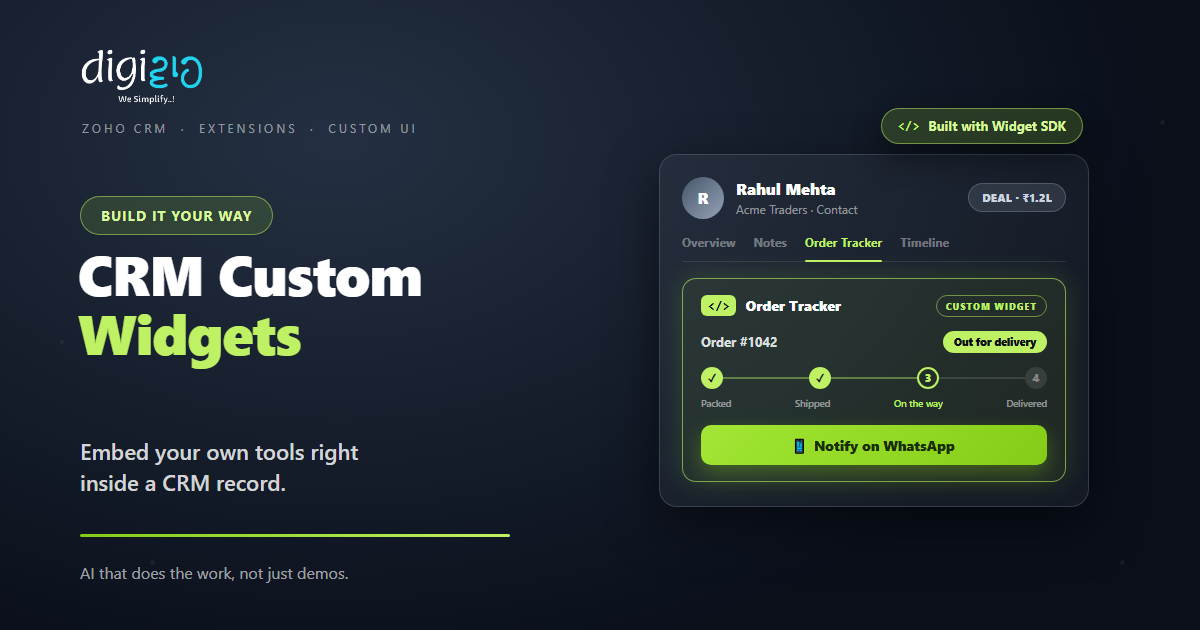
First, pull live courier data into the deal. So reps see the order status without leaving the record. As a result, “where is my order” calls drop.
Payments & Collections
Next, show invoice and payment status in the record. Add a button to send a Razorpay or Stripe link too. So collections happen right from the CRM.
Custom Dashboard Tiles
Also, build charts the default reports do not offer. Connect deeper analytics when you need them. So leaders see the metric that actually matters.
WhatsApp Actions
Meanwhile, add a button that sends a WhatsApp message from the record. Pick a template and hit send. So follow-ups go out in seconds.
Quote & EMI Calculators
Plus, drop in a calculator for prices, EMIs, or eligibility. The widget does the maths on the spot. So reps quote a number with confidence.
Document & E-Sign Panels
Finally, generate a quote or contract from record data. Then send it for signature in the same screen. So paperwork never breaks the flow.
A Quick Note on Widgets vs Extensions
People often mix up two developer terms here. But the split is simple. So here is the quick truth.
A widget is a single embedded UI piece, like one panel or button. An extension is a bigger package. So it can bundle several widgets with other parts and ship on Zoho Marketplace. For one internal need, a single widget is often enough.
This split helps you scope the work. Because a widget is smaller, it is faster and cheaper to build. As a result, most SMEs start with a focused widget, not a full extension.
Custom Widgets vs Manual Workarounds
Many teams patch CRM gaps by hand. But that breaks down fast. So the table below shows the main gaps.
| Factor | Manual Workaround | Custom Widget |
|---|---|---|
| Outside data | Open another tab | Shown inside the record |
| Repetitive steps | Copy and paste by hand | One button does it |
| Custom view | Limited to default fields | Any UI you design |
| Updates | Update two systems | Writes back via the SDK |
| Fit | Work around the gaps | Matches your exact process |
So the takeaway is clear. For a rare one-off, a manual step may do. But for daily work, a widget wins every time.
Is a Custom Widget Right for You?
Custom widgets fit many teams. But not every case. So here is a quick, honest check.
It fits well when…
- Your reps switch to another app for the same task daily. So one widget saves real time.
- You need a view the default CRM cannot show. As a result, a custom UI earns its keep.
- You are on a paid plan with some dev help. So you can build and ship it cleanly.
Think twice when…
- A simple workflow rule already solves the need. Then you may not need a widget at all.
- You have no developer and the task is rare. In that case, a low-code Zoho Creator app may fit better.
How to Build a Zoho CRM Custom Widget
You do not need a huge project to start. Instead, build one small widget first. So here is the clear path with Zoho’s toolkit.
-
1Install the Zoho Extension Toolkit
First, runnpm install -g zoho-extension-toolkit. So the ZET command line tool is ready to use. -
2Scaffold the project
Next, runzet initand pick Zoho CRM. So you get a ready project template to start from. -
3Build the widget UI
Now write your HTML, CSS, and JavaScript. Then use the JS SDK to read and write CRM data. -
4Test it locally
Then runzet runand preview at the local server. So you can check the widget before you ship it. -
5Validate, pack, and host
Finally, runzet validateandzet pack, then host it and add it to a CRM spot. A Zoho partner can build this for you.
Pick one daily tab-switch this week. That single task is the perfect first widget.
Custom Widgets in Action: A Quick Example
Numbers are useful. But a real story lands better. So here is how one firm fixed a daily headache.
The sales team checked a courier website for every order. So they copied IDs, switched tabs, and lost minutes each time. Then they built an Order Tracker widget. Now the live status shows right inside the CRM deal. Meanwhile, one button sends the update on WhatsApp. As a result, “where is my order” calls dropped, and reps stayed in one screen.
In short, the widget did not replace the CRM. Instead, it filled the one gap that slowed the team. So a small build saved time every single day.
Frequently Asked Questions
What is a Zoho CRM custom widget?
A custom widget is an embeddable UI component. In short, it is a small web app that runs inside Zoho CRM. So it brings outside data and tools into your records.
Where can I add a widget in Zoho CRM?
You can embed a widget in eight places. These are dashboards, web tabs, custom buttons, custom related lists, wizards, signals, settings, and blueprints.
What language are Zoho CRM widgets built in?
Widgets use HTML, CSS, and JavaScript. You then use the JS SDK to connect to CRM data, so the widget can read and update records.
Can a widget read and update CRM data?
Yes. The JS SDK lets a widget fetch records and write changes back. It can also call external APIs to pull in outside data.
Which Zoho CRM plans support custom widgets?
Widgets are available on the Professional, Enterprise, and Ultimate editions. Enterprise and Ultimate allow up to 200 widgets. Check the official docs for current limits.
Do I need to be a developer to build one?
Yes, building a widget needs some JavaScript skill. But you do not have to do it yourself. A Zoho Authorized Partner can build and ship it for you.
Conclusion
In the end, custom widgets shape Zoho CRM around your team. So if your reps keep switching apps, it is worth a look. After all, you get outside data, custom views, and one-click actions inside the record. Plus, widgets pair well with workflows and the rest of the suite.
First, spot one daily tab-switch your team hates. Then scope a small widget to remove it. Next, build, test, and add it to the right CRM spot. That way, your CRM finally fits the way you work.
Think about your team’s last busy week. How many minutes went to copying data between tabs?
Want a custom widget built for your Zoho CRM — order tracking, payments, dashboards, or WhatsApp actions wired into your records? Talk to a Zoho Authorized Partner.
