

Short answer Zoho ERP record locking lets you lock a finished record so that only the roles you choose can change it. You create a lock configuration, then lock each record with a reason. The September and October 2026 updates extend it to Manufacturing Orders, Purchase Receives, Transfer Orders, Inventory Adjustments, Packages, Shipments, Delivery Challans and Move Orders. Zoho’s pricing page lists record locking on Premium.
Once a batch is closed, nobody should quietly edit its quantity. Yet in most plants, anyone with edit rights can still open a completed order and change it.
The September 2026 update gives Zoho ERP a cleaner answer. Manufacturing Orders now get record locking, validation rules and related lists. In addition, Transfer Orders, Inventory Adjustments and Purchase Receives get their own locking options. Then the October 2026 update adds Packages, Shipments, Delivery Challans, Move Orders, Composite Items and Assemblies.
Who this guide is for
This guide is for owners, production heads, store managers and accounts teams who run Zoho ERP, or plan to. If you have ever asked “who changed this quantity after we closed it?”, it is for you. You will learn what record locking does, what the update adds to each module, how it differs from validation rules and transaction locking, how to set it up, and what Zoho has not documented yet.
- Record locking stops changes to a record you have locked. Only users with sufficient permissions can update it afterwards.
- A lock configuration decides what is restricted (all actions, selected actions, or selected fields) and for whom (all roles, or all roles except the ones you pick).
- You lock records one by one, with a reason. A lock icon then shows who locked it, when, why, and with which configuration.
- New in September 2026: Manufacturing Orders get locking, validation rules and related lists. Purchase Receives get locking at two levels. Transfer Orders and Inventory Adjustments get locking for edit and delete.
- New in October 2026: locking reaches Packages and Shipments (Edit and Delete), Delivery Challans, Move Orders, Composite Items and Assemblies, and Material modules.
- Plan check: Zoho’s pricing page lists record locking on Premium only. Validation rules and related lists are on both Standard and Premium.
- What is Zoho ERP record locking?
- What the September 2026 update adds
- What the October 2026 update adds
- Record locking vs validation rules vs related lists
- Is it the same as transaction locking?
- How to set it up, step by step
- A worked example: closing a batch of 1,000 brackets
- How to unlock, pause or delete a lock
- What Zoho has not documented yet
- Frequently asked questions
What is Zoho ERP record locking?
Zoho ERP’s Record Locking help page puts it simply: “Record Locking allows you to lock the records you create in your organisation. Once locked, only users with sufficient permissions will be able to update records.”
It works in two parts. First, an admin creates a lock configuration for a module. In Zoho’s words, it defines “which actions are permitted or restricted after records are locked, and which roles can perform them.” Then, when a record reaches the point where it should stop changing, a user locks that record with the configuration and a reason.
| Setting in a lock configuration | Choices Zoho ERP offers |
|---|---|
| Allow or Restrict Actions | Restrict All Actions, Restrict Selected Actions, or Allow Selected Actions |
| Allow or Restrict Fields | Restrict All Fields, Restrict Selected Fields, or Allow Selected Fields |
| Lock Records For | All Roles, or All Roles Except the roles you select |
One detail matters when you plan a lock. The field choice “will not be displayed if you select Restrict All Actions” or if you restrict selected actions and include Edit. So you either lock the whole record, or you leave Edit open and lock specific fields.
What the September 2026 update adds to Zoho ERP record locking
The Zoho ERP product updates for September 2026 extended locking, and its two companion features, to four inventory and production modules:
| Module | What the update adds | Lock level |
|---|---|---|
| Manufacturing Orders | Validation Rules, Record Locking and Related Lists | Not specified in the update |
| Purchase Receives | Record locking “at two levels” | Actions (Edit, Delete, Mark as In Transit, Mark as Received) and fields (Tracking Number, Quantity Received) |
| Transfer Orders | Validation rules and record locking | Edit and delete actions |
| Inventory Adjustments | Item-level custom fields, validation rules and record locking | Edit and delete actions |
For the Manufacturing Order module, Zoho says: “You can now temporarily restrict access to transactions using Record Locking. Validation Rules help you ensure data accuracy and consistency. Additionally, you can easily view and manage associated records using Related Lists.”
Since October 2026, teams can also record the produced quantity on Zoho ERP job cards. So lock a Manufacturing Order only after every job card shows its final output.
Note that the Record Locking help page still lists only the older modules (Items, Quotes, Sales Orders, Invoices, Credit Notes, Custom Modules, Employees and Contractors). So the update posts are, for now, the only Zoho source for the new ones.
What the October 2026 update adds to Zoho ERP record locking
A month later, the Zoho ERP product updates for October 2026 took locking further, into dispatch, stock movement and item records:
| Records | What Zoho’s October 2026 post says |
|---|---|
| Packages and Shipments | “Record Locking is now supported for Packages and Shipments, allowing you to control Edit and Delete actions.” |
| Delivery Challans | “Lock Delivery Challan records to prevent unwanted changes.” |
| Move Orders | “Move Orders now support Workflow Rules, Validation Rules, transaction-level Record Locking, and custom buttons.” |
| Composite Items and Assemblies | “Record Locking is now supported for Composite Items and Assemblies, allowing admins to configure locking rules for these records.” |
| Material modules | “Material modules now support Item-Level Custom Fields, Record Locking, Custom Approvals, Workflow Rules and Actions, and Validation Rules.” |
For a plant, the challan line matters most. Once goods leave the gate, you can now lock delivery challans so nobody edits the quantity that went out. Likewise, a locked shipment keeps the dispatch record as it was on the day the truck left.
However, Zoho does not explain the term “Material modules” in the post, so we don’t guess which screens it covers. For the full list of changes, read our summary of the October 2026 update.
Zoho ERP record locking vs validation rules vs related lists
The update ships three features together, but each does a different job. In short, a validation rule checks data before you save, a lock protects data after you finish, and a related list shows linked data on the same page.
| Feature | When it acts | What it does | Plans (Zoho pricing page) |
|---|---|---|---|
| Validation rules | When a user tries to save | Checks a field against your conditions. If it fails, “an alert message will be displayed, and the transaction will not be created.” | Standard and Premium |
| Record locking | After you lock a finished record | Restricts actions or fields for everyone except the roles you allow | Premium |
| Related lists | Whenever you open the record | Shows data from other modules or third-party services, through a lookup field or a Deluge script; up to 10 per module | Standard and Premium |
Used together, they cover the life of a record. For example, a validation rule stops a bad entry on day one, and a lock stops a quiet change on day thirty.
Is Zoho ERP record locking the same as transaction locking?
No. Zoho ERP has a separate Transaction Locking feature for accounts, and the two are easy to mix up.
| Record locking | Transaction locking | |
|---|---|---|
| What it locks | One record at a time | Every transaction “created on or before” a lock date |
| Where you set it | Settings, then the module, then the Record Locking tab | Accounting, then Transaction Locking |
| Modules | Module by module, now including Manufacturing Orders and Purchase Receives | Sales, Purchases, Banking and Accounting |
| Who can still edit | The roles you exclude from the lock | Nobody can create, edit or delete inside the locked period |
| Typical use | A closed batch, a received truck, a posted adjustment | Month-end or year-end close |
In other words, transaction locking closes a period for accounts, while record locking closes a single document on the floor. Most plants need both.
How to set up Zoho ERP record locking, step by step
The steps below follow Zoho ERP’s Record Locking help page. Because that page does not list the September and October modules yet, check that the Record Locking tab appears for them in your organisation.
-
Check your Zoho ERP plan
First, open the Zoho ERP pricing page. Its comparison shows record locking on Premium and not on Standard.
-
Open the module’s Record Locking tab
Next, go to Settings in the top right corner, choose the module (for example, Manufacturing Orders), and open the Record Locking tab. Then click + New Lock Configuration.
-
Name the configuration and choose what to restrict
Then enter a Lock Configuration Name and a Description. In Allow or Restrict Actions, pick Restrict All Actions, Restrict Selected Actions or Allow Selected Actions. If Edit stays open, you can also restrict selected fields.
-
Choose who the Zoho ERP record locking applies to
After that, set Lock Records For. Choose All Roles, or All Roles Except and pick the roles that may still update locked records, such as a production manager. Click Save.
-
Lock the finished record
Now open the record, click the More icon on its Details page and select Lock. Select the lock configuration, enter the Reason for Locking, and click Lock.
-
Check the lock icon in Zoho ERP
Finally, look for the lock icon next to the record number. Click it to see the reason, the user who locked it, the date and time, and the configuration used.
A worked example: closing a batch of 1,000 brackets
For example, take a plant that makes steel brackets (sample data). It sets up three lock configurations, one for each point where a record should stop changing:
| Record | Lock configuration | What it restricts | Who can still update |
|---|---|---|---|
| MO-1180, 1,000 brackets, Completed | “Closed batch” | Restrict All Actions | Production Manager |
| PR-0452, 2,000 kg steel coil received | “Received at gate” | Delete and Mark as In Transit; fields Quantity Received and Tracking Number | Store Manager |
| TO-0210, coil from main store to the press shop | “Transfer done” | Edit and Delete | Store Manager |
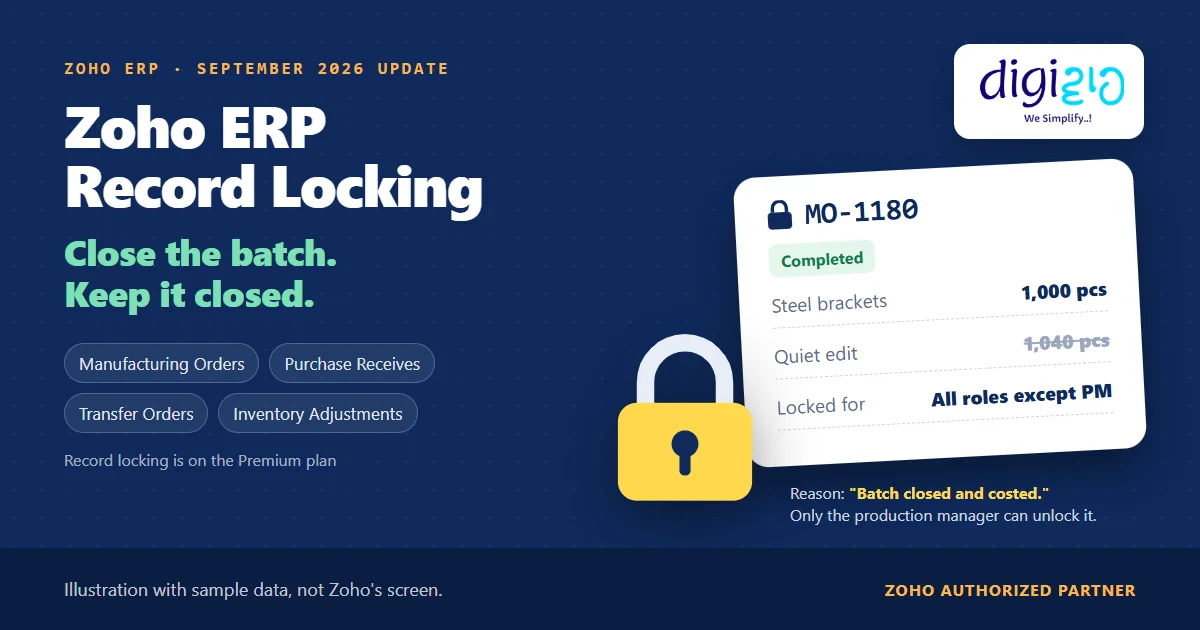
First, on Friday the production team completes MO-1180. Zoho ERP adds the brackets to stock and calculates the actual cost, which it does “only after the manufacturing order is completed.” So the supervisor locks the order with the reason “Batch closed and costed.” From then on, nobody except the production manager can change it.
Second, the store locks the coil’s purchase receive with a two-level configuration. Edit stays open, so the other fields remain editable. However, the Quantity Received and Tracking Number fields are restricted, and nobody can delete the receive or use Mark as In Transit on it.
Then, on Monday, an operator tries to “correct” the bracket count on MO-1180. The lock blocks the change. Instead of a silent edit, the operator has to ask the production manager, who can unlock the record, with a reason, if the change is genuine. As a result, the cost report the owner reads on Tuesday still matches what the floor recorded on Friday.
Not sure which records your plant should lock, and when? We map the point where each order, receive and transfer should stop changing, build the lock configurations and roles in Zoho ERP, and train your supervisors to lock and unlock with a reason.
How to unlock, pause or delete a lock
Zoho ERP gives you three ways out, and they behave very differently:
- Unlock one record. Users with sufficient permissions open the record, click the More icon, select Unlock, and enter the reason for unlocking. The record then opens up to everyone with edit permission in that module.
- Mark a configuration as inactive. Records you already locked “will remain locked even if you mark the configuration as inactive.” However, nobody can use that configuration for new locks until you mark it active again.
- Delete a configuration. Be careful here. Zoho warns: “If you delete a lock configuration, records locked using it will be unlocked, and users in your organisation can make changes to them.”
So, as a rule, mark old configurations inactive rather than deleting them. Deleting one quietly unlocks every record it protected.
Validation rules work in a similar way. You can edit a rule, mark it inactive, mark it active again, or delete it, all from the module’s Validation Rules tab in Settings.
From the implementation floor
The question we hear most after go-live is not “how do we lock?” but “when?” If you lock too early, supervisors unlock everything and the reason field fills with “correction”. If you lock too late, the cost report has already moved. In our setups, we tie each lock to one event the floor already knows, such as the MO marked Completed or the truck receipt signed, and we give exactly one role the right to unlock.
What Zoho has not documented about Zoho ERP record locking yet
The update is a few lines long. Based on Zoho ERP’s pages as of November 12, 2026, these points are still open:
- The new modules in the help. The Record Locking and Validation Rules help pages do not list Manufacturing Orders, Transfer Orders or Inventory Adjustments yet. Purchase Receives appear on the Validation Rules list, but not on the Record Locking list. The October additions (Packages, Shipments, Delivery Challans, Move Orders, Composite Items and Assemblies) are not on it either.
- “Material modules”. The October post names them but does not say which screens they are, or what a lock restricts there.
- Automatic locks. The help describes locking individual records by hand. It does not document a lock that applies by itself when an order reaches Completed.
- What a Manufacturing Order lock can restrict. The update names actions and fields only for Purchase Receives. For Manufacturing Orders, it gives no list.
- Field locks on transfers and adjustments. The update says “edit and delete actions” only, so don’t plan on locking single fields there.
- “Sufficient permissions”. Zoho does not say which role permission lets a user lock or unlock records.
- Validation fields. It does not list which Manufacturing Order fields you can use in a validation rule, or whether a rule runs on a status change.
None of these stop you from using the feature today. Rather, they are points to test in your own organisation before supervisors depend on them, which is the kind of work a Zoho ERP implementation partner should do first.
Related reading: Zoho ERP material consumption, Zoho ERP transfer order inspection, Zoho ERP batch tracking, and every change in the September 2026 update.
Frequently asked questions about Zoho ERP record locking
What is record locking in Zoho ERP?
It is a setting that protects a finished record from change. You create a lock configuration for a module, choosing which actions or fields to restrict and which roles are exempt. Then you lock each record with a reason. After that, only users with sufficient permissions can update it.
Can I lock a manufacturing order in Zoho ERP?
Yes, since the September 2026 update. Zoho ERP now supports record locking, validation rules and related lists in the Manufacturing Order module. The update does not list which order actions or fields a lock can restrict, so test your configuration on a sample order first.
What can I lock on a purchase receive?
Purchase Receives support locking at two levels. You can allow or restrict actions such as Edit, Delete, Mark as In Transit and Mark as Received. You can also lock individual fields such as Tracking Number and Quantity Received, as long as you leave the Edit action open.
Is Zoho ERP record locking on the Standard plan?
Zoho’s pricing page shows record locking on the Premium plan and not on Standard. Validation rules, related lists and transaction locking show on both Standard and Premium. Check the pricing page before you plan your setup, because plan contents can change.
Can Zoho ERP record locking protect delivery challans and shipments?
Yes, since the October 2026 update. Zoho says you can “Lock Delivery Challan records to prevent unwanted changes,” and that Packages and Shipments now support locking to control Edit and Delete actions. The Record Locking help page does not list these modules yet, so test a lock configuration on a sample record first.
What happens if I delete a lock configuration?
Every record locked with it gets unlocked, and users in your organisation can change those records again. If you only want to stop using a configuration, mark it as inactive instead. Records you already locked with an inactive configuration stay locked.
How is a validation rule different from a lock?
A validation rule acts when someone saves a transaction. If a field breaks your conditions, Zoho ERP shows your alert message and does not create the transaction. A lock acts later, on a record you have already finished, and restricts changes to it for everyone except the roles you allow.
Conclusion
In short, Zoho ERP record locking now reaches the records that matter most on a plant floor: the manufacturing order, the purchase receive, the transfer, the adjustment and, since October, the package, the shipment and the delivery challan. The setting itself is small. The real work is deciding when each record should stop changing, and who alone may reopen it.
So, one question for your next production review: which of your closed records can still be edited today?
Close the batch, and keep it closed
Digiwah, a Zoho Authorized Partner, sets up record locking, validation rules and roles across manufacturing orders, purchase receives and transfers in Zoho ERP, and trains your supervisors to use them.
Prefer to write? Tell us which records your team keeps editing.
