

Short answer Zoho ERP backorder handling now reaches production. Since the October 2026 update, you can create a purchase order directly from a Manufacturing Order to buy the components needed for back ordered quantities. Before this, Zoho ERP documented backorders only on sales orders, where Backorder Now puts the order on hold and creates a pre-filled purchase order.
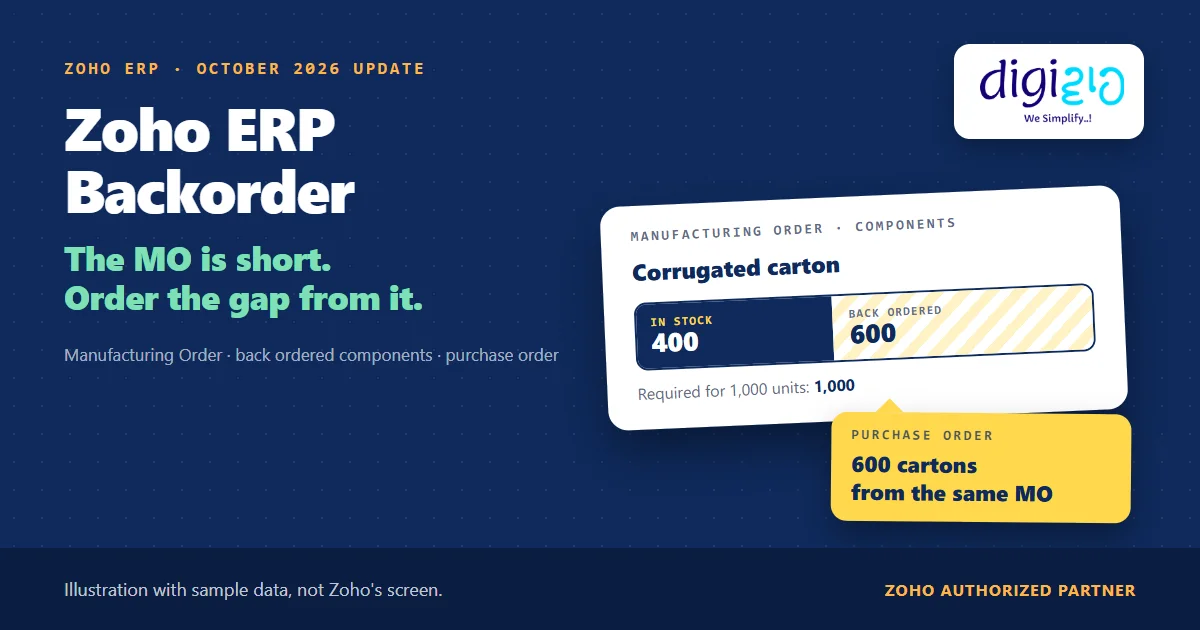
The Manufacturing Order needs 1,000 cartons. The store has 400. So someone has to order the other 600.
Until now, that someone usually left the MO, opened Purchases, and started a fresh purchase order from scratch. Zoho ERP’s October 2026 update lets the purchase order start where the shortfall shows up: on the Manufacturing Order itself.
Who this guide is for
This guide is for owners, production planners and purchase heads who run Manufacturing Orders in Zoho ERP. If your plant finds component shortages on the day production should start, it is for you. You will learn what a backorder means in Zoho ERP, how the sales order version works, what the new Manufacturing Order version adds, how to find the right quantity to order, and what Zoho has not documented yet.
- New in October 2026. You can “create a purchase order directly from a manufacturing order to procure the components required to fulfill back ordered quantities.”
- Sales orders had it first. On a sales order, Backorder Now puts the order On Hold and creates a back ordered purchase order “with pre-filled details.”
- The MO version is thinly documented. Zoho’s help pages do not yet show the button, the screen, or which fields fill themselves.
- The quantity comes from a report. The Component Requirements Summary shows “Deficit = Required Quantity − Available Stock” for each MO.
- Check what is already coming. Since September 2026, the MO component table shows the in-transit quantity, so you don’t order stock twice.
What is a Zoho ERP backorder?
Zoho ERP’s Backorders help defines it for sales: “A backorder is created when you commit to fulfilling a customer’s sales order but do not have sufficient stock available at the time of order confirmation.” In that case, it says, “you can create a purchase order directly from the sales order to procure the missing quantity from your vendor.”
In other words, a backorder is a promise you made before the stock existed, plus the purchase order that fills the gap. Zoho also sets a clear limit: “Backorders can be created only for items that are out of stock or have insufficient stock to fulfill the sales order.”
The October 2026 update applies the same idea to production. There, the promise is a Manufacturing Order, and the missing stock is a component, not a finished item.
How a Zoho ERP backorder works on a sales order
The sales order flow is fully documented, so it is the best guide to what Zoho means by a backorder. According to the Backorders help, it runs like this:
- An alert. If you are short of stock, an alert appears on the sales order’s details page.
- Backorder Now. You click Backorder Now, or select Backorder from the More icon, and pick the items to backorder.
- On Hold. “The sales order will be put on hold.” While it is on hold, “you cannot create packages or invoices from it.”
- A pre-filled PO. “A back ordered purchase order is automatically created with pre-filled details.” Zoho adds that “The item details will be auto-populated.”
- Close with a bill. You “Click Convert to Bill” to close the back ordered purchase order, and then “the associated sales order will be confirmed.”
Two more details help a purchase team. First, “You can also create a single back order for multiple sales orders at once.” Second, the Purchase Orders list has a Backorder filter and an Unbilled Backorders filter, so you can see which back ordered POs still wait for a bill.
What the October 2026 update adds to Zoho ERP backorder handling
The Zoho ERP product updates for October 2026 list it under Manufacturing Orders Updates as “Create Purchase Order From Manufacturing Order”. The full text is one sentence: “You can now create a purchase order directly from a manufacturing order to procure the components required to fulfill back ordered quantities.”
So the planner who sees the shortfall on the MO can raise the purchase order from the same record. The update gives no plan limit and no Early Access label for this item. However, it also gives no screen, button name or field list. Zoho’s Manufacturing Order Operations help still lists only Edit, View Journal, Activity Logs, Delete, Clone and Cancel.
| Question | Backorder from a sales order | PO from a Manufacturing Order |
|---|---|---|
| What is short | A finished item a customer ordered | A component the MO needs |
| Where you start | Backorder Now on the sales order | The Manufacturing Order (button not documented yet) |
| PO details | “pre-filled”, item details auto-populated | Not documented yet |
| Source order status | Sales order goes On Hold | Not documented yet |
| Help page | Backorders help | October 2026 update only |
How much should a Zoho ERP backorder PO be for?
Zoho’s update does not define “back ordered” for a Manufacturing Order. The closest documented number is the deficit. Zoho ERP’s Component Requirements Summary help uses “Deficit = Required Quantity − Available Stock”. A deficit greater than 0 “Indicates insufficient stock and that additional components are required.”
The required quantity comes from the BOM. As the Create Manufacturing Order help puts it, once you enter the Quantity to Produce, “the component quantities and operation time will be calculated.” So a wrong BOM gives a wrong deficit, and a wrong PO. For how quantities flow from a BOM, read our guide to BOM in ERP.
Before you order, also check what is already on the way. Since September 2026, the MO component table shows the in-transit quantity from purchase orders and transfer orders. Our guide to Zoho ERP component availability explains how to read the two numbers together.
How to raise a Zoho ERP backorder PO from a Manufacturing Order
The steps below follow Zoho ERP’s Manufacturing Order, report and purchase order help, plus the October 2026 update. Because the help pages do not show the new option yet, step 4 uses the update’s own words.
-
Create the MO at the right location
First, create the Manufacturing Order with the item, BOM, Quantity to Produce, Start Date and Location. Zoho calculates the component quantities from the BOM.
-
Find the Zoho ERP backorder quantity in the report
Next, open Reports, choose Manufacturing under Report Category, and select Component Requirements Summary. Note every component with a deficit greater than 0.
-
Subtract what is already in transit
Then look at the in-transit quantity in the MO’s component table. If stock is already coming on a PO or a transfer, order only the rest.
-
Create the Zoho ERP backorder PO from the MO
From the Manufacturing Order, create a purchase order for the short components. Zoho’s update says you can do this “directly from a manufacturing order”; the exact button name is not documented yet.
-
Check the vendor, quantity and Delivery Date
Before you save, check the Vendor Name, the quantity and the Delivery Date. Zoho has not said which of these fill themselves on an MO-created PO, so review every line.
-
Submit it for approval if your plant uses approvals
If Approvals is enabled for Purchase Orders, Zoho says “you need to submit the orders you create for approval.” The default approval type is No Approval.
-
Receive the stock before the MO goes In Progress
Finally, receive the components at the MO’s location. Zoho consumes components “once the status changes to In Progress”, so the stock must arrive before that step.
A worked example: 600 cartons for 1,000 fans
For example, take an assembly unit that makes table fans at its Plant location and packs each fan in one corrugated carton (sample data). The planner creates MO-00318 for 1,000 fans.
| Component | Required | Available at Plant | Deficit | In transit | Order now |
|---|---|---|---|---|---|
| Motor assembly | 1,000 | 1,000 | 0 | 0 | None |
| Corrugated carton | 1,000 | 400 | 600 | 0 | 600 |
The motors are covered, so the planner leaves them alone. The cartons, however, are 600 short, and nothing is in transit. So the planner raises PO-00744 for 600 cartons to the carton supplier from MO-00318, checks the quantity and Delivery Date, and saves it. As a result, the purchase team gets an order tied to a real production need, not a chat message that says the cartons ran out.
Then the MO waits until the store receives the 600 cartons at Plant, because Zoho consumes them when the MO moves to In Progress.
Do your MOs come up short on the day production starts? We set up BOMs, Manufacturing Orders and the Component Requirements Summary in Zoho ERP, and agree with your team who raises the PO when a component is short.
Sales order or Manufacturing Order: which Zoho ERP backorder fits?
The two flows answer different shortages. So here is how we explain the choice to plant teams:
| Situation | Use | Why |
|---|---|---|
| You trade the item and a customer ordered more than you hold | Backorder on the sales order | The shortage is a finished item you buy, not make |
| You make the item and a component is short | PO from the Manufacturing Order | The shortage is in the BOM, so it shows on the MO |
| The component is in another warehouse | Transfer order, not a PO | Zoho’s MO help names both fixes: a transfer order or a purchase order |
The last row matters. Zoho’s MO help warns that missing components make “the accounting stock for those items” negative, and says “you can either create a transfer order from another location or raise a purchase order to avail the stock.” So check your own warehouses first. For the purchase side, read our guide to purchase orders in ERP, and see how vendors can open a PO through a Zoho ERP purchase order link.
From the implementation floor
In most plants, the real gap is not the PO screen. It is the hand-off. The planner sees the shortage, sends a message, and purchase raises the PO two days later from memory. So before you switch this on, decide one thing: does the planner raise the PO from the MO, or only flag it for purchase? Both work. A plant that leaves it vague ends up with no PO or two.
What Zoho has not documented about the Zoho ERP backorder on MOs yet
The update is one sentence. Based on Zoho ERP’s pages as of November 12, 2026, these points are still open:
- The button and the screen. No help page shows where the create-PO option sits on the Manufacturing Order.
- What fills itself. On a sales order backorder, item details auto-populate. For an MO-created PO, Zoho has not said whether the vendor, item or quantity fill in.
- The MO’s status. A sales order goes On Hold during a backorder. Zoho has not said whether an MO changes status, waits for, or links back to the PO.
- Filters. Zoho has not said whether MO-created POs appear under the Backorder or Unbilled Backorders filters.
- Several components. Zoho has not said whether one PO can cover several short components, or several MOs.
- Plans. The update names no plan. So check the option in your own organisation before you plan around it.
None of these stop you from using the feature. Rather, they are the questions a Zoho ERP implementation partner should answer in a sandbox, with your own BOMs and vendors, before planners rely on it.
Related reading: Zoho ERP material consumption on the MO, Zoho ERP three way matching for bills, and every change in the October 2026 update.
Frequently asked questions about Zoho ERP backorder POs
Can I create a purchase order from a Manufacturing Order in Zoho ERP?
Yes. Zoho ERP’s October 2026 update says “You can now create a purchase order directly from a manufacturing order to procure the components required to fulfill back ordered quantities.” The help pages do not yet show the exact button or which fields fill in, so check the new option in your own organisation before you train the team on it.
What is a backorder in Zoho ERP?
Zoho ERP’s Backorders help says a backorder “is created when you commit to fulfilling a customer’s sales order but do not have sufficient stock available at the time of order confirmation.” You then create a purchase order from the sales order for the missing quantity. You can backorder only items that are out of stock or short.
What happens to a sales order when I backorder it?
Zoho ERP puts the sales order On Hold and creates a back ordered purchase order with pre-filled details. While the order is on hold, you cannot create packages or invoices from it. When you convert the purchase order to a bill, Zoho closes that purchase order and confirms the sales order.
How do I know how many components to order for an MO?
Run the Component Requirements Summary report under Reports, Manufacturing. Zoho calculates “Deficit = Required Quantity − Available Stock” for each Manufacturing Order. Then subtract any in-transit quantity shown in the MO’s component table, because that stock is already on a purchase order or a transfer order.
Does a PO raised from an MO need approval?
Zoho has not said whether MO-created purchase orders are treated differently. For the Purchase Orders module, approvals default to No Approval, and you can choose Simple, Multi-Level or Custom approval. If approvals are enabled, Zoho says “you need to submit the orders you create for approval.”
Is creating a PO from an MO limited to a Zoho ERP plan?
The October 2026 update gives no plan limit and no Early Access label for this item. It also does not name the plans that include it. So check the option in your own account, or ask your Zoho partner.
Conclusion
In short, the Zoho ERP backorder now has a production version. A sales order could already raise a pre-filled PO for missing stock. Since October 2026, a Manufacturing Order can raise a PO for missing components too. The feature is simple; the habit around it is the real work. Keep BOMs and stock accurate, read the deficit, check what is in transit, and only then order.
So, one question for your next production meeting: who raises the PO in your plant when an MO comes up short, the planner or purchase?
Order short components before the line stops
Digiwah, a Zoho Authorized Partner, sets up BOMs, Manufacturing Orders, purchase approvals and shortage reports in Zoho ERP, so your planners order the right quantity on time.
Prefer to write? Tell us how your plant handles component shortages today.
