

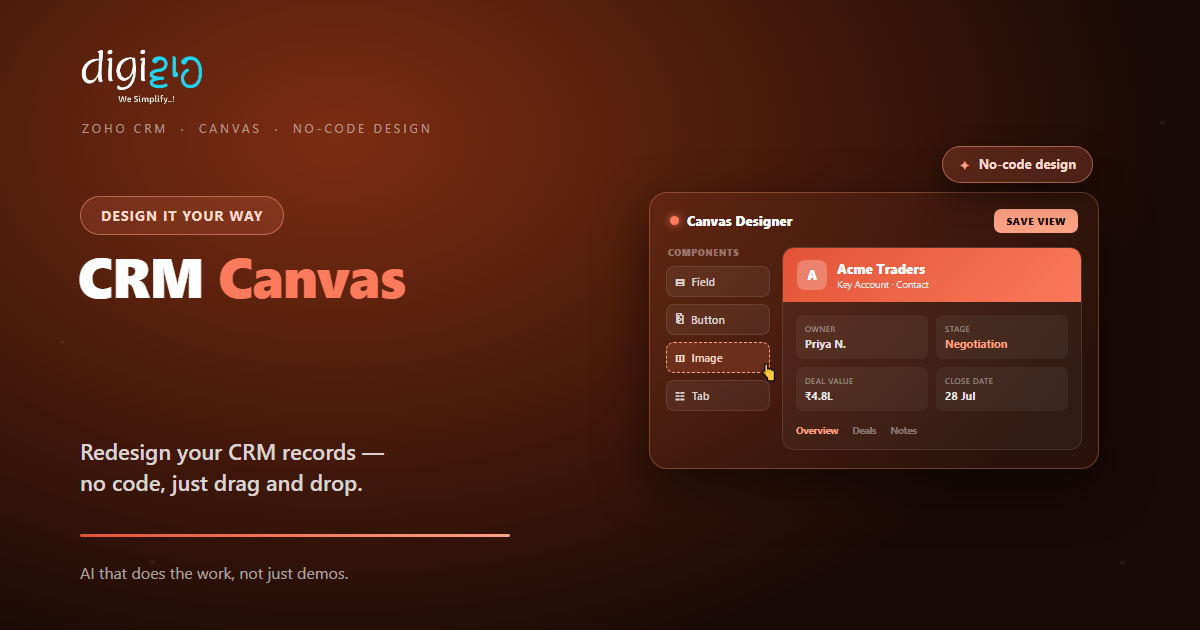
Zoho CRM Canvas: Redesign Your CRM Without Writing Code
Canvas is Zoho CRM’s no-code design studio — drag and drop to build record pages your team actually likes using.
Last Updated: June 25, 2026
Zoho CRM Canvas is a no-code design studio. In short, it lets you redesign how your CRM looks. So your team sees clean, useful pages, not a wall of fields. Plus, you do it all by drag and drop.
This matters because a cluttered CRM slows everyone down. After all, reps hunt for the one field that matters. But a good layout puts key details up front. In this guide, you will see what Canvas is, what you can design, and how to start.
Key Takeaways
- No-code design studio. Redesign CRM pages by simple drag and drop.
- Built for admins. No developer or coding skill is needed.
- Design pages and lists. Style record detail pages, list views, and forms.
- A view per team. Assign different layouts to different profiles.
- Free on paid plans. Canvas is included from Standard to Ultimate.
Table of Contents
What Is Zoho CRM Canvas?
Zoho CRM Canvas is the industry’s first no-code design studio for a CRM. In short, it lets you redesign your record pages without code. So anyone can build a clean layout by dragging fields into place. For example, you can put the deal value and stage right at the top.
It works on the data you already have. So Canvas changes how things look, not what they store. Then you can add tabs, related lists, images, and buttons. As a result, the page feels built for your team, not generic.
For Indian SMEs, the value is faster, cleaner work. After all, a busy rep should not scroll past 40 fields. But a Canvas view shows the few that matter first. So data entry speeds up and mistakes drop, all inside Zoho CRM.
Why a Clean CRM Layout Matters
Many teams blame the CRM when it feels clunky. But often the layout is the real problem. So a tidy design pays off fast.
First, a clear page helps reps find data in seconds. Second, it guides them to fill the right fields. So your data stays clean and complete. Plus, a branded, modern look makes the tool nicer to use.
What You Can Design With Canvas
Canvas shapes the parts of the CRM your team uses daily. So below are the main things you can design. Plus, each one stays fully no-code.
Record Detail Pages
First, redesign the full record page. Move key fields to the top and group the rest. So reps see what matters at a glance.
Custom List Views
Next, design how records look in a list. Build clear, card-style rows instead of plain tables. So scanning many records gets easier.
Clean Data-Entry Forms
Also, tidy up the create and edit screens. Show only the fields a rep needs to fill. So new records get added faster and cleaner.
Tabs & Related Lists
Meanwhile, organize details into neat tabs. Add related lists and style them to taste. So a long record stays easy to read.
Branding & Style
Plus, set colors, fonts, images, and buttons. Match the page to your brand and process. So the CRM looks like yours, not a template.
Mobile Views
Finally, design views for the iOS and Android apps. Build mobile-friendly layouts for on-the-go teams. So field staff get a clean screen too.
A Quick Note on Canvas vs Custom Widgets
People often mix up these two CRM tools. But the split is simple. So here is the quick truth.
Canvas redesigns how your existing CRM data looks. So it is no-code and all about layout and style. A custom widget is different. It uses code to embed new tools or outside data in the record.
This split helps you pick right. So use Canvas to reorganize and brand a page. Then use a custom widget when you need outside data or an action. As a result, the two work well side by side.
Canvas vs the Default Layout
The default CRM layout works, but it is one size fits all. So the table below shows what Canvas adds.
| Factor | Default Layout | Canvas View |
|---|---|---|
| Layout | Fixed for everyone | Designed to your process |
| Look | Plain field list | Branded, styled pages |
| Per team | Same view for all | Different views by profile |
| Build effort | Limited options | No-code drag and drop |
| Mobile | Generic mobile view | Custom mobile layouts |
So the takeaway is clear. The default is fine to start. But Canvas makes the CRM fit the way your team really works.
Is Canvas Right for You?
Canvas fits many teams. But not every case. So here is a quick, honest check.
It fits well when…
- Your reps find the CRM cluttered. So a cleaner layout saves daily time.
- Different teams need different views. As a result, profile-based designs help a lot.
- You are on a paid CRM plan. So Canvas is already included at no extra cost.
Think twice when…
- Your team is happy with the default page. Then you may not need a redesign yet.
- You need new data or actions, not just a new look. In that case, a custom widget fits better.
How to Design a Canvas View
You do not need a big project to start. Instead, redesign one record page first. So here is a clear path for an Indian SME.
-
1Open Canvas in CRM settings
First, go to the module’s settings and open Canvas. So you land in the no-code design studio. -
2Start from a template or blank
Next, pick a ready template or a blank page. So you have a base to build on in minutes. -
3Drag fields, sections, and tabs
Now drag the key fields to the top. Then group the rest into clear tabs and sections. -
4Style the page
Then set colors, fonts, images, and buttons. So the page matches your brand and reads well. -
5Assign and publish
Finally, assign the view to the right profiles and go live. A Zoho partner can help you design it well.
Redesign one record page this week. Your team will feel the difference the moment they open it.
Canvas in Action: A Quick Example
Numbers are useful. But a real story lands better. So here is how one firm cleaned up its CRM.
The sales team found the lead page a mess of fields. So reps scrolled past dozens of boxes to find the budget and stage. Then an admin redesigned it with Canvas. Now the key details, photos, and next step sit right at the top. Meanwhile, the rest is tucked into clean tabs. As a result, data entry got faster, and the CRM finally felt easy to use.
In short, Canvas did not change the data at all. Instead, it changed how the team saw it. So a simple redesign made the whole CRM click.
Frequently Asked Questions
What is Zoho CRM Canvas?
Canvas is a no-code design studio for Zoho CRM. In short, it lets you redesign record pages, list views, and forms by drag and drop. So you shape the CRM without code.
Do I need to know how to code to use Canvas?
No. Canvas is fully no-code. You design pages by dragging fields, sections, and components into place.
What can I redesign with Canvas?
You can redesign record detail pages, list views, and data-entry forms. You can also add tabs, related lists, images, and buttons, then style them.
Which Zoho CRM editions include Canvas?
Canvas is included by default in all paid editions, from Standard to Ultimate, at no extra cost. It is also available in Zoho CRM Plus and Zoho One.
Can I show different layouts to different teams?
Yes. You can assign different Canvas views to different profiles. So each team sees the layout that fits its work.
Does Canvas work on mobile?
Yes. Canvas now supports the iOS and Android apps. So you can design clean, mobile-friendly views for field teams.
Conclusion
In the end, Canvas turns a cluttered CRM into one your team enjoys. So if reps find the pages busy, it is worth a look. After all, you get clean record pages, branded styling, and a view per team. Plus, it pairs well with custom widgets and the rest of the Zoho suite.
First, pick one busy record page. Then open Canvas and move the key fields up. Next, style it, assign it, and publish. That way, your CRM finally fits the way your team works.
Think about your CRM’s busiest page. How many fields do your reps scroll past to find the one that matters?
Want your Zoho CRM redesigned with Canvas — clean record pages, branded styling, and a view for each team? Talk to a Zoho Authorized Partner.
