

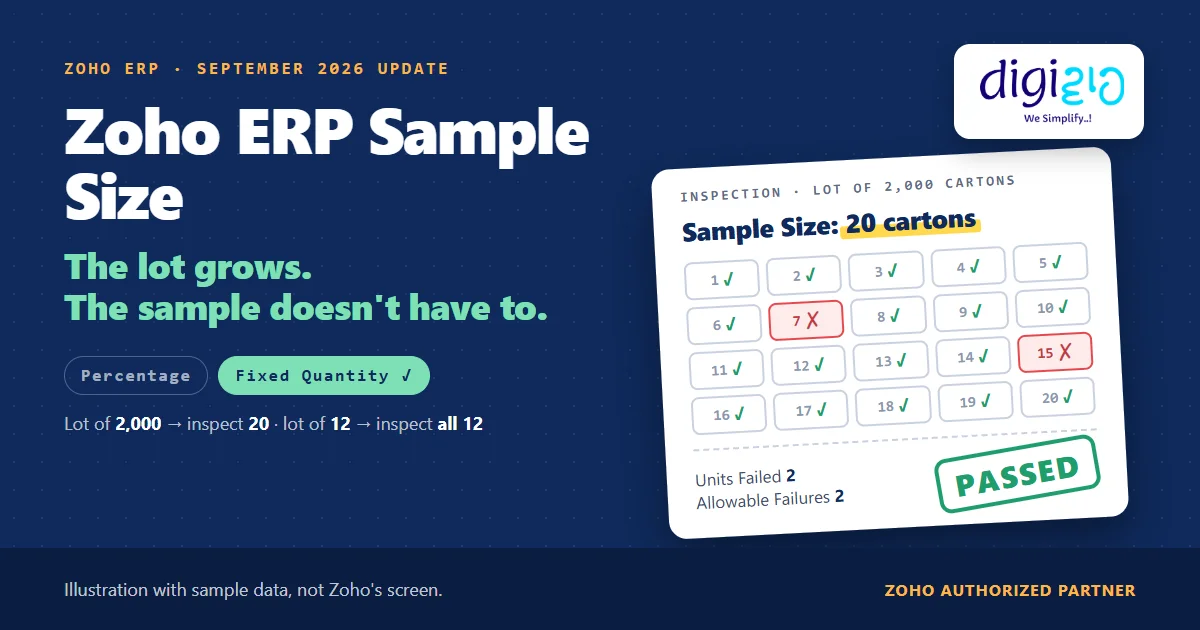
Short answer Zoho ERP sample size is how many units your QC team inspects from each lot under a Quality Rule. Since the September 2026 update, you can set Sample Size and Allowable Failures as a Percentage or a Fixed Quantity. With a fixed size of 20, Zoho ERP inspects 20 units from any lot of 20 or more, and the whole lot when it is smaller.
A plant sets its QC sample at 5% of the lot. A run of 200 cartons means 10 cartons to open. However, a run of 2,000 means 100, and the QC team still has one shift to do it.
That is the problem with a sample that grows with the lot. Zoho ERP’s September 2026 update gives you a second option: a fixed number.
Who this guide is for
This guide is for plant heads, QC managers and owners who run quality checks in Zoho ERP, or plan to. If your lots vary a lot in size, it is for you. You will learn what the sample size setting does, how Percentage and Fixed Quantity differ, how Zoho ERP handles a lot smaller than the sample, how Allowable Failures decide pass or fail, and what Zoho has not documented yet.
- Two ways to set it. Since September 2026, Sample Size and Allowable Failures can each be a Percentage or a Fixed Quantity in Zoho ERP.
- Where depends on the mode. In Simple mode you set them in the Quality Rule. In Advanced mode you set them in the Quality Template, and the rule uses the template’s values.
- A fixed size stays fixed. If the lot is equal to or bigger than the sample size, Zoho ERP inspects exactly that many units.
- Small lots get a full check. If the lot is smaller than the sample size, Zoho ERP inspects the entire quantity.
- Failures decide the result. An inspection passes when Units Failed is at or below Allowable Failures, and fails when it goes above.
- What is the Zoho ERP sample size?
- Percentage or Fixed Quantity?
- How a fixed sample size works on big and small lots
- How Allowable Failures decide pass or fail
- How to set a fixed sample size, step by step
- A worked example: 20 cartons from every lot
- What Zoho has not documented yet
- Frequently asked questions
What is the Zoho ERP sample size?
In Zoho ERP, a Quality Rule decides when an inspection happens and how big it is. The Quality Rules help says: “Each Quality Rule specifies the item, transaction type, sample rate, allowed failures, and inspection guidance.” Once you mark a rule active, it triggers inspections automatically.
According to the Quality Inspections help, “Inspections are automatically triggered after job cards are completed for Manufacturing Orders or once items are received through Purchase Receives.” The September 2026 update also adds Transfer Receive as a transaction type for quality rules. So the sample size applies to the quantity on that transaction.
Two settings shape every inspection. The sample size is how many units the inspector checks. Allowable Failures is how many of those units may fail before the inspection fails. In addition, note the names: the September update calls them Sample Size and Allowable Failures, while the older help pages still say Sample Rate and Allowed Failures.
For the full inspection flow, from rules to worklists, read our Zoho ERP quality inspection guide. This article stays on one question: how many units to check.
Percentage or Fixed Quantity: which Zoho ERP sample size should you use?
The Zoho ERP product updates for September 2026 put it in one line: “You can configure Sample Size and Allowable Failures as Percentage or Fixed Quantity.” Percentage is still there. Fixed Quantity sits alongside it.
The difference shows up when lot sizes swing. For example, here is a 5% sample against a fixed sample of 20 cartons on two lots (our arithmetic, sample data):
| Lot size | Percentage: 5% | Fixed Quantity: 20 |
|---|---|---|
| 2,000 cartons | 100 cartons to inspect | 20 cartons to inspect |
| 200 cartons | 10 cartons to inspect | 20 cartons to inspect |
| What drives the workload | The size of the lot | The number you set |
In short, a percentage keeps the share of the lot steady, so the inspection load rises and falls with production. A fixed quantity keeps the load steady, so the share of the lot changes instead. Neither one is right for every item. Rather, the choice depends on how much your lot sizes vary and how many units your QC team can actually check in a shift.
How does a fixed Zoho ERP sample size work on big and small lots?
Zoho’s update gives a precise rule: “For Fixed Quantity, the system inspects the configured sample size when the transaction quantity is equal to or greater than that value. If the transaction quantity is lower, the entire transaction quantity is inspected.”
So a fixed size of 20 behaves in two ways:
- Lot of 20 or more. Zoho ERP inspects 20 units, whether the lot is 20, 200 or 2,000.
- Lot under 20. Zoho ERP inspects every unit in the lot. For example, a trial run of 12 cartons gets all 12 checked.
As a result, short runs and trial batches never get a sample bigger than the batch itself. That is a sensible default, because a lot of 12 cannot give you 20 cartons to open.
How do Allowable Failures decide pass or fail?
The inspector enters the result in Simple mode: “Enter the failed quantity under Units Failed.” Zoho ERP then fills the Passed Quantity. After that, the system compares the two numbers. The Quality Inspections help states the rule:
- “If units of Failed Quantity is less than or equal to the units mentioned in Allowed Failures, the item will pass the Quality Inspection.”
- “If units of Failed Quantity exceed the units mentioned in Allowed Failures, the item will fail the Quality Inspection.”
Allowable Failures also has a ceiling. The update says it is “calculated based on the Sample Size and cannot exceed the Sample Size.” And if you leave the field empty, the help page warns that “even a single failed product will fail the quality inspection.”
| Sample inspected | Allowable Failures | Units Failed | Inspection result |
|---|---|---|---|
| 20 cartons | 2 | 0, 1 or 2 | Passed |
| 20 cartons | 2 | 3 or more | Failed |
| 20 cartons | Left empty | 1 or more | Failed |
Note what fails here: the inspection. The update changes how many units you check and how many may fail. It does not describe a new action on the lot itself. And if the inspector keyed in the wrong Units Failed, an Admin or Quality Manager can re-evaluate the inspection: the Passed or Failed record goes back to In Progress, with a reason on record.
How to set a fixed Zoho ERP sample size, step by step
The steps below follow the update note and the Quality Rules and Quality Templates help. Zoho does not show the new dropdown on screen yet, so the labels are the ones in the update.
-
Check which quality mode you use
First, find out whether your organisation runs Simple mode or Advanced mode. In Simple mode the numbers live in the Quality Rule. In Advanced mode they live in the Quality Template, which “is available only in Advanced View workflow of the Quality Module.”
-
Open a new rule or template
Next, go to Quality > Quality Rules in Simple mode, or Quality > Quality Templates in Advanced mode, and click + New. Pick the item and the transaction type on the rule.
-
Choose Fixed Quantity for the Zoho ERP sample size
Then, in the sample size and allowable failures dropdown, select Fixed Quantity and enter the number of units, for example 20.
-
Set Allowable Failures on purpose
Enter how many of those units may fail, for example 2. Keep it well below the sample size, and leave it empty only when you want zero tolerance.
-
Activate the rule and test a short lot
Finally, mark the rule active. Before you rely on it, run one normal lot and one lot smaller than the sample size, and check the inspection Zoho ERP creates for each.
One catch in Advanced mode: “You cannot edit a Quality Template if it is associated with a Quality Rule.” So, to change the numbers on a template that is already in use, clone it, edit the clone, and assign the new template in the rule. The Quality Rules help describes that last step: “edit the existing rule and assign a new template.”
Worked example: one Zoho ERP sample size for three lots
For example, take a plant that packs finished goods in cartons (sample data). Its Quality Rule for the item uses the Manufacturing Order as the transaction type, Sample Size as a Fixed Quantity of 20 cartons, and Allowable Failures as a Fixed Quantity of 2. The inspector checks each sampled carton for seal, label and print, which are the plant’s own checks.
| Manufacturing Order | Lot quantity | Cartons inspected | Why |
|---|---|---|---|
| Regular run | 2,000 cartons | 20 | Lot is at least the sample size |
| Small run | 200 cartons | 20 | Lot is at least the sample size |
| Trial run | 12 cartons | All 12 | Lot is below the sample size, so the entire quantity is inspected |
Cartons to open on a 2,000-carton run: 5% of the lot against a fixed 20
Our arithmetic · sample data
Failed cartons the inspection can absorb and still pass; a third failure fails it
Allowable Failures 2 · sample data
On the regular run, the inspector opens 20 cartons and finds 2 with a smudged print. Units Failed is 2, which equals the Allowable Failures, so the inspection passes. On the next run, 3 cartons fail, so the inspection fails.
Meanwhile, the QC team’s workload stays the same on the 2,000-carton day and on the 200-carton day. With a 5% rule, the same team would have opened 100 cartons on the big day and 10 on the small one.
How many units does your QC team open per lot, and why that number? We set up Quality Rules, templates, sample sizes and Allowable Failures in Zoho ERP item by item, and test them on short lots before your floor depends on them.
From the implementation floor
Sample sizes are rarely a software question. So we start with a floor question instead: how many units can one inspector really check in a shift? Then we set the fixed number from that. We also write the reason into the rule’s Inspection Guide field, for example “20 cartons: seal, label, print”. Then, when an auditor or a new QC executive asks why 20, the answer sits next to the number.
What Zoho has not documented about Zoho ERP sample size yet
The update is one short section. Based on Zoho ERP’s pages as of October 29, 2026, these points are still open:
- Percentage rounding. Zoho does not say how it rounds a percentage sample on an odd lot, for instance 5% of 12. So test your own lot sizes before you trust a percentage rule.
- Allowable Failures on a short lot. The update says a lot below the sample size is inspected in full, but not how Allowable Failures apply to it. It adds only this: “If Allowable Failures are capped to the Sample Size, the inspection will not fail based on the allowable failures check.” Test a short lot before you rely on it.
- Old wording in the help pages. The Quality Rules and Quality Templates help still say “Sample Rate” and “rate of failures”, and show no Percentage or Fixed Quantity dropdown.
- No sampling tables. None of Zoho ERP’s quality pages describe sampling tables, or a sample that tightens after repeated failures. You set one number per rule.
- One rule per item and transaction type. The help says “Under one Transaction Type, only one rule can be created for a single item.” So an item gets one sample setting on its Manufacturing Orders and one on its Purchase Receives.
None of this stops you from switching to Fixed Quantity today. Rather, it is the kind of testing a Zoho ERP implementation partner should do with your real lot sizes first.
Related reading: Zoho ERP quality inspection, every change in the September 2026 update, Zoho ERP material consumption, and purchase orders in ERP.
Frequently asked questions about Zoho ERP sample size
Can I set a fixed sample size in Zoho ERP?
Yes, since the September 2026 update. You can configure Sample Size and Allowable Failures “as Percentage or Fixed Quantity.” In Simple mode you set them in the Quality Rule, and in Advanced mode in the Quality Template. Select Fixed Quantity from the dropdown and enter the number of units to inspect.
What happens when the lot is smaller than the sample size?
Zoho ERP inspects the whole lot. The update says: “If the transaction quantity is lower, the entire transaction quantity is inspected.” For example, with a fixed sample of 20, a trial run of 12 cartons gets all 12 inspected. Zoho does not yet document how Allowable Failures apply to such a short lot.
Where do I set the Zoho ERP sample size in Advanced mode?
In the Quality Template. Zoho’s update says “In Advanced mode, set them in the Quality Template. Associated Quality Rules use the values from the template.” Quality Templates exist only in Advanced mode. You also cannot edit a template once a Quality Rule uses it, so clone it and assign the new one instead.
When does a Zoho ERP quality inspection pass or fail?
It depends on Units Failed against Allowable Failures. If the failed units are less than or equal to the Allowable Failures, the inspection passes. If they exceed it, the inspection fails. If you leave Allowable Failures empty, even a single failed unit fails the inspection.
Can Allowable Failures be higher than the sample size?
No. Zoho’s update says Allowable Failures “are calculated based on the Sample Size and cannot exceed the Sample Size.” It also notes that if Allowable Failures are capped to the Sample Size, the allowable failures check will not fail the inspection. So keep Allowable Failures well below your sample size.
Is the Fixed Quantity option on every Zoho ERP plan?
Zoho’s update names no plan and no Early Access condition for Fixed Quantity sampling. If you already run Quality Rules, look for Fixed Quantity in the sample size and allowable failures dropdown of a new rule, or of a new template in Advanced mode.
Conclusion
In short, the Zoho ERP sample size no longer has to grow with every lot. You can keep a percentage where it fits, or set a fixed number your QC team can actually check, with a clear limit on failures. Small lots still get a full check. The setting takes a minute; choosing the right number for each item takes more thought.
So, one question for your next QC review: how does your team decide how many units to open?
Set a sample your QC team can keep
Digiwah, a Zoho Authorized Partner, sets up Quality Rules, templates, sample sizes and Allowable Failures in Zoho ERP for each item, and trains your QC team to run the inspections.
Prefer to write? Tell us how your QC team samples today.
